

GStreamer can be very complex/elaborate, even to set up one video stream. Many of the Quality of Life features like multiple streams and live recordings are much simpler and come with a user interface on Discovery
Check dweOS 2.0
After following the dweOS 2.0 setup, continue to next steps.
Note down the port(s) being streamed to.
Install GStreamer
- For Linux
- For Windows
Within the terminal, run:Then run the following to install GStreamer:
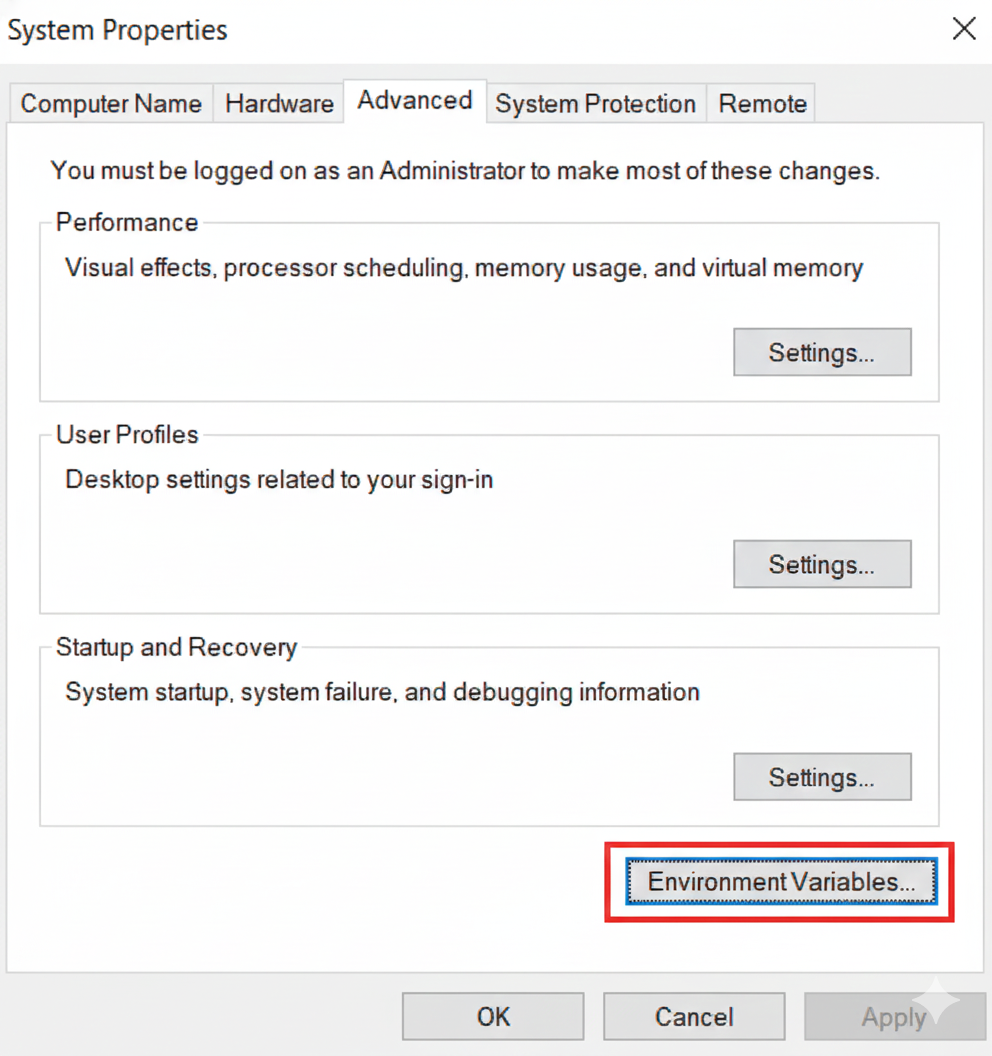
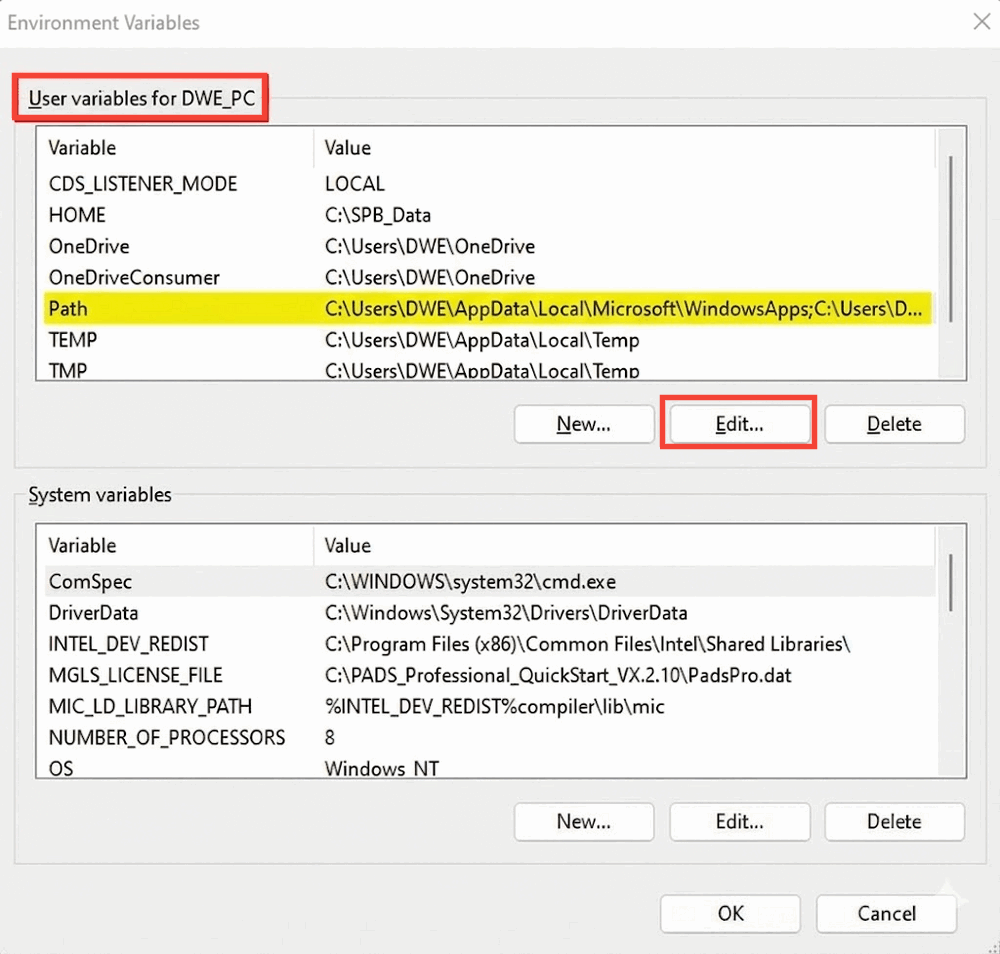
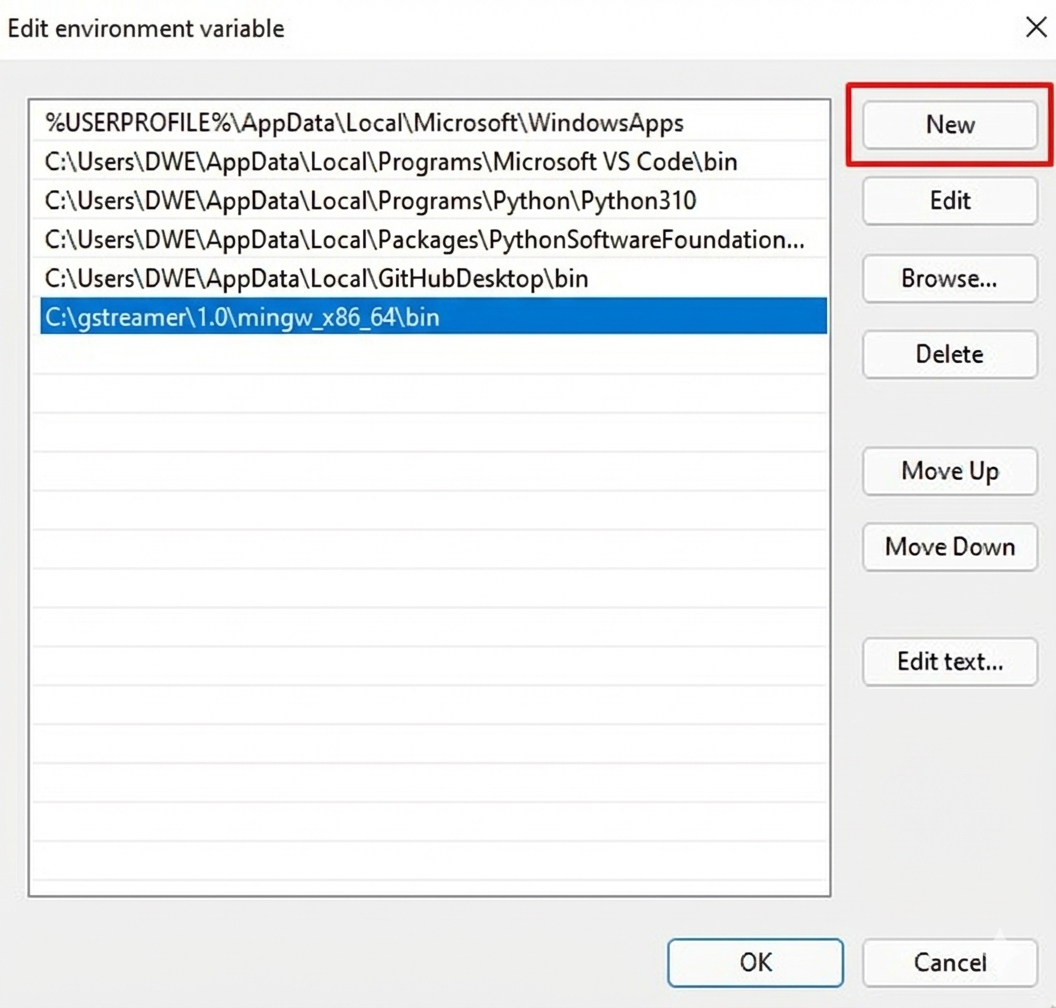
Identify Variables for GStreamer Command Line
In order to link up connected devices video streams, you will first configure dweOS.
First identify your laptop / desktop IP address, which we will be populating into the dweOS software.This can be done by running the following:You will be met with many addresses, look through them, specifically addresses following the text:
inet.
You will want to replace the collected IP in dweOS under IP address, and take note of the port you are streaming to. (Default 5600)In this example the collected IP is 192.168.5.55, and the port is 5600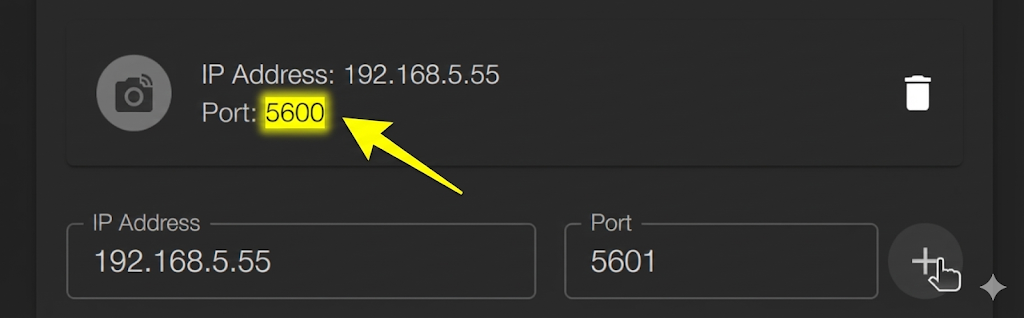
The Port field being set to 5601 is automatic with the program, the only endpoint being streamed to have the camera icon next to them and a trash button to delete them.
The format of GStreamer is as follows:
With the port in mind, there are a few parameters for the GStreamer command to be aware of.Vital Flags:
-v(Verbose): Prints stream info so you can see what resolution.format is being negotiated between elements.-e(EOS - End of Stream): Crucial for recording. If you press Ctrl+C without this flag, your file might be corrupted (missing headers). This flag forces a clean shutdown.--help-all: Lists every single element available on your system.
-
videotestsrc: Generates a test pattern (color bars, static, etc.). -
Param:
pattern=smpte(orsnow,ball, etc.) -
autovideosrc/v4l2src: Your webcam (Linux). -
Param:
device=/dev/video0 -
filesrc: Reads a local file. -
Param:
location=./video.mp4 -
udpsrc: Receives data over the network via UDP.- Param:
port=5600(The port to listen on). - Param:
caps="..."(Essential! Tells GStreamer what the raw bytes actually are). - Param:
buffer-size=524288(Increases buffer to prevent packet loss on high-res streams).- Standard buffer sizes for H264 is
96and MJPEG is26
- Standard buffer sizes for H264 is
- Param:
-
autovideosink: Opens a window and plays the video. -
fakesink: Discards data (useful for testing if a pipeline runs without errors). -
filesink: Writes to a file. -
Param:
location=output.mp4 -
udpsink: Streams over the network.
-
videoconvert: Converts colorspaces (e.g., from YUV to RGB). If you get a “could not link” error, throw this in the middle. -
videoscale: Resizes video. -
capsfilter: Forces a specific format. Syntax:video/x-raw,width=1920,height=1080. -
rtp[format]depay: Depayloader. unwraps RTP network packets to reveal the stream inside.- Examples:
rtpjpegdepay(for MJPEG),rtph264depay(for H.264).
- Examples:
-
[format]dec: Decoder. Decompresses video into raw pixels for display.- Examples:
jpegdec,avdec_h264.
- Examples:
Here are a couple example lines to test your GStreamer:Test PatternWebcam Display (If available)Webcam Force 720p 30fpsRecord Webcam
For higher resolutions, the video output is usually compressed MJPEG.
image/jpeg accept the compressed format from the camera.jpegdec adds a decoder to turn that JPEG stream back into Raw Video so the window can display it.This will record in the background, to finish the clip, press
Ctrl + C, and it will be in the directory currently.In this case the file is named test.mp4, which we can check for existence with ls -lh test.mp4Setting up streaming from dweOS
With an understanding of GStreamer commands, we can begin setting up the video stream specficially with dweOS.Depending on the video codec (MJPEC / H264) specified in dweOS, run either of the following:MJPEGH264You should now have a live stream from you camera in a window!
Setting up recording
To record a stream, once again the video codec matters!You will know a stream is being recorded should your terminal contain text similar to this: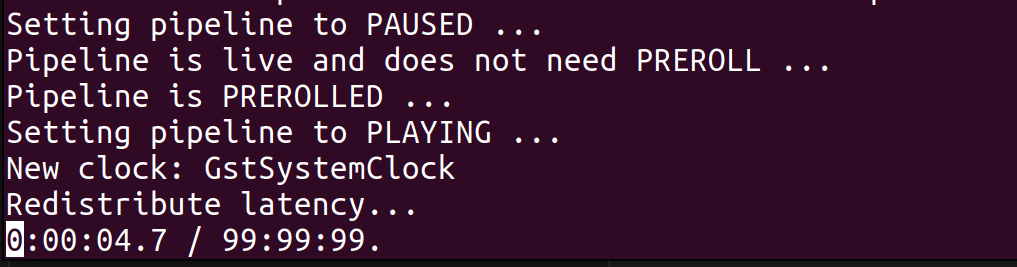
The line above is for an MKV format, as AVI is incredibly finicky with GStreamer and requires the output data to be formatted very specifically. While possible, MJPEG to AVI is much simpler in Discovery, as it is the default output.
Download Discovery
The all-in-one multimedia solution for subsea network video streams.