Overview

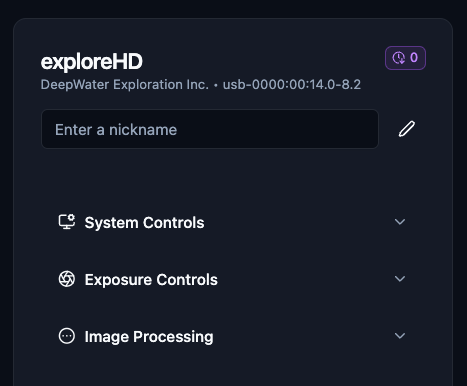
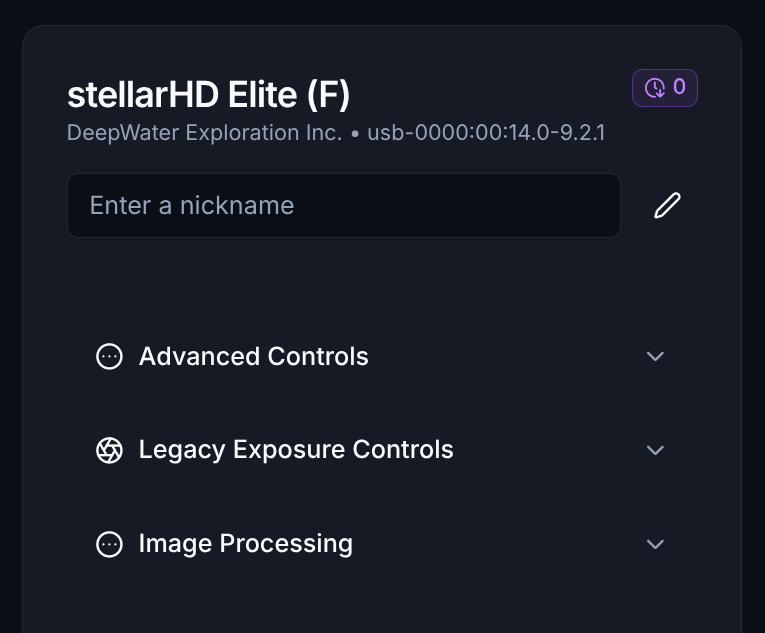
Accessing a camera’s controls can be done through the dropdown toggle at the bottom of a camera card.
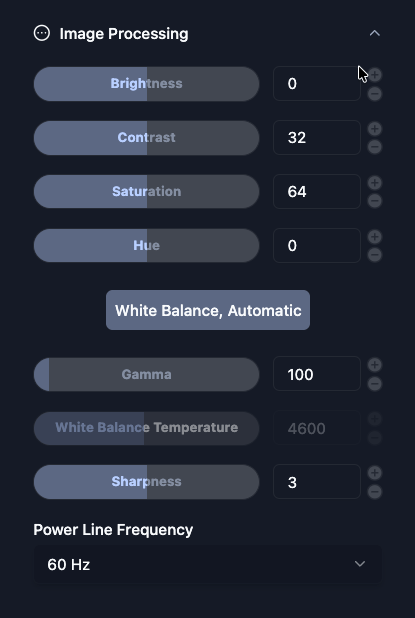
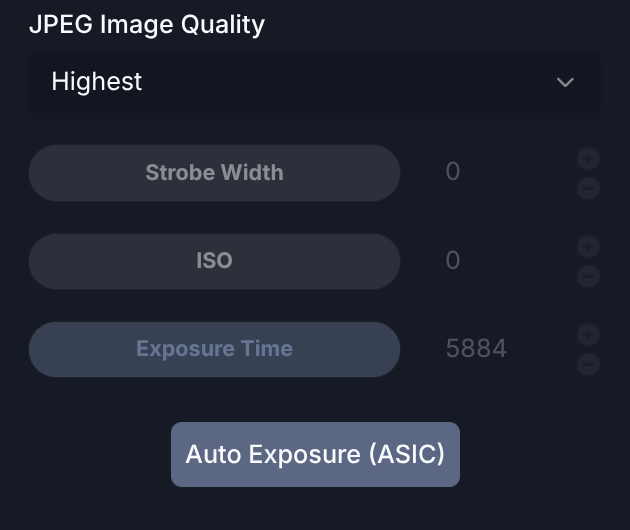
Each camera card has its own Camera Controls from which you can adjust the camera parameters to better suit your use cases. Below is an example of our exploreHD camera controls.
Reset Controls

You can quickly revert all parameters to their factory defaults at any time by clicking the RESET CONTROLS button at the bottom of the camera controls panel.
Below is a general overview of what each parameter controls and what tweaking the values would change.

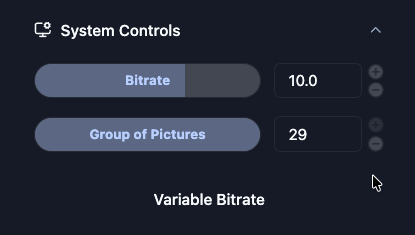
Encoding Settings

Bitrate

Determines the amount of data processed per second of video. Higher values yield better video quality but consume more network bandwidth.

Group of Pictures

Sets the interval between keyframes (I-frames) in the video stream. A higher value improves compression efficiency, while a lower value can reduce latency and improve stream stability over weak connections.

Variable Bitrate

When enabled, the stream’s bitrate will dynamically adjust based on the visual complexity of the scene (VBR), saving bandwidth during static shots rather than pushing a constant bitrate (CBR). In practice, it will use a bitrate between 10mbps and 70mbps.

Image & Color Adjustments

Brightness

Adjusts the overall lightness or darkness of the video feed.

Contrast

Modifies the difference between the lightest and darkest areas of the image.

Saturation

Controls the intensity and vividness of the colors.

Hue

Shifts the overall color phase (tint) of the video.

Auto White-Balance / AI TrueColor Technology™

Toggles our proprietary auto white-balance algorithm designed to optimize color accuracy and clarity for underwater.

Gamma

Adjusts the brightness of the mid-tones in the video without severely affecting the extreme shadows or bright highlights.

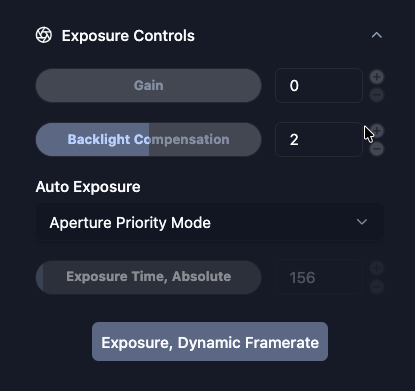
Gain

Artificially amplifies the video signal to increase brightness in low-light scenarios.
Increasing Gain too much can introduce digital noise or “grain” into your video feed.

Sharpness

Enhances edge detail to make the image appear crisper and more defined.

Exposure & Lighting

Power Line Frequency

Prevents video flickering caused by artificial lights. You should set this to match your local region’s electrical grid frequency (e.g., 60 Hz for North America, 50 Hz for Europe/Asia).

White Balance Temperature

Adjusts the color temperature of the camera. Lower values produce cooler (bluer) tones, while higher values produce warmer (oranger) tones.

Backlight Compensation

Adjusts the exposure to properly illuminate darker subjects that are positioned against a bright background, preventing them from appearing as silhouettes.

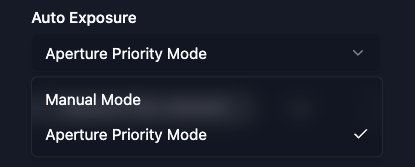
Auto Exposure

When enabled, the camera automatically calculates and adjusts its exposure settings based on the surrounding ambient light.

Exposure Time, Absolute

Allows you to manually dictate the specific duration the sensor is exposed to light per frame.

You generally need to toggle Auto Exposure off for manual absolute exposure times to take full effect.

Exposure, Dynamic Framerate

When toggled on, this allows the camera to automatically lower its framerate in dark environments. This increases the exposure time per frame, resulting in a brighter image at the cost of video smoothness.