Overview
When connected to an SVC Pro, DeepWater Desktop can instruct the device to record footage while streaming video. This process is useful to enable post-processing of your files later. The files can be downloaded directly from your SVC Pro.Requirements
- SVC Pro Module
- Topside Computer/Laptop - Running DeepWater Desktop
How to record on DeepWater Desktop
1
Start a stream
Make sure you have a stream started before attempting to record. Check out our quickstart guide, if you haven’t done so already.
2
Start the recording
To start a recording, click the recording icon on the top, where the add stream button appeared.
The record button, indicated with a pointer.
3
End Recording
After you have recorded a sufficient amount of footage, you can click the square stop button to finalize the recording.
The record button will turn into a square, and the recording file size is displayed when recording.
4
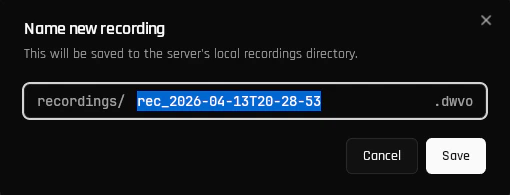
Name the recording
After ending the recording, you will be prompted to name your file. This file will be saved to your SVC Pro.