

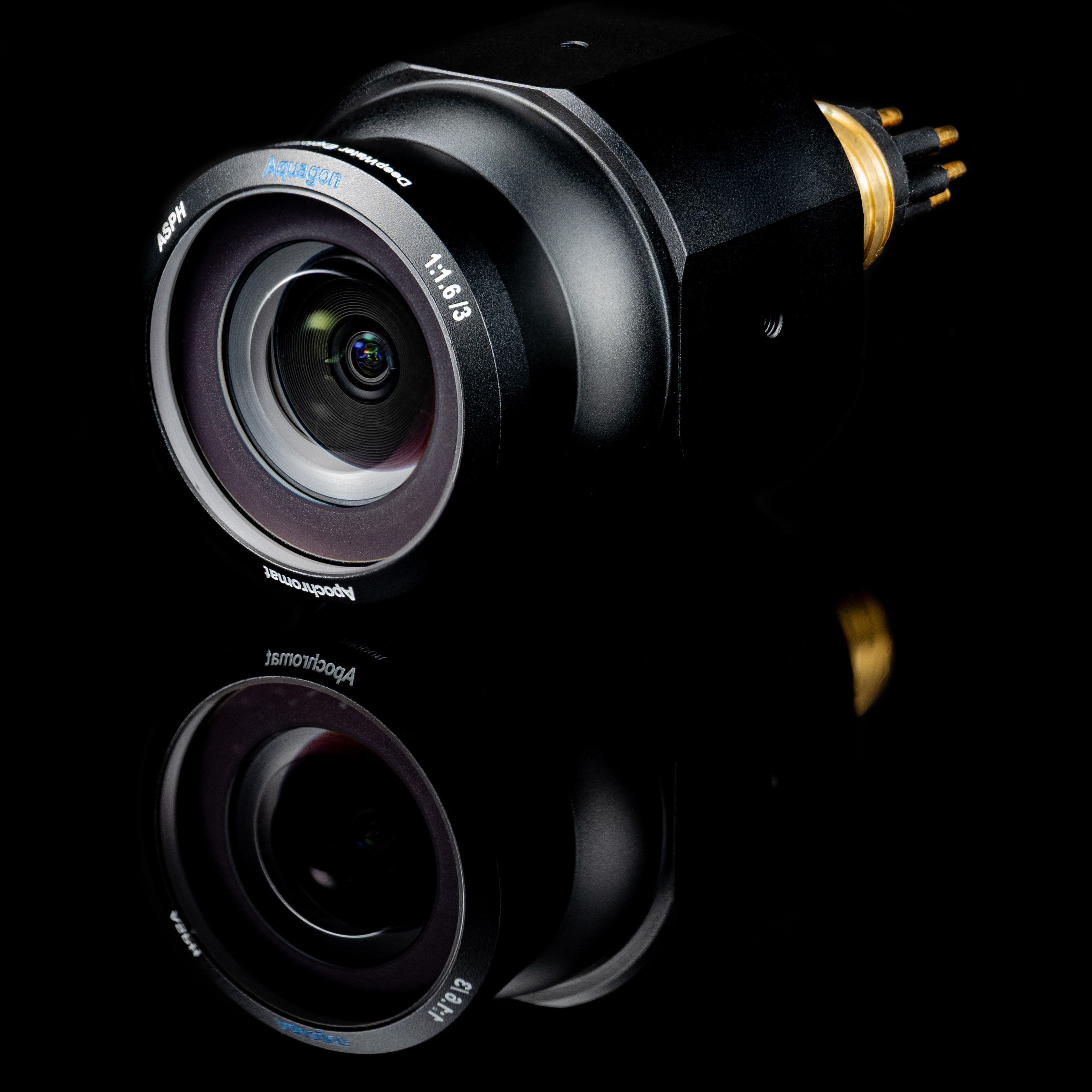
Quick Start Guide
Connect your stellarHD and get an image.
Download Datasheet
Technical Information for the stellarHD Pro.
Physical Specifications
*To request a cable with your camera, contact sales@dwe.ai.
Lens Specifications
Image Sensor Specifications


Image Compression Specifications
Supported Resolutions and Framerates
Frame-Sync Specifications
Leader-Follower Notes
Connect two cameras and configure your camera at any resolution, but only at 60 FPS framerate.Follower-Only Signal Specification
Synchronization Guide
Guide to synchronizing multiple stellarHD cameras.
Software Requirements
Zero Software Required
Because it is fully UVC compliant, it requires absolutely no proprietary drivers, external software, or libraries for retrieving images.While we provide helpful optional utilities like our Camera Tester and dweOS, these are strictly optional. You can plug the camera into your system and immediately view the feed using standard built-in camera applications (like Windows Camera, OBS, etc).
Electrical Specifications
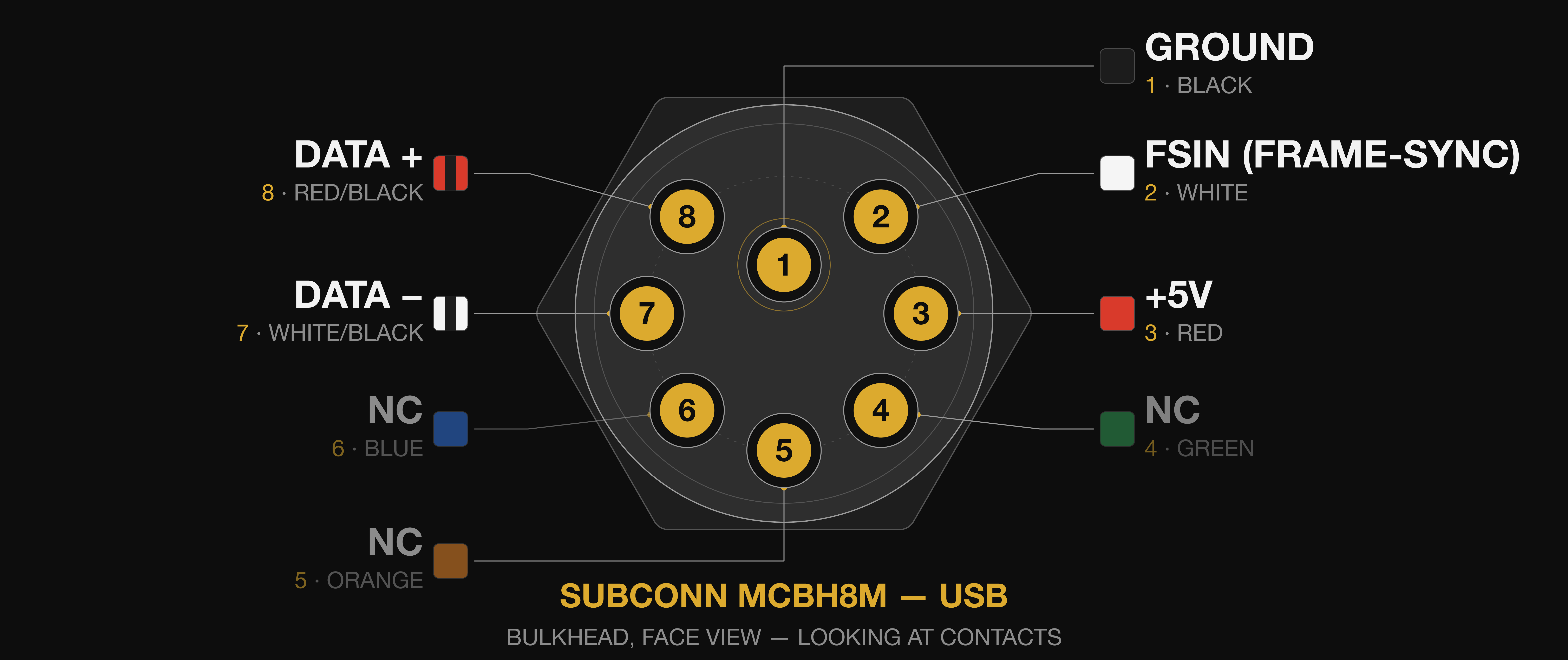
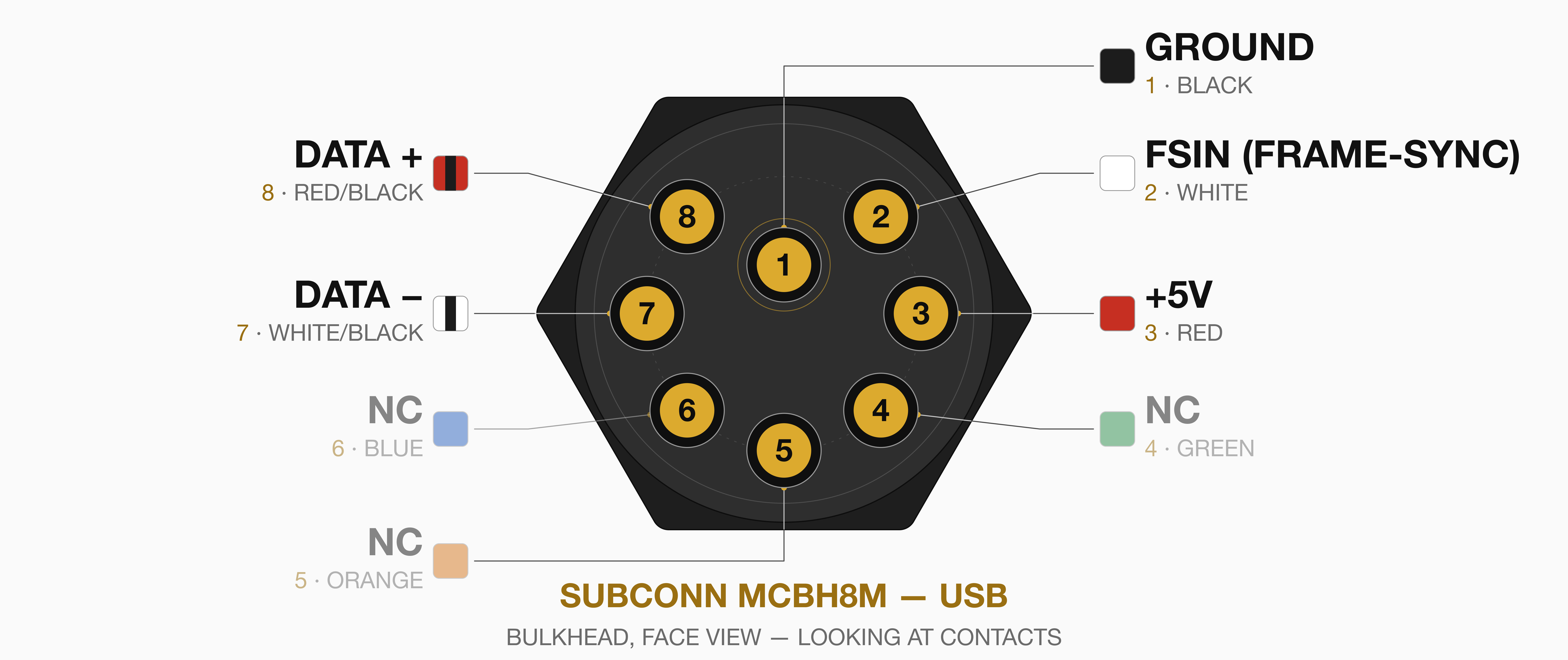
Connector Pinout
- SubConn MCBH8M
Cable Construction
SubConn cabling: You can purchase custom USB cabling for SubConn models from us. Contact sales@dwe.ai.You can also use an equivalent cable that meets the USB 2.0 cable requirements above: a 28 AWG twisted data pair with 90 Ω ± 15% differential impedance, and 24 AWG power conductors.For a ready-made subsea option, MacArtney recommends its Type 9040CC data cable or similar. It has 4 screened 24 AWG twisted pairs with a nominal impedance of approximately 104 Ω, and is rated to 6,000 m.
CAD Files
- SubConn MCBH8M
- Mounting Bracket
STEP File
stellarHD Pro STEP File
Technical Drawing
stellarHD Pro Technical Drawing
Updating Firmware
Guide
Follow this simple guide to updating firmware.
NDAA Section 889 Compliance
This product is fully compliant with Section 889 of the National Defense Authorization Act (NDAA). We do not utilize any covered telecommunications equipment, video surveillance equipment, or services from prohibited entities (including Huawei, ZTE, Hytera, Hikvision, Dahua, or their affiliates). This product contains compliant core processing components and zero proprietary firmware, ensuring a secure hardware profile free of restricted data pathways.
CE (Conformité Européenne)
This product is CE certified, indicating conformance with relevant European Union directives and regulations regarding health, safety, and environmental protection. This certification validates that the product meets the high standards required for sale within the European Economic Area.
Troubleshooting
Check the Wiring
Check the Wiring
Ensure that the wire colors match their respective functions when connected to the JST connector. Even a single crossed wire will prevent the camera from being recognized.
Twist the Data Wires (Required)
Twist the Data Wires (Required)
Twist the White (D-) and Yellow/Green (D+) wires together along their length, as shown in Preparing the JST Cable Connection. The camera uses a USB 2.0 High-Speed connection, which needs a twisted data pair to reject interference. Without it, the signal may be too weak for your computer to recognize the camera.
Check the Connections and Power
Check the Connections and Power
Make sure the wires are seated securely in the JST connector.Make sure the JST is pushed all the way into the USB adapter, and the adapter is securely plugged into your USB port.The camera can draw 200–320mA at 5V, depending on the model. Try plugging the adapter directly into your computer, rather than a low-power USB hub, to ensure it is getting sufficient current.
Check That Your Computer Detects the Camera
Check That Your Computer Detects the Camera
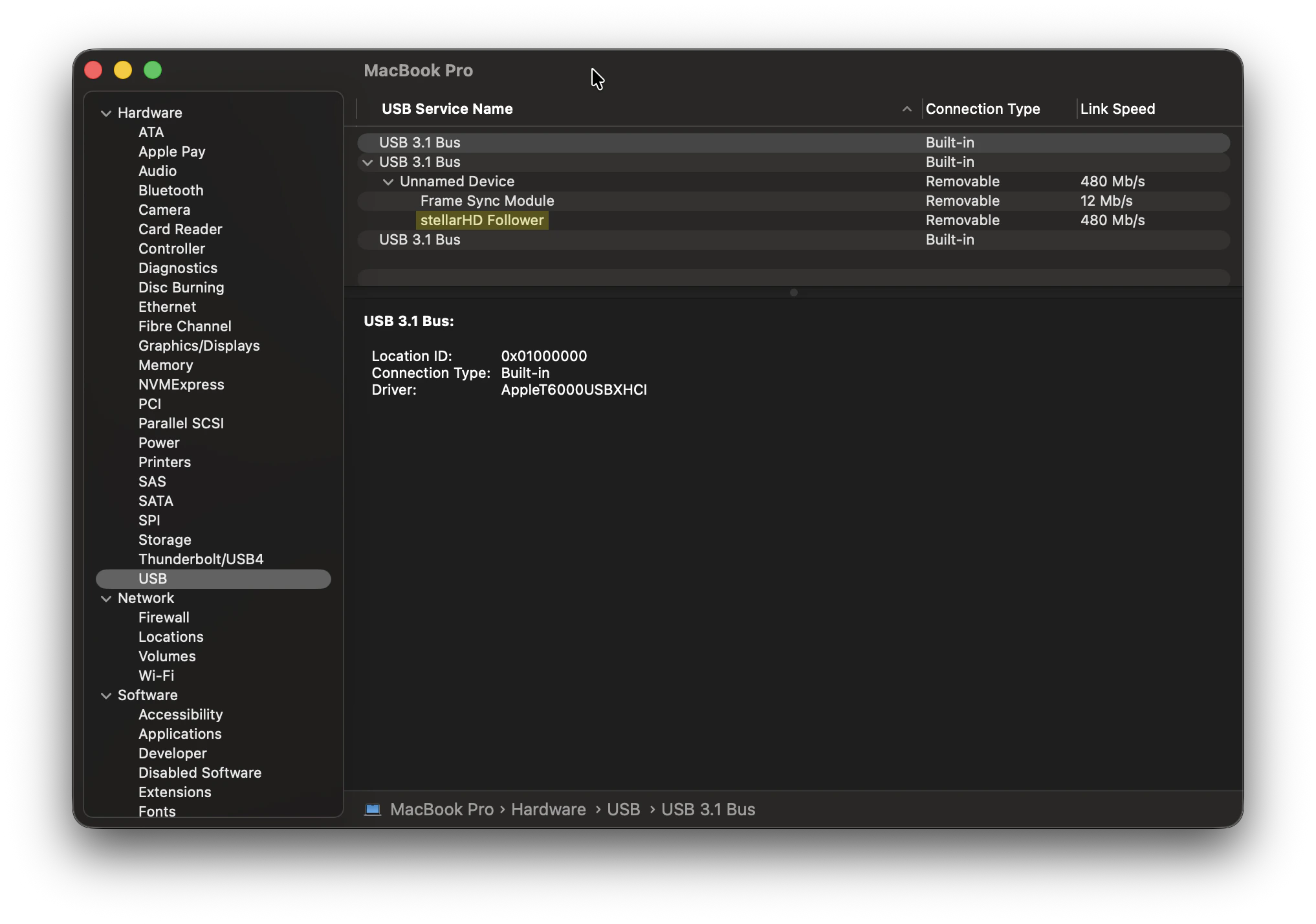
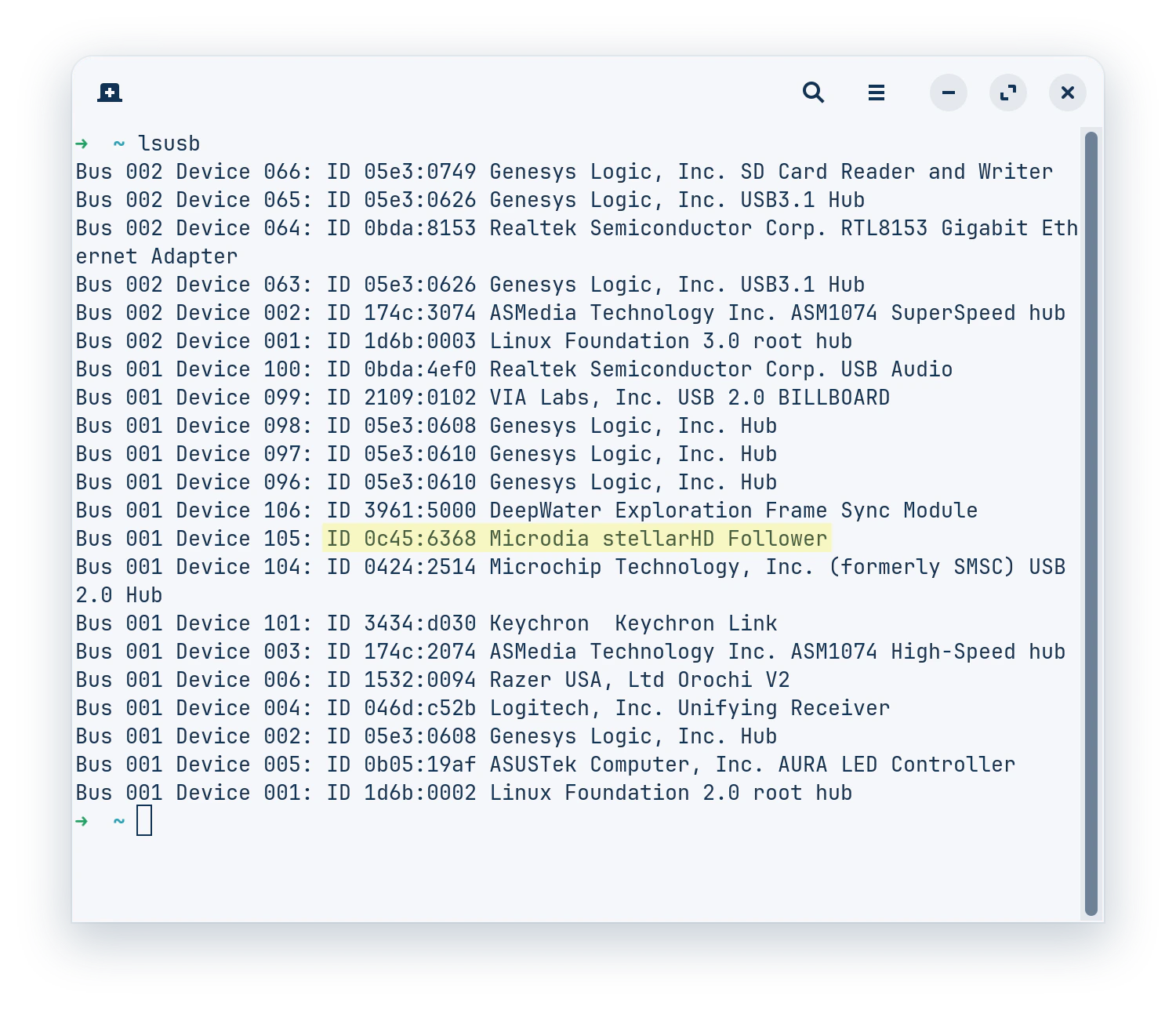
Check if your computer’s operating system is detecting the camera at a hardware level, even if it’s not showing an image yet. Since it connects via USB, we are looking for a USB device connection.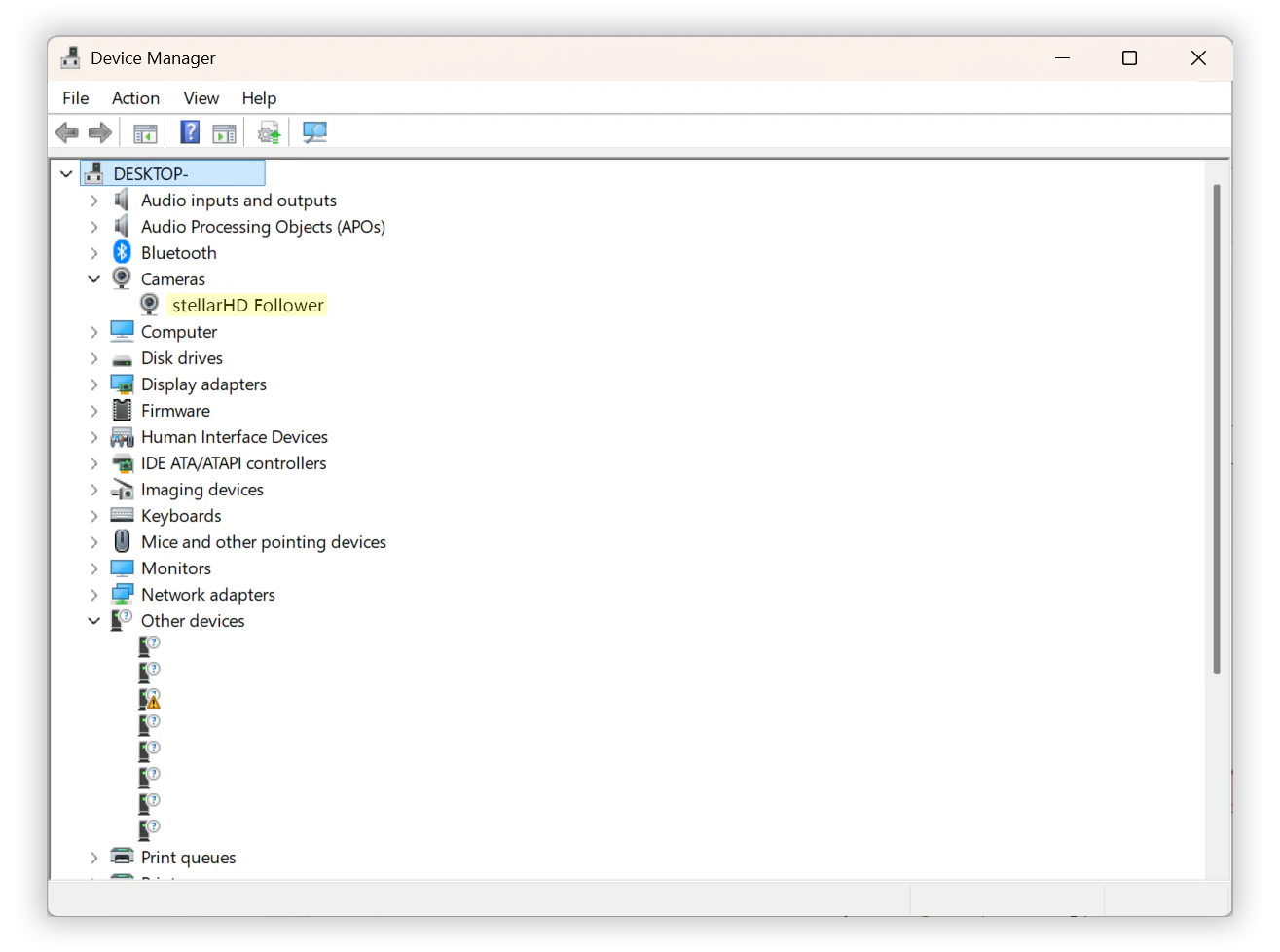
- Windows
- macOS
- Linux
- Right-click the Start button (or press
Win+X) and select Device Manager. - Expand the following categories to look for the camera,
stellarHD:- Cameras
- Imaging devices
- Sound, video and game controllers
- If the wiring is slightly off or the data lines aren’t twisted properly, Windows might detect something but not know what it is. Expand Universal Serial Bus controllers and look for anything labeled Unknown USB Device (Device Descriptor Request Failed).
"Failed to Initialize the Device" Error (Linux)
"Failed to Initialize the Device" Error (Linux)
If the camera disconnects shortly after being plugged in, check the Linux kernel log (This error can have more than one cause. Check each one below.
sudo dmesg -w) for errors like these:Bad Firmware
Corrupt or outdated firmware can stop the camera from initializing. Update the camera firmware with the DWE Firmware Loader:stellarHD Firmware Update
Update the firmware on stellarHD series cameras.
Bad Cable
A damaged or incorrectly wired cable can corrupt the USB signal. Make sure that the wiring is correct and that the data wires are twisted:stellarHD Cable Connection
Prepare the JST cable connection for stellarHD series cameras.