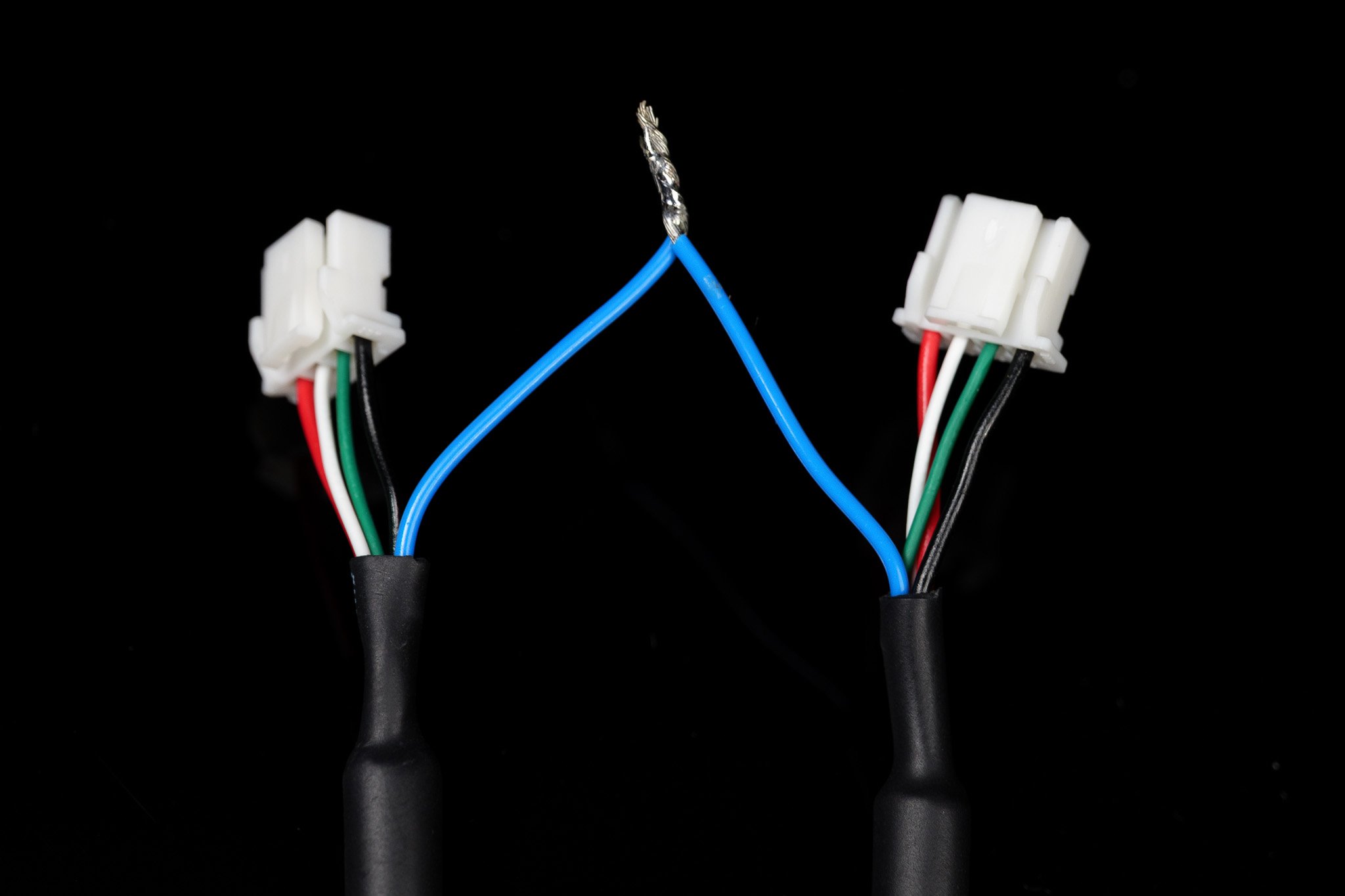
This mode is designed for configurations not using an External Clock Signal.You will utilize one camera in leader mode (outputting a synchronization signal) and all remaining cameras in follower mode.
Leader/Follower Firmware Guide
Click here to see our guide on updating your camera between Leader and Follower modes.
This mode is designed for configurations using an External Clock Signal to output the synchronization signal for all cameras.In this mode, all cameras must be set to follower mode.
Leader/Follower Firmware Guide
Click here to see our guide on updating your camera between Leader and Follower modes.
The Arduino Uno (ATmega328P) is currently the only confirmed working board for this configuration.
1
Download the PWM Library
Download the source code for the PWM library here: ArduinoPWM v1.0.0
2
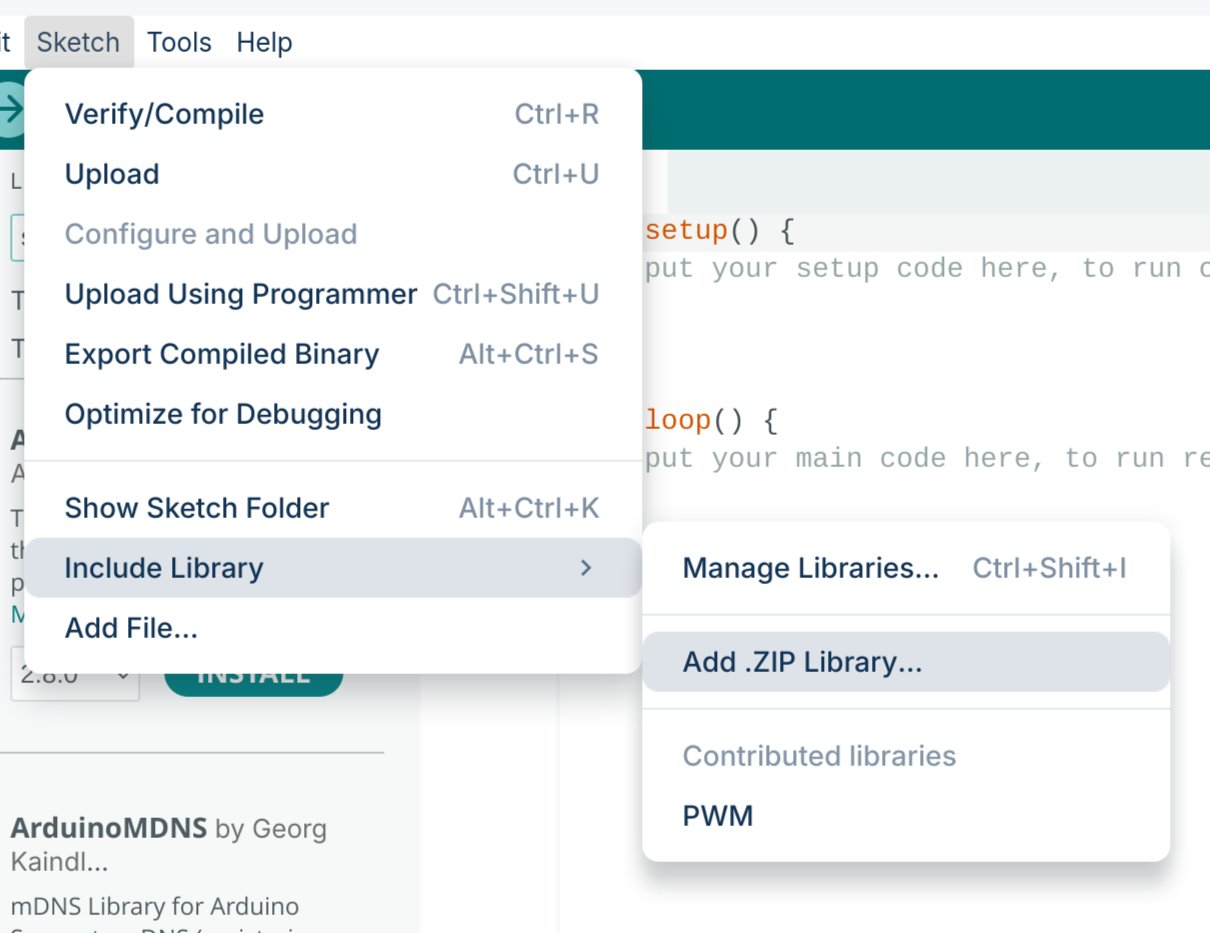
Add the .ZIP Library
Import the downloaded .ZIP library into your Arduino IDE.
3
Upload the Sketch
Upload one of the two sketches below to your Arduino.
Simple Control: The quickest way to get started, but requires reflashing the firmware to adjust your FPS.
Serial Control: Allows you to adjust frequency and duty cycle in real-time without reflashing (settings will reset if the device loses power).
Simple Control
Serial Commands
#include <PWM.h>// Pin configurationint pin = 9; // Pinint value = 127; // Initial value for the PWM duty cycle// SET FREQUENCY HEREfloat frequency = 60; // Initial frequency in Hzvoid setup(){ // Initialize all timers except for timer0 to save timekeeping tasks InitTimersSafe(); // Set the initial PWM frequency and duty cycle if (SetPinFrequencySafe(pin, frequency)) { pwmWrite(pin, value); Serial.println("PWM frequency and initial duty cycle set."); } else { Serial.println("Failed to set frequency."); }}
#include <PWM.h>// Pin configurationint pin = 9; // Pinint value = 127; // Initial value for the PWM duty cyclefloat frequency = 60; // Initial frequency in Hzvoid setup(){ Serial.begin(9600); // Initialize all timers except for timer0 to save timekeeping tasks InitTimersSafe(); // Set the initial PWM frequency and duty cycle if (SetPinFrequencySafe(pin, frequency)) { pwmWrite(pin, value); Serial.println("PWM frequency and initial duty cycle set."); } else { Serial.println("Failed to set frequency."); }}void loop(){ if (Serial.available()) { // Read frequency and duty cycle values over Serial String inputString = Serial.readStringUntil('\n'); inputString.trim(); int freqDutySplitIndex = inputString.indexOf(','); if (freqDutySplitIndex != -1) { String freqStr = inputString.substring(0, freqDutySplitIndex); String dutyStr = inputString.substring(freqDutySplitIndex + 1); // Parse floats float newFrequency = freqStr.toFloat(); int newDutyCycle = dutyStr.toInt(); // Validate frequency range if (newFrequency >= 1 && newFrequency <= 2000000) { // Set the PWM frequency and apply duty cycle if (SetPinFrequencySafe(pin, newFrequency)) { value = map(constrain(newDutyCycle, 0, 100), 0, 100, 0, 255); pwmWrite(pin, value); Serial.print("Set frequency to: "); Serial.print(newFrequency); Serial.print(" Hz, duty cycle to: "); Serial.print(newDutyCycle); Serial.println("%"); } else { Serial.println("Failed to set new frequency."); } } else { Serial.println("Invalid frequency value."); } } else { Serial.println("Invalid input format. Use frequency,dutycycle (e.g., 60,50)."); } }}
This code allows you to modify the PWM signal on the fly. Open your serial monitor at 9600 baud and send commands using the format {FREQUENCY},{DUTY_CYCLE} (e.g., 60,50 for 60Hz at a 50% duty cycle).
In addition to our upcoming SDK, we currently provide a simple Python process to grab synchronized frames from your camera setups. (Note: This may be phased out in favor of the fully featured SDK in the future.)
Synchronized Video Python Library
Follow our GitHub guide to install and use our custom Linux, python library.
Identify the device IDs of the two cameras you wish to use, then select a device ID number that is not currently listed.In this example, we will use 9 (as it is unused above) to create a virtual device named stellarHD_stitched. Update the 9 in the command below to match your chosen unused ID:
You must keep this command running while using the synchronized, stitched videos. You can modify this command to add more cameras, change resolutions/framerates, or alter the layout.
5
Use the Virtual Device in OpenCV
OpenCV Starter Code
Follow our sample code to use /dev/video9 in OpenCV.
6
Remove the Loopback Device
To safely remove the loopback device, you can either restart your computer or run the following sequence of commands:1. Identify programs currently using the loopback device:
sudo lsof /dev/video*
2. Kill the processes using their PID (Process ID) numbers: