

Install the Firmware Loader
Download and run the installer, then launch the DWE Firmware Loader.Download DWE Firmware Loader (Windows)
DWEFirmwareLoader.exe
Linux-compatible tool coming soon!
Firmware Update Procedure
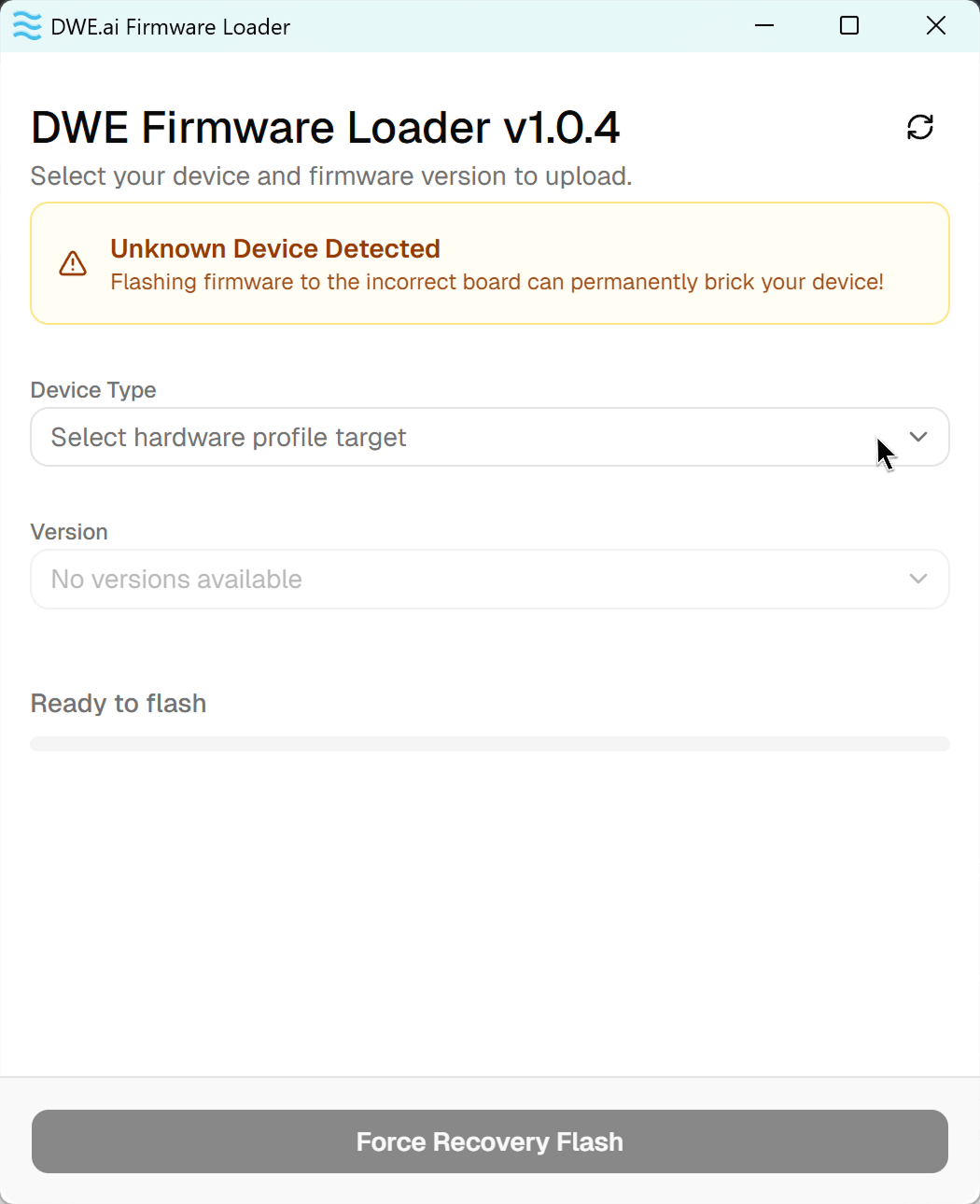
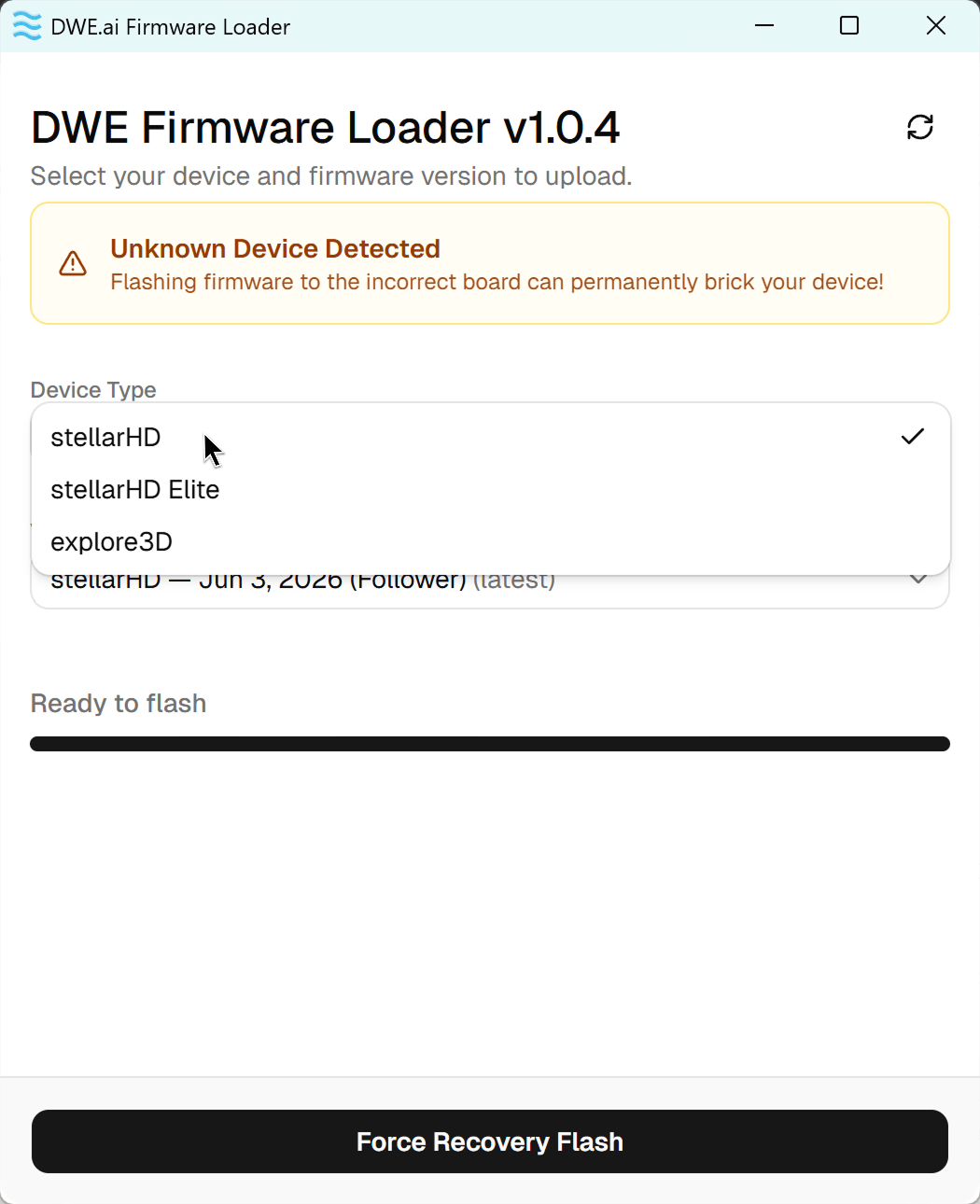
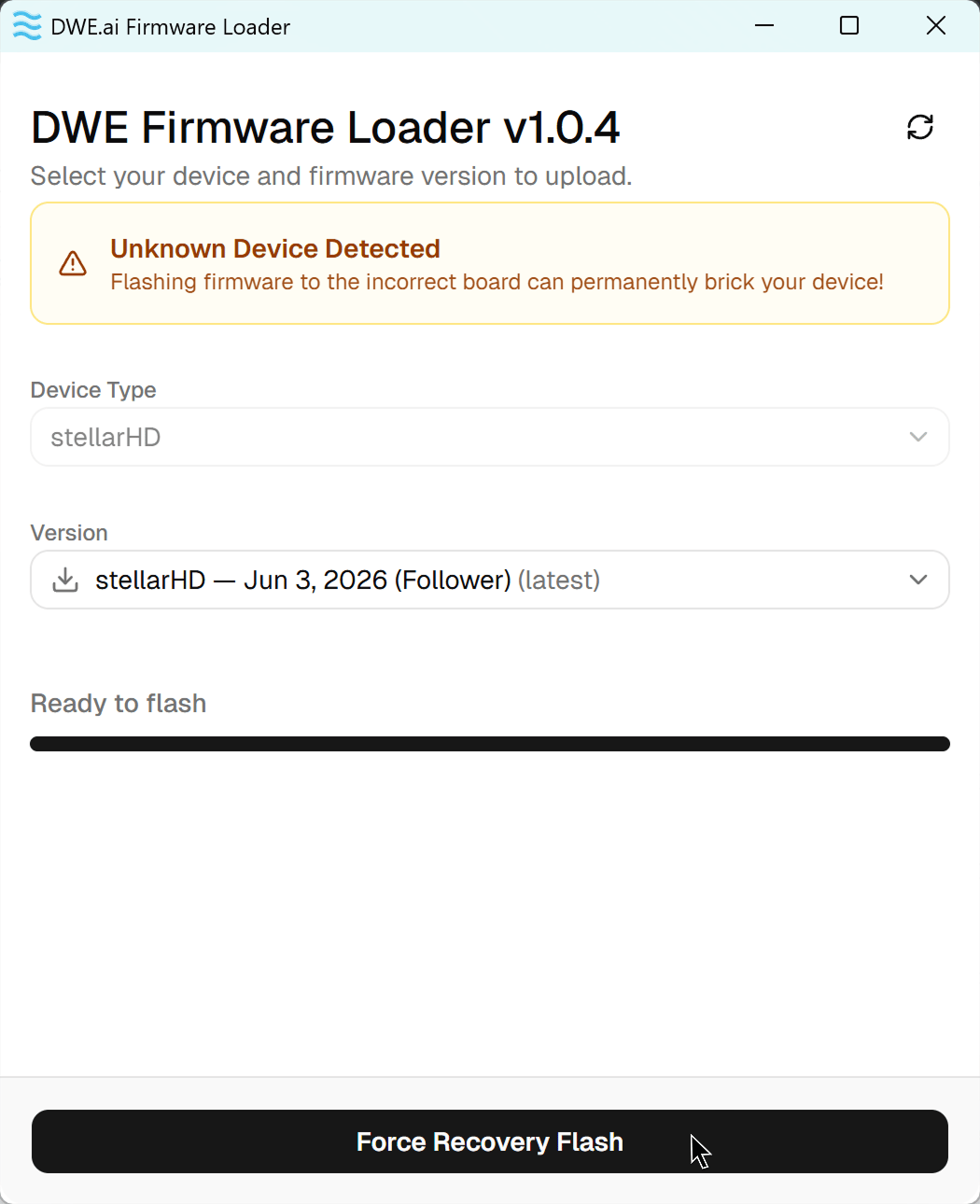
The Firmware Loader automatically detects your connected camera. If your camera is not recognized, follow the Recovery Mode tab instead.- Standard Update
- Recovery Mode
1
Plug in Camera and Click Refresh
After plugging in your camera, click the refresh icon in the top-right corner so the loader scans for it. Once detected, it shows a green Device Detected card with the model, current firmware version, and role (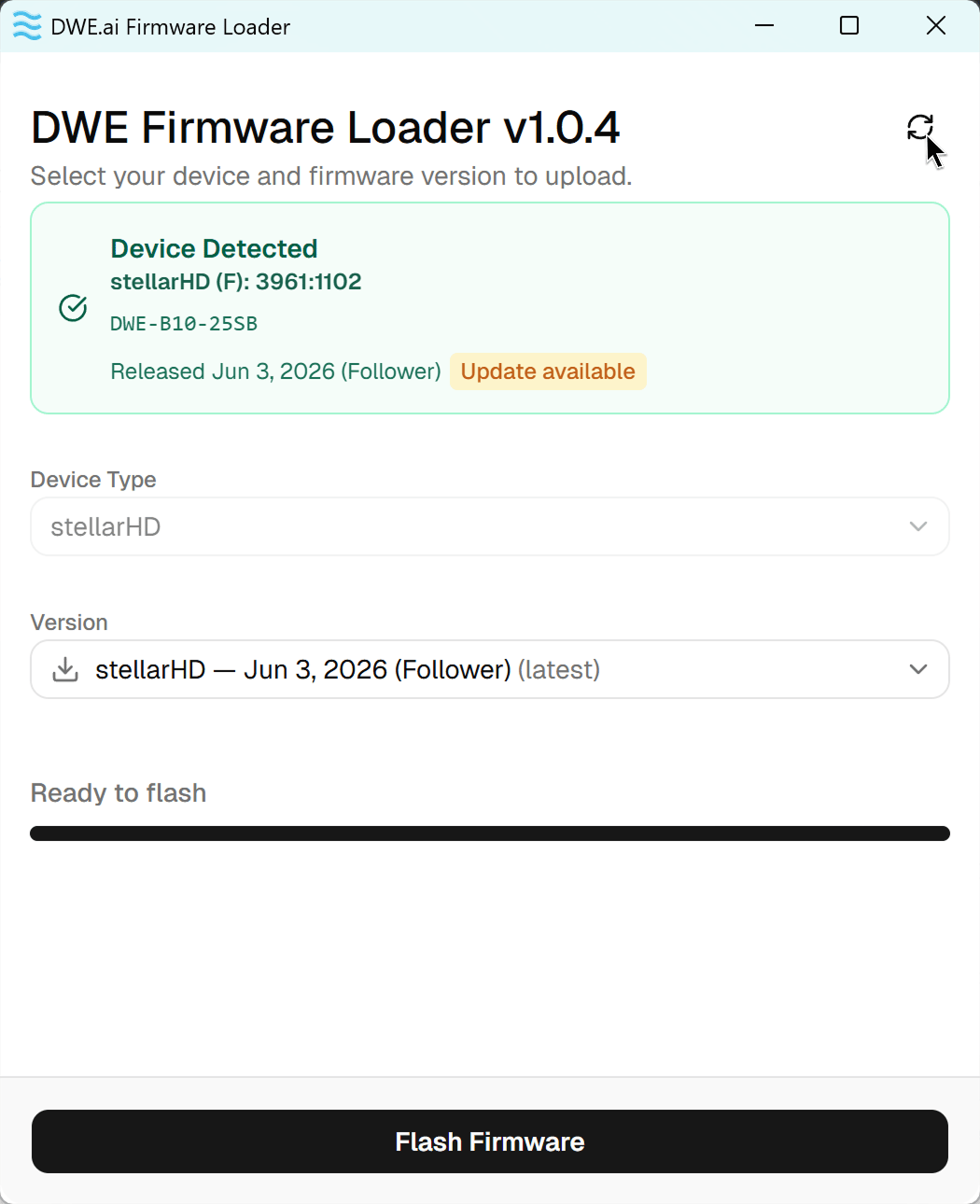
Leader or Follower). If a newer version exists, an Update available badge appears.2
Select the Leader or Follower version
Open the Version dropdown and pick the correct role for this camera: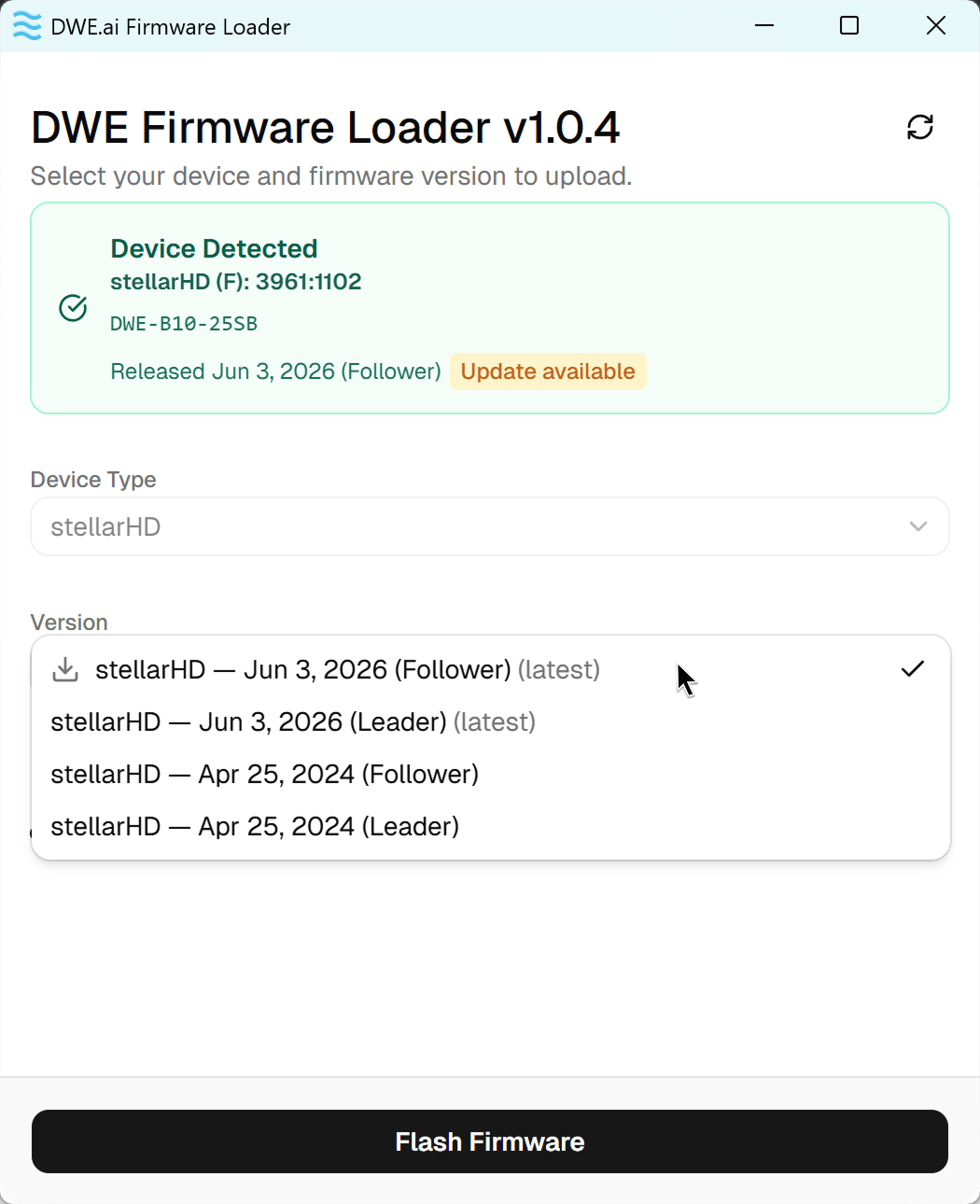
- Follower — for the follower camera in the pair.
- Leader — for the leader camera in the pair.
3
Flash the firmware
Once the correct version is selected, click Flash Firmware.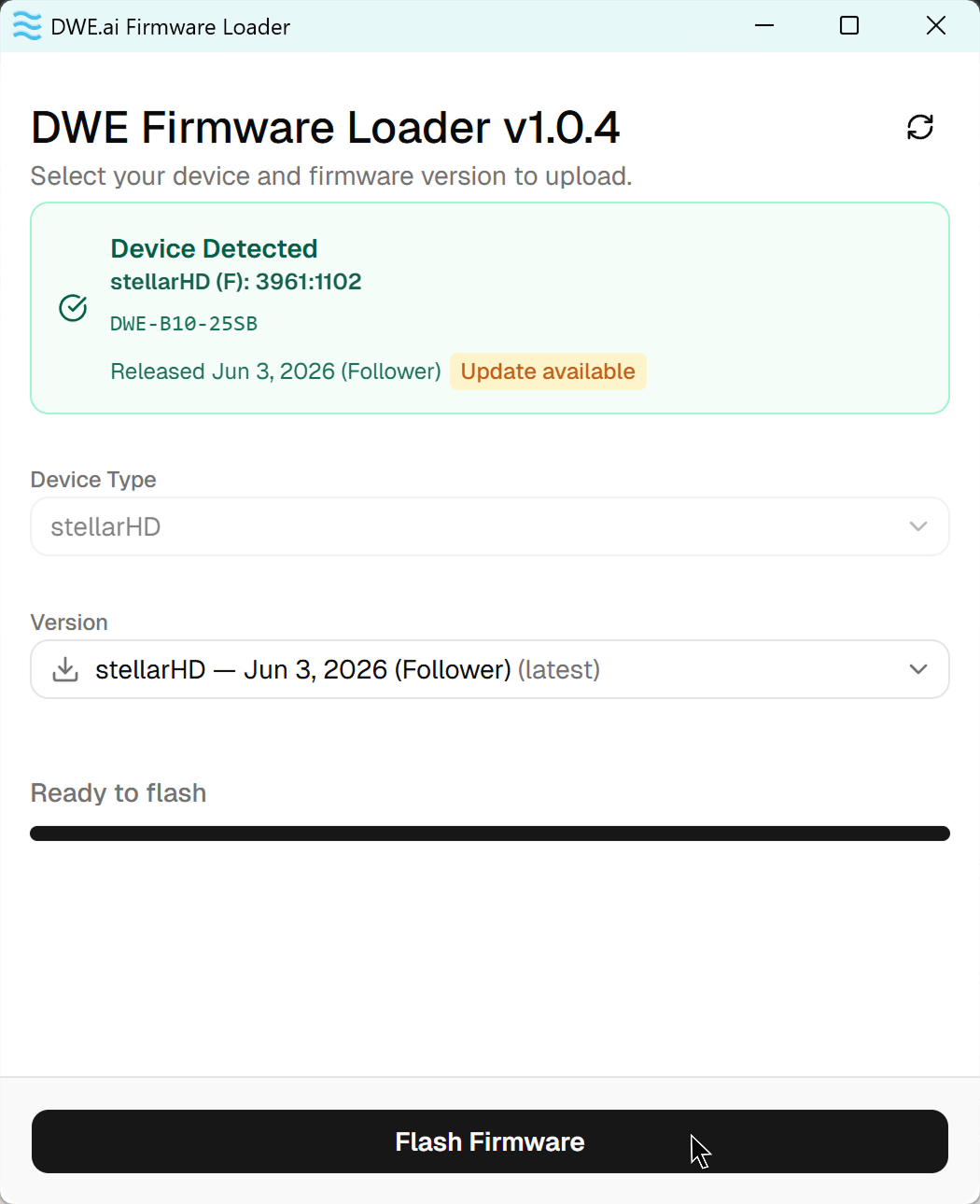
4
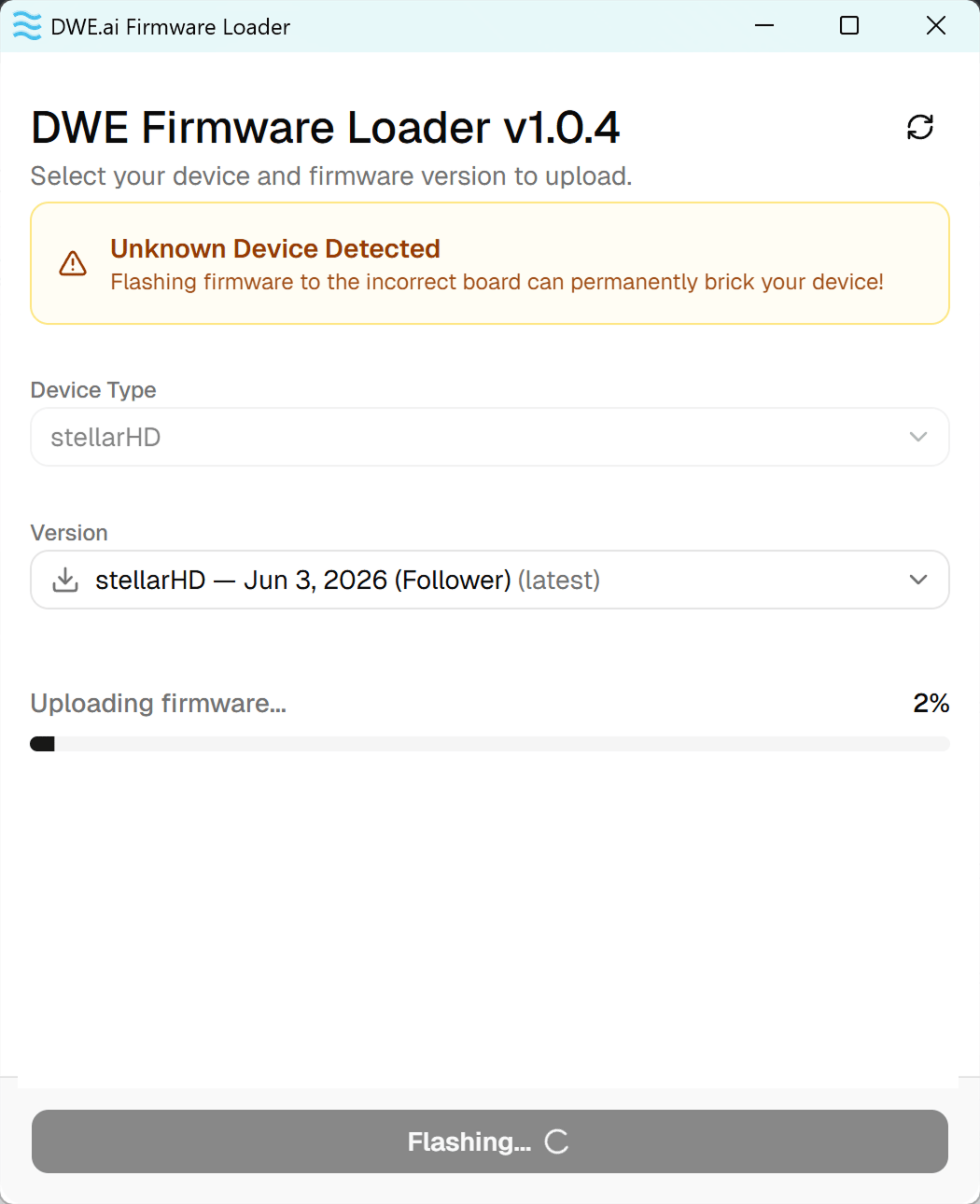
Wait for the upload to finish
The progress bar shows Uploading firmware…, which should take around 20-30 seconds.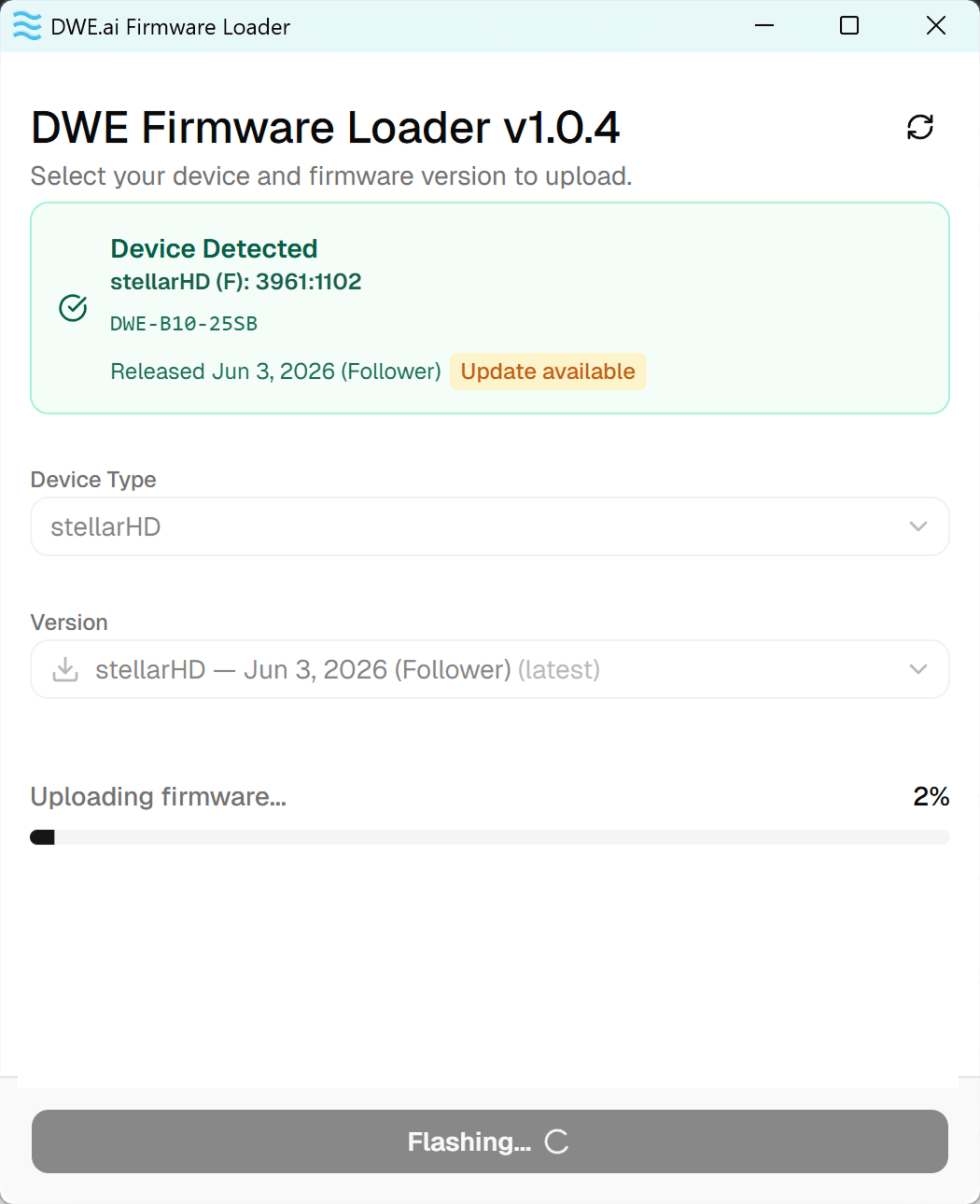
5
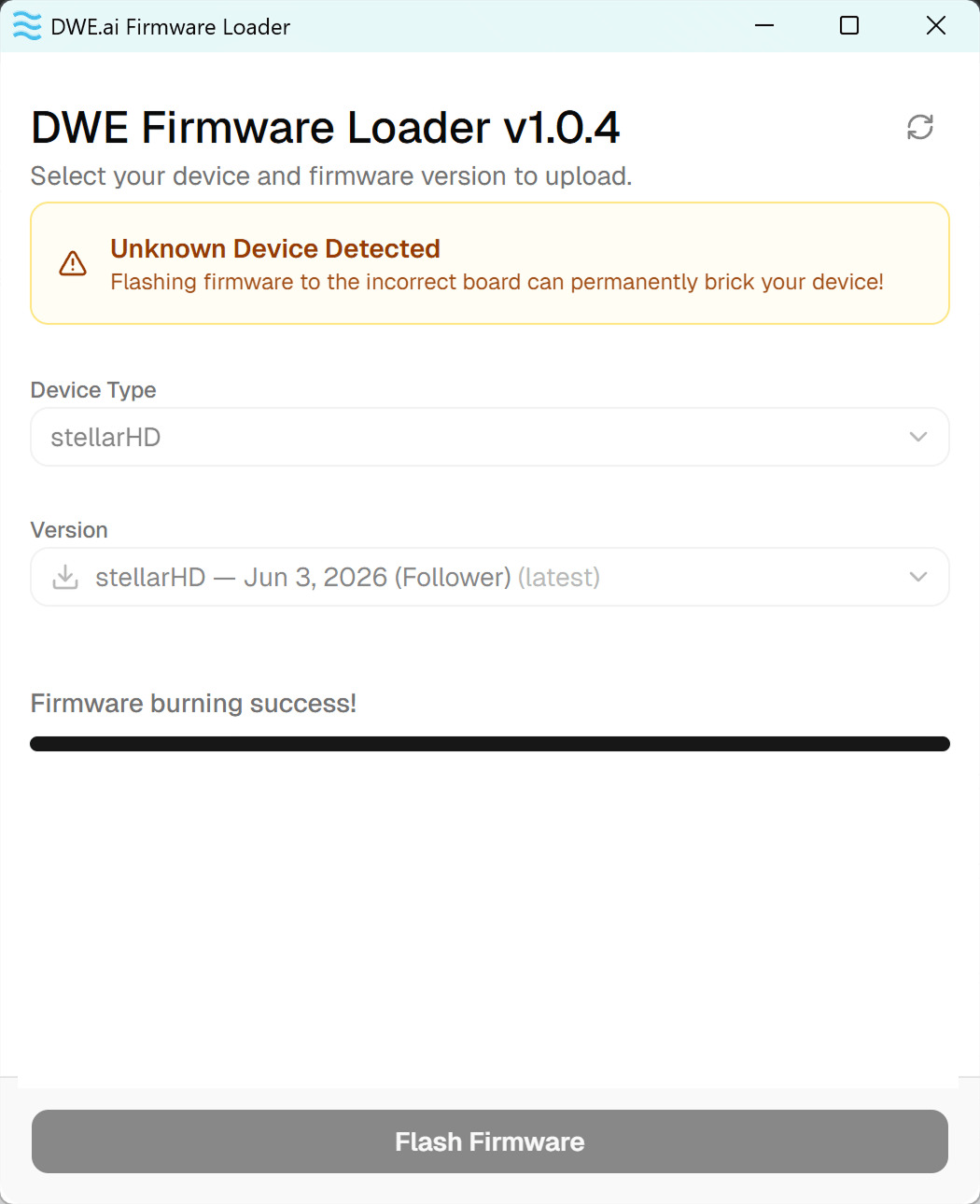
Done!
When you see Firmware burning success!, the update is complete.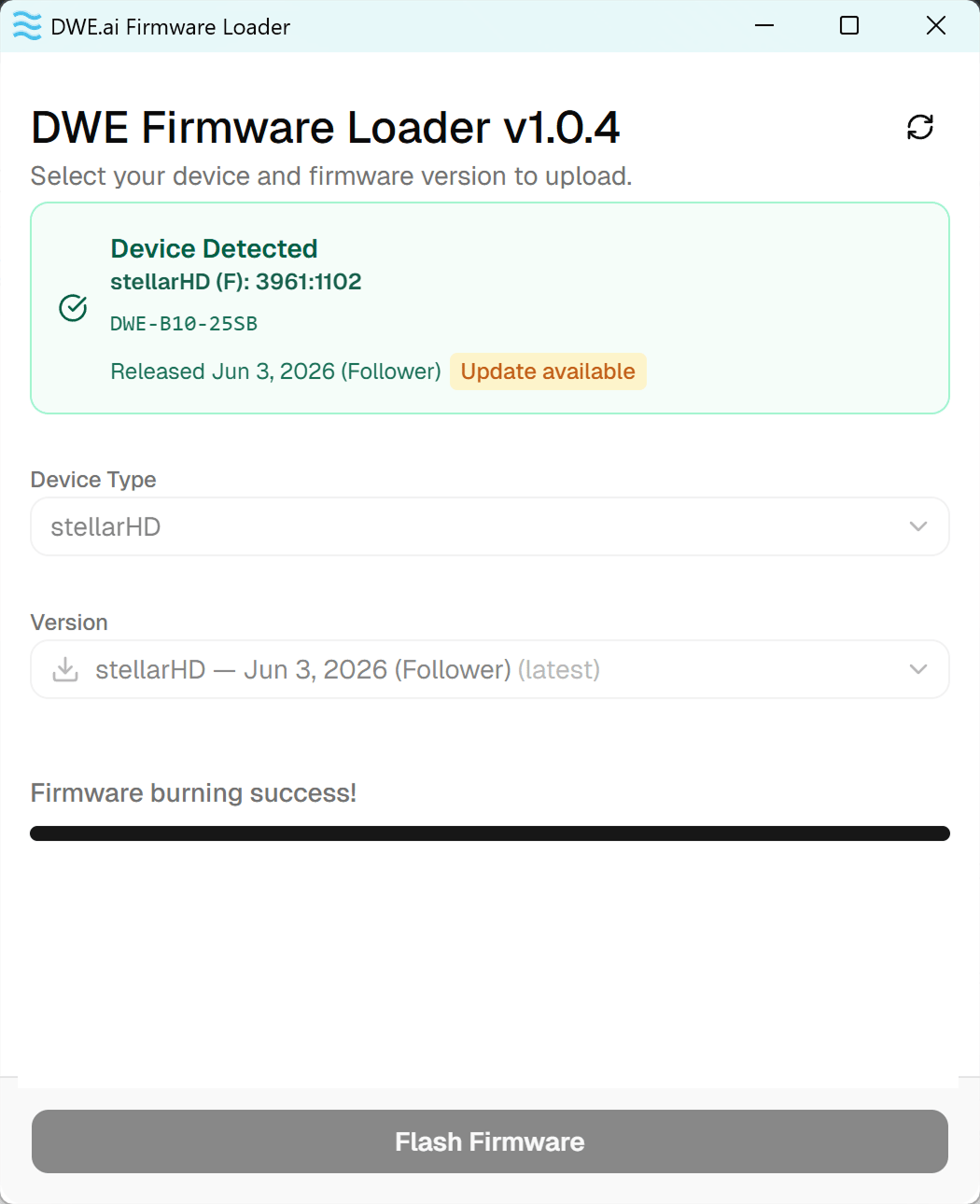
Test your camera
You can test the camera using our online tool below.Online Camera Testing Utility
Convenient tool to test your USB camera feeds.
Troubleshooting
My camera isn't detected / shows Unknown Device Detected
My camera isn't detected / shows Unknown Device Detected
- Ensure the stellarHD is the only camera plugged in.
- If on a laptop, temporarily disable the built-in webcam in Device Manager.
- Close any application that may be using the camera, then click the refresh icon in the top-right of the loader.
- If it still isn’t recognized, follow the Recovery Mode steps above.
The update failed or was interrupted
The update failed or was interrupted
If the flash was interrupted (application closed, camera unplugged, etc.), reconnect the camera and follow the Recovery Mode steps above to reflash.