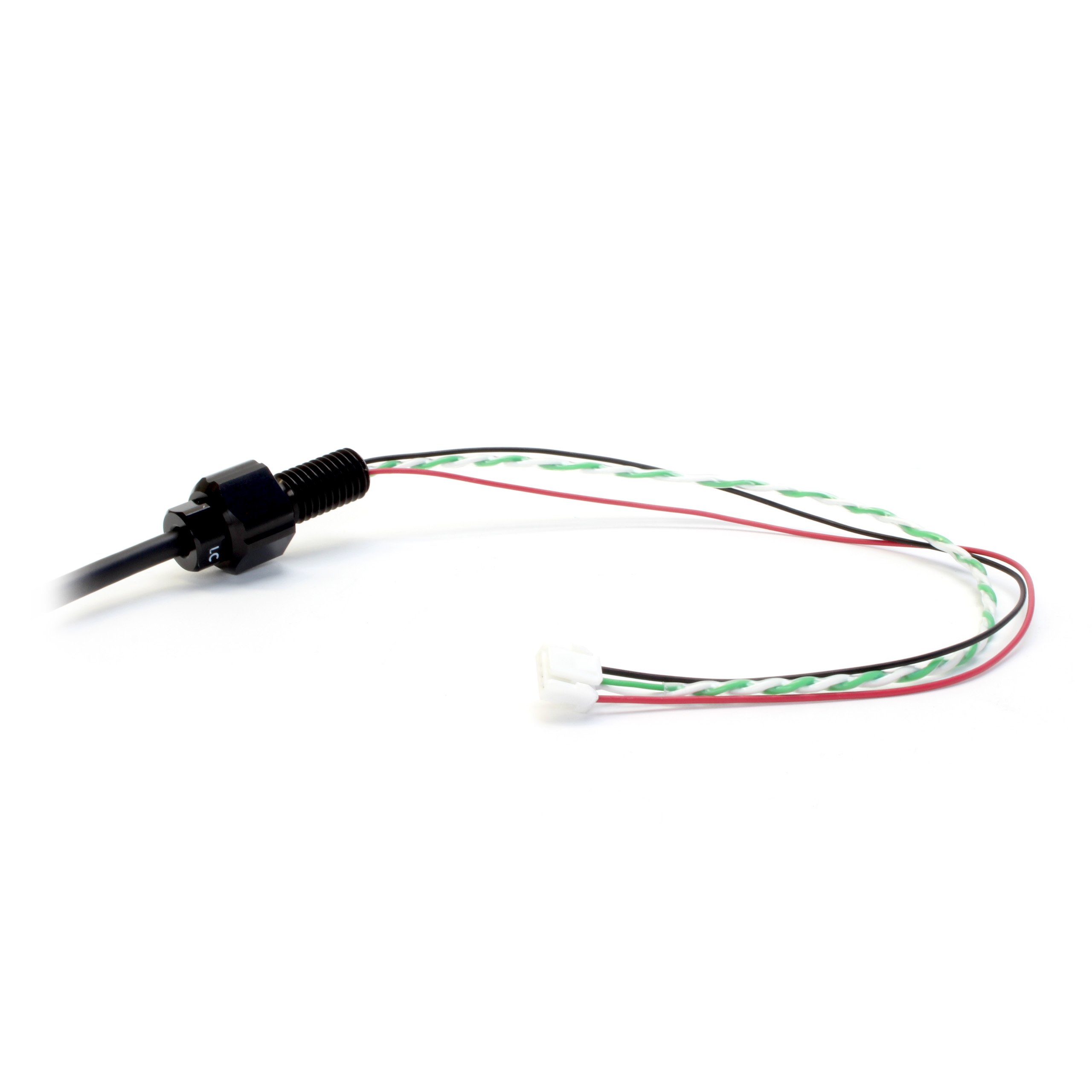
For Epoxy or WetLink models, follow the cable pinout guide located on the specification page for your exploreHD model.Below is an example of passing the exposed wiring through an M10 WetLink bulkhead to be installed onto your vehicle end cap.
Vehicle-side WetLink Bulkhead
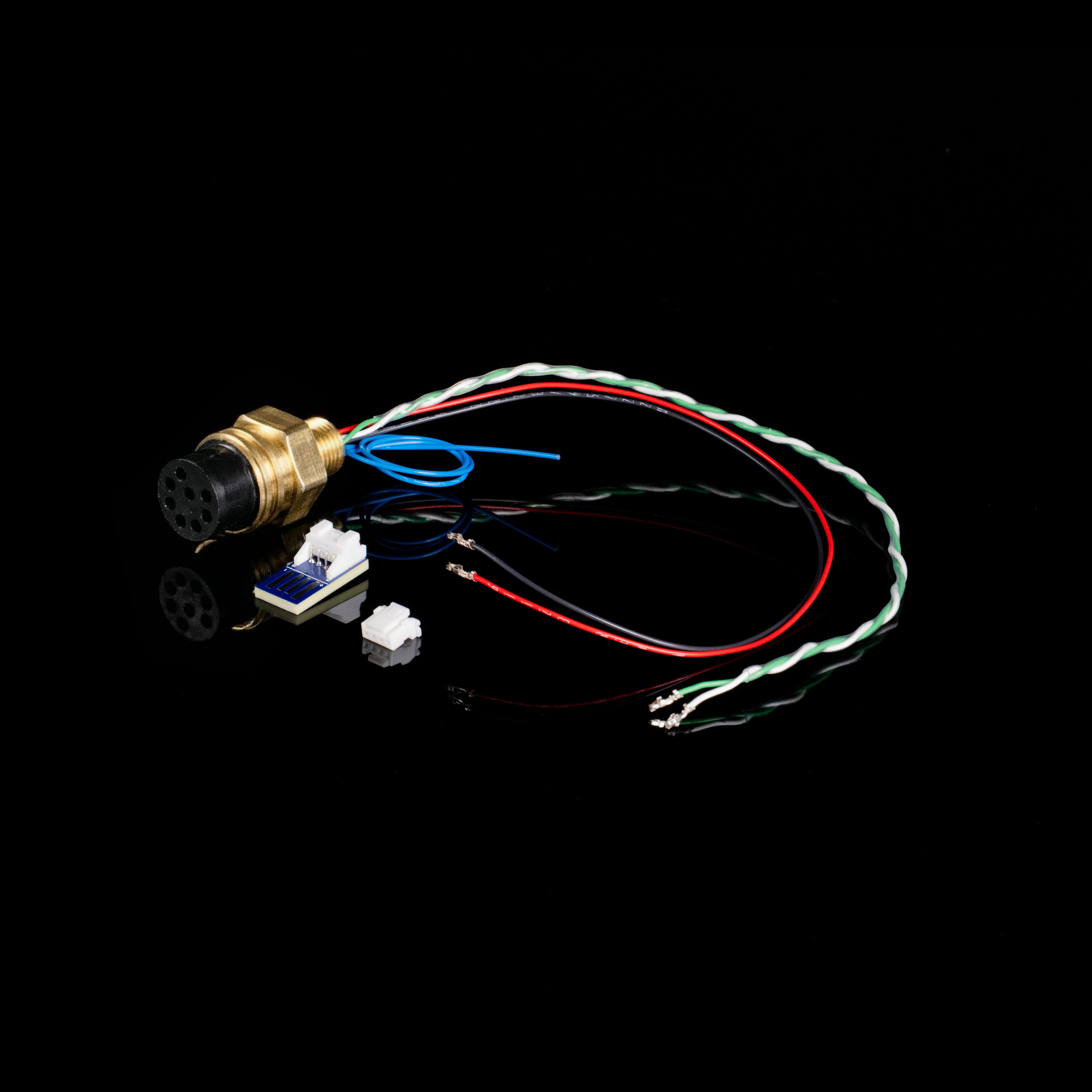
For Cobalt, follow the pinout guide located on the specification page for your exploreHD model.Below is an example of a pre-made cobalt bulkhead.
Cobalt to JST Connector
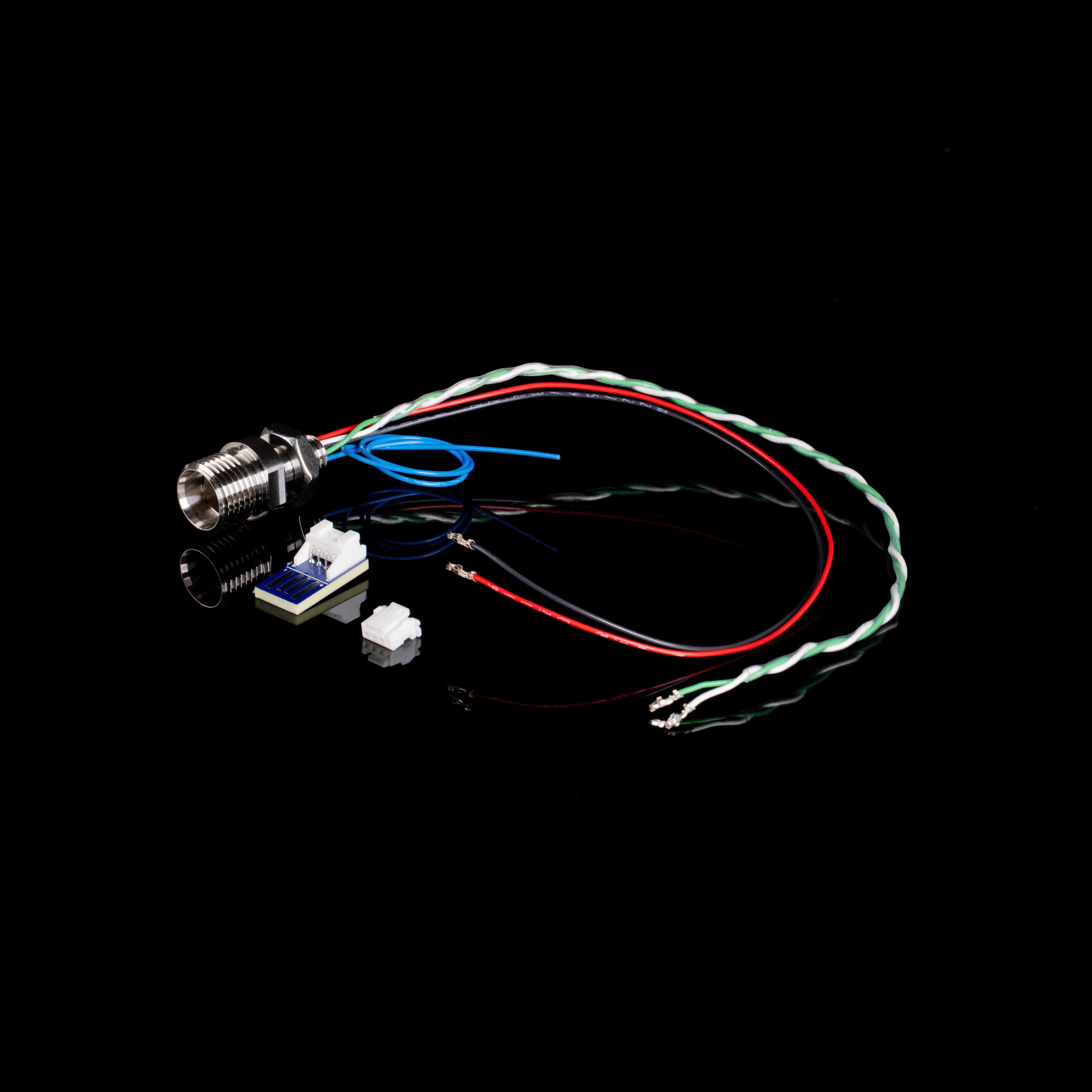
For SubConn, follow the pinout guide located on the specification page for your exploreHD model.Below is an example of a pre-made SubConn MCBH8M bulkhead.
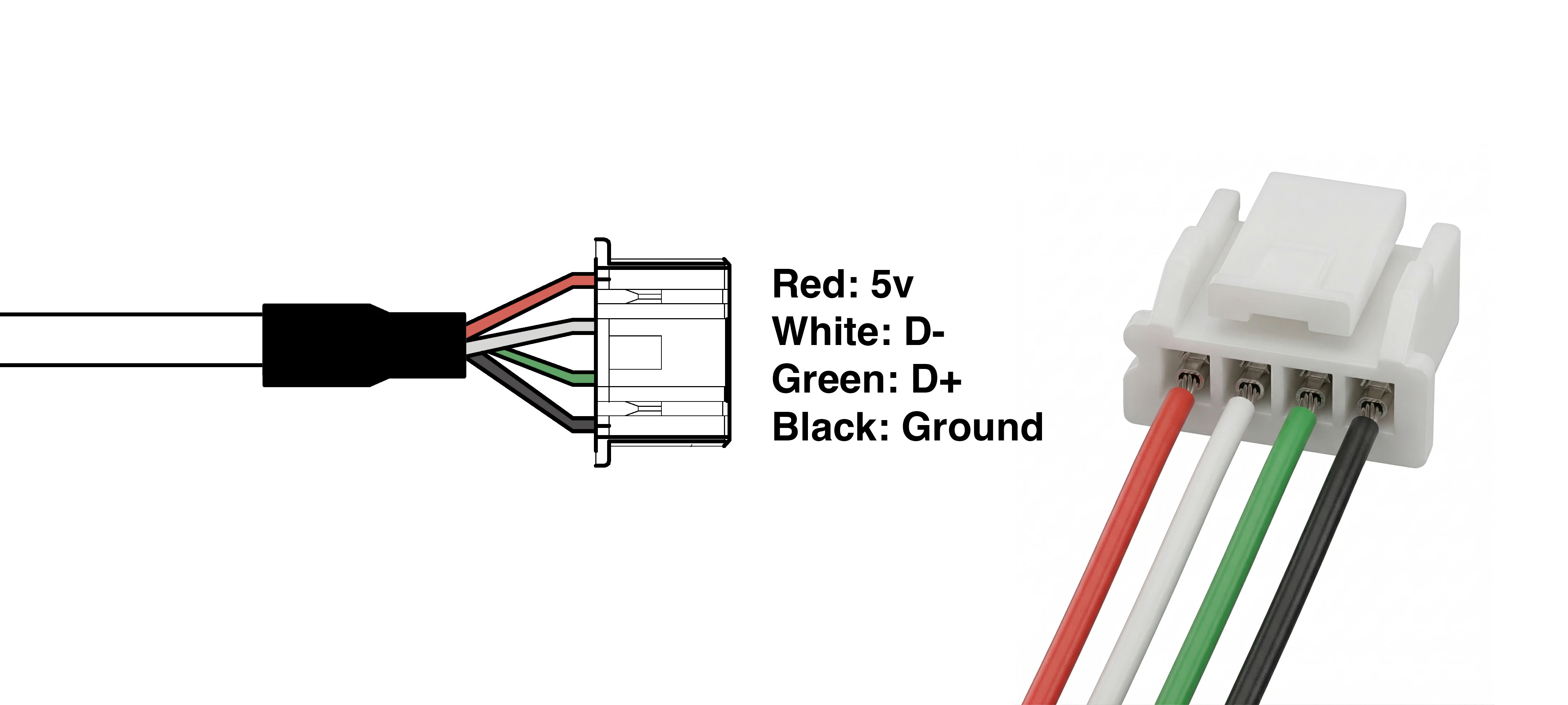
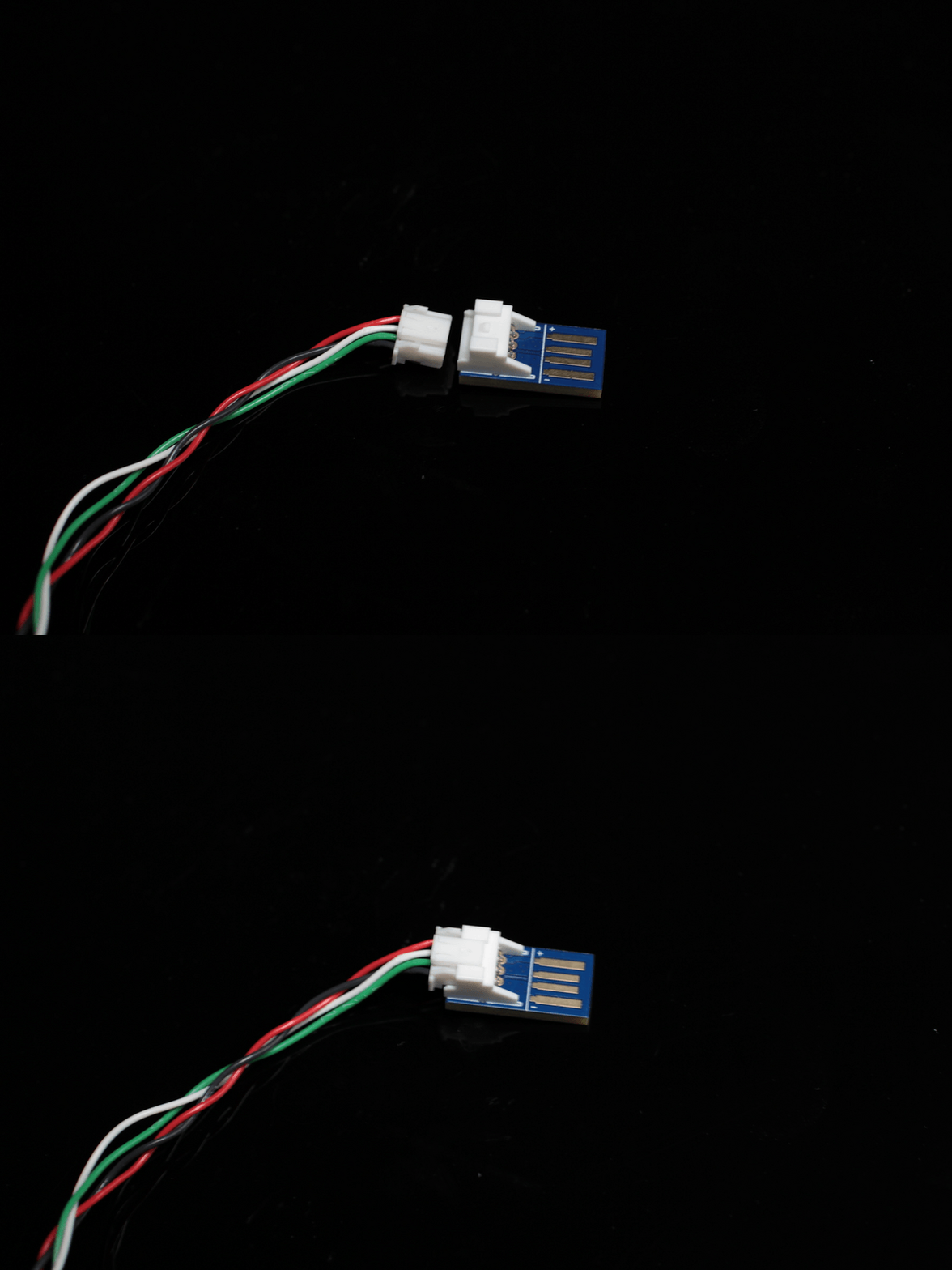
Ensure that the wire colors match their respective functions when connected to the JST connector. Even a single crossed wire will prevent the camera from being recognized.
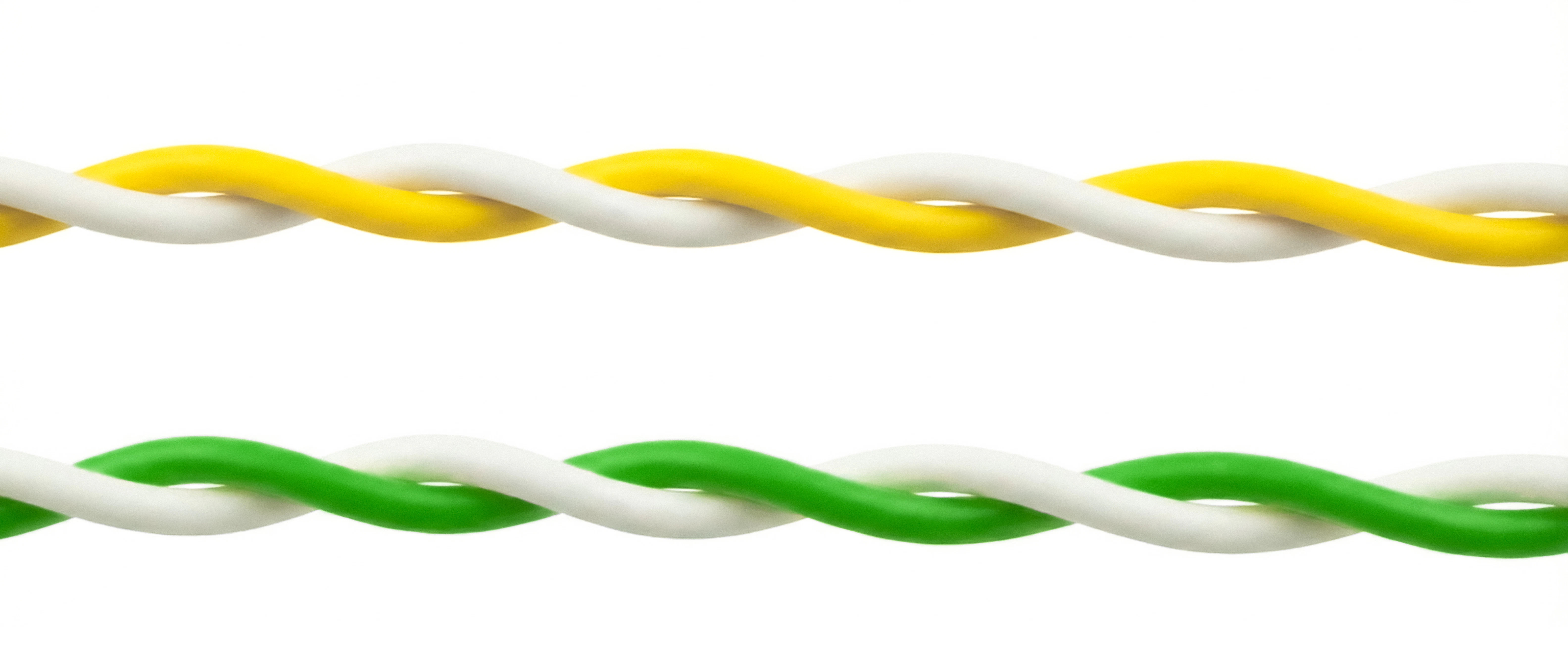
Twist the Data Wires (Required)
Twist the White (D-) and Yellow/Green (D+) wires together along their length, as shown in Preparing the JST Cable Connection. The camera uses a USB 2.0 High-Speed connection, which needs a twisted data pair to reject interference. Without it, the signal may be too weak for your computer to recognize the camera.
Check the Connections and Power
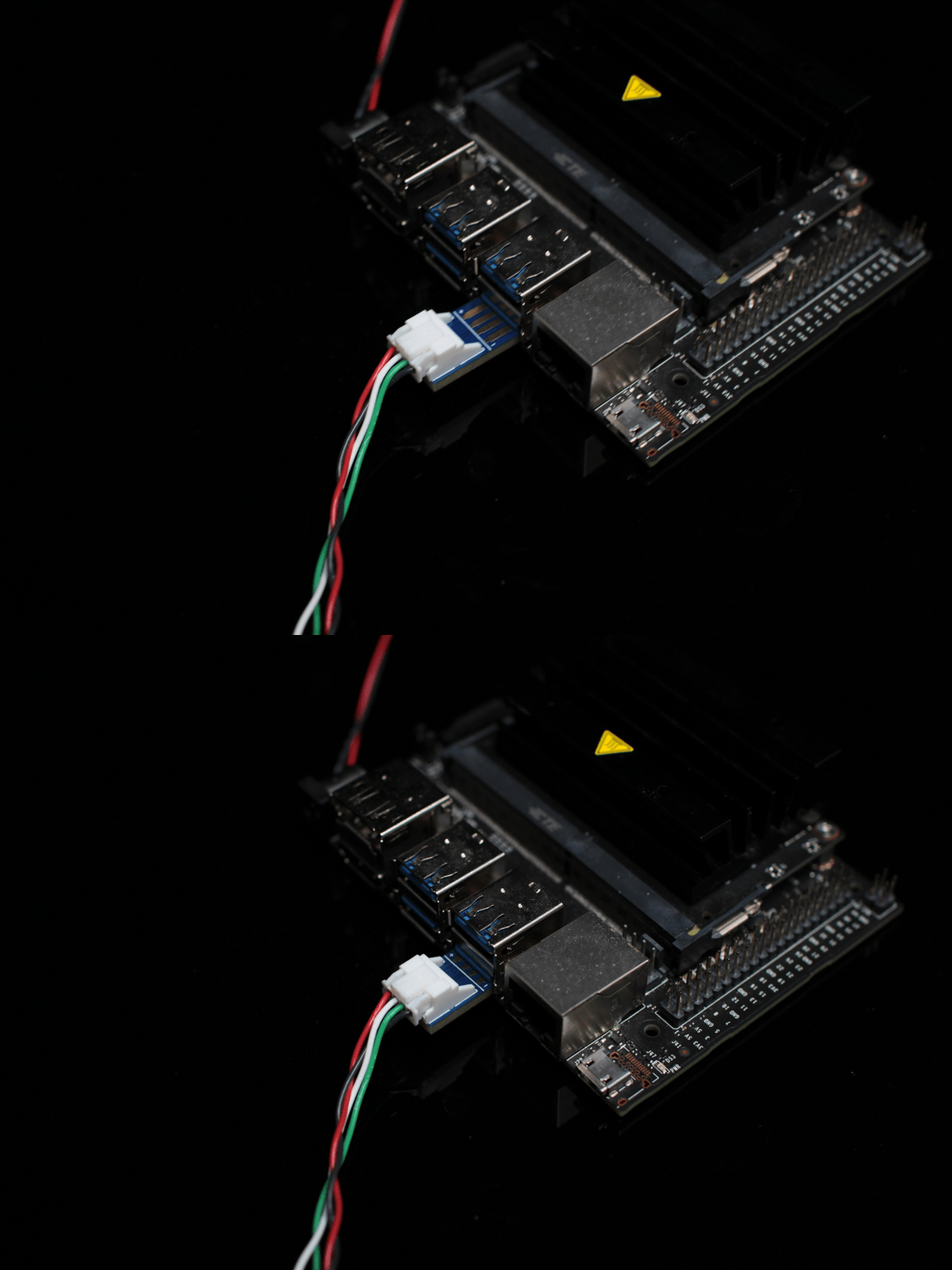
Make sure the wires are seated securely in the JST connector.Make sure the JST is pushed all the way into the USB adapter, and the adapter is securely plugged into your USB port.The camera can draw 200–320mA at 5V, depending on the model. Try plugging the adapter directly into your computer, rather than a low-power USB hub, to ensure it is getting sufficient current.
Check That Your Computer Detects the Camera
Check if your computer’s operating system is detecting the camera at a hardware level, even if it’s not showing an image yet. Since it connects via USB, we are looking for a USB device connection.
Windows
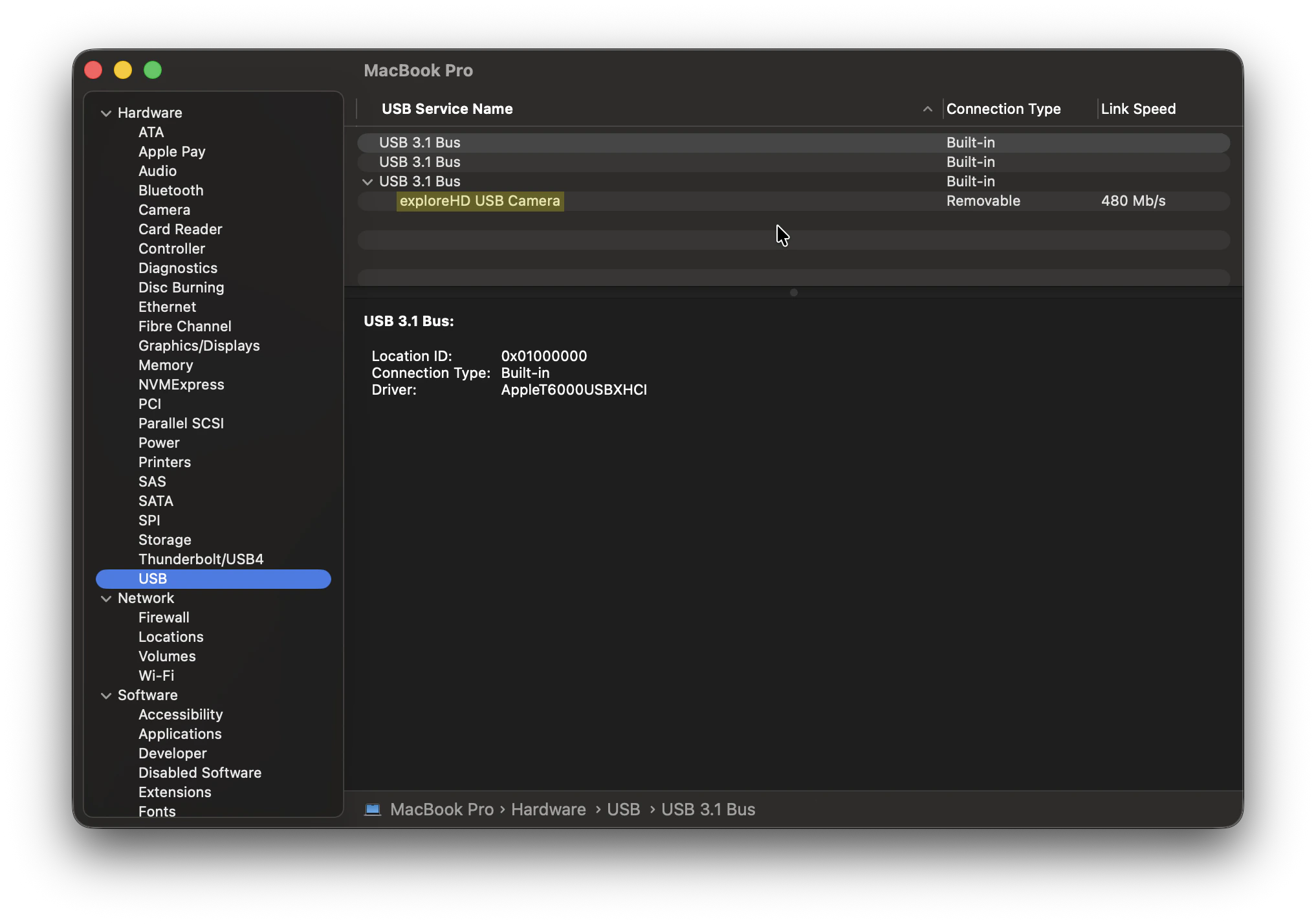
macOS
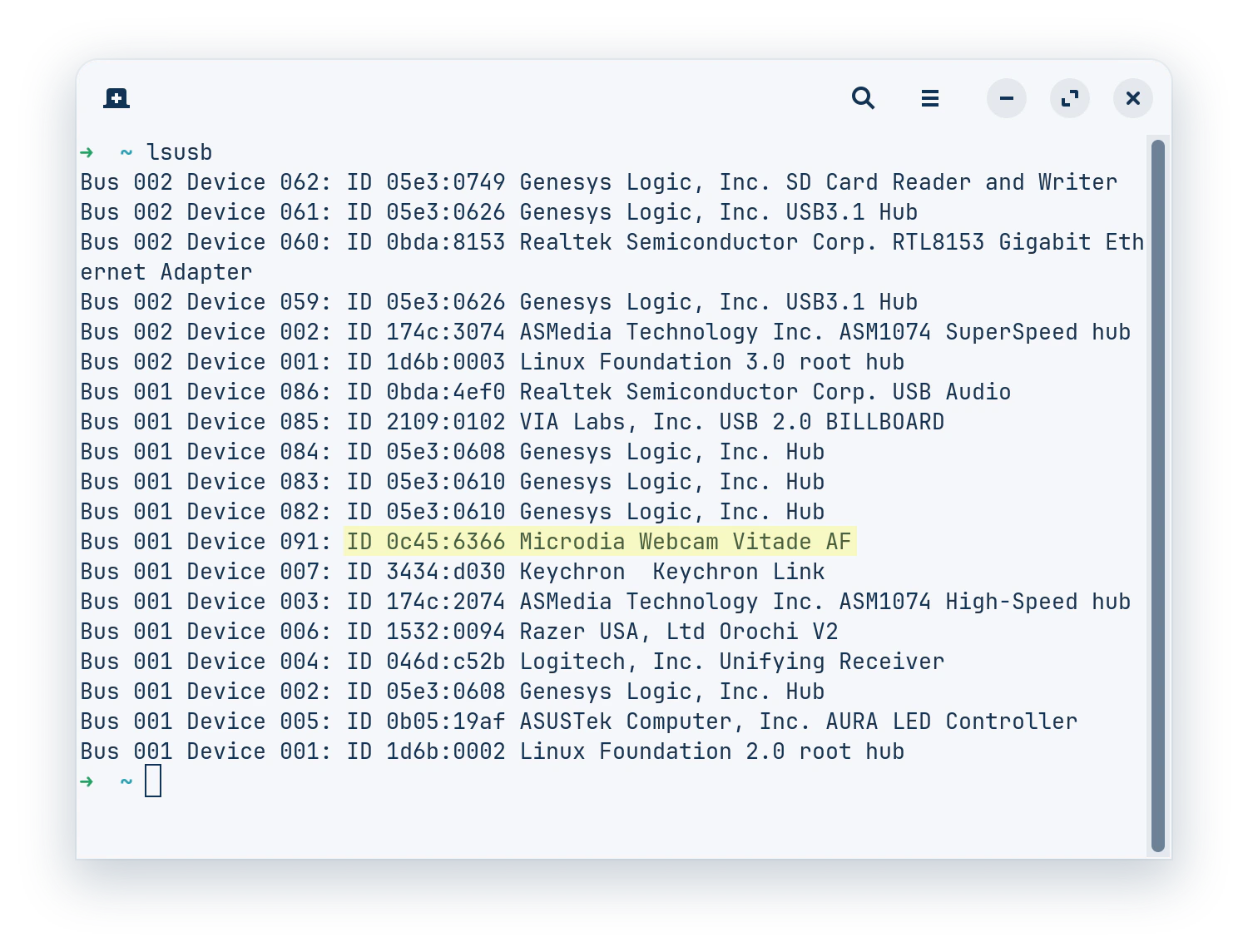
Linux
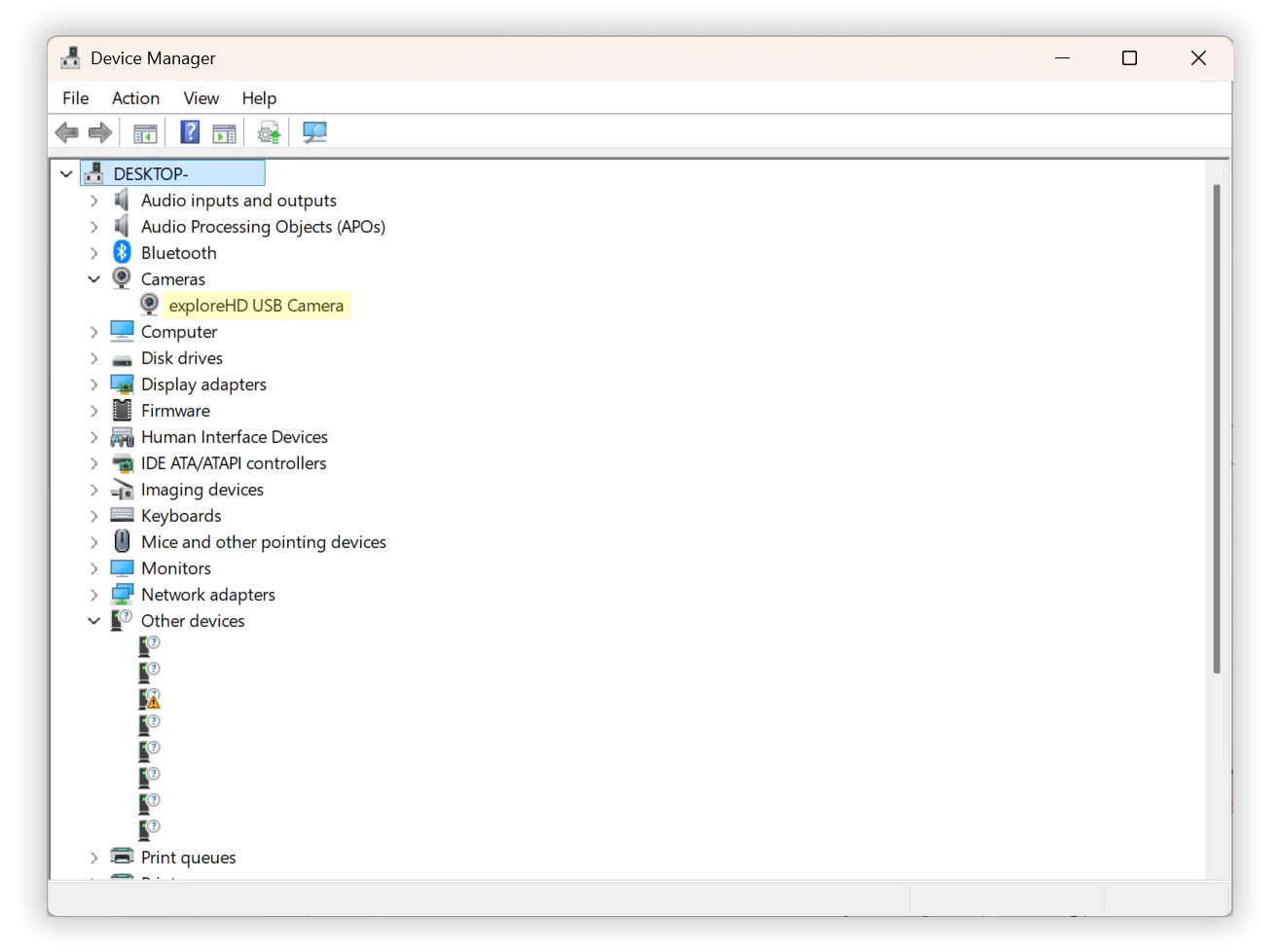
Right-click the Start button (or press Win + X) and select Device Manager.
Expand the following categories to look for the camera, exploreHD:
Cameras
Imaging devices
Sound, video and game controllers
If the wiring is slightly off or the data lines aren’t twisted properly, Windows might detect something but not know what it is. Expand Universal Serial Bus controllers and look for anything labeled Unknown USB Device (Device Descriptor Request Failed).
Keep the Device Manager open and unplug/replug the USB adapter. The list will refresh; watch to see if any new devices appear or disappear.
Hold down the Option key on your keyboard, then click the Apple logo () in the top left corner of your screen.
Select System Information (this is usually “About This Mac” if you don’t hold the Option key).
Unplugging and replugging the camera while on this screen (and pressing Cmd + R to refresh) will help you spot if the system is registering a hardware connection.
In the left-hand sidebar under the “Hardware” section, click on USB.
Check the USB Device Tree on the right. Look for the exploreHD camera or an unrecognized USB device.
Open your terminal.
Type lsusb and press Enter. This lists all connected USB buses and the devices attached to them. Look for a device name that mentions the camera or an unnamed device that appears when plugged in.
You can also use this one-line command to detect a valid exploreHD camera:
To see if Linux recognizes it specifically as a video device (since it is V4L2 compatible), run:
ls -l /dev/video*
For real-time connection logs, run the following command. When you plug the camera in, you should see a flurry of text appear, indicating whether the USB connection was successful or if there were enumeration errors (like device descriptor read/64, error).
sudo dmesg -w | grep -iE "usb|uvcvideo"
type lsusb, press enter, and look for your camera
"Failed to Initialize the Device" Error (Linux)
If the camera disconnects shortly after being plugged in, check the Linux kernel log (sudo dmesg -w) for errors like these:
uvcvideo: UVC non compliance - GET_DEF(PROBE) not supported. Enabling workaround.uvcvideo: Failed to query (129) UVC probe control : -71 (exp. 26).uvcvideo: Failed to initialize the device (-5).usb 1-1.3: USB disconnect, device number 7
This error can have more than one cause. Check each one below.
A damaged or incorrectly wired cable can corrupt the USB signal. Make sure that the wiring is correct and that the data wires are twisted:
exploreHD Cable Connection
Prepare the JST cable connection for exploreHD series cameras.
{"docsConfig":{"theme":"sequoia","$schema":"https://mintlify.com/docs.json","name":"DWE.ai","colors":{"primary":"#46bae7","light":"#6fc9ec","dark":"#105f7e"},"logo":{"light":"https://mintcdn.com/deepwaterexplorationinc/OjrzvzQnCFbrTTxb/logo/light.svg?fit=max\u0026auto=format\u0026n=OjrzvzQnCFbrTTxb\u0026q=85\u0026s=6b18c2a0ebaebc55d84ac69bbdcee1c0","dark":"https://mintcdn.com/deepwaterexplorationinc/OjrzvzQnCFbrTTxb/logo/dark.svg?fit=max\u0026auto=format\u0026n=OjrzvzQnCFbrTTxb\u0026q=85\u0026s=68b8b16941c75f0b343607f4b64ce07a"},"favicon":"https://mintcdn.com/deepwaterexplorationinc/OjrzvzQnCFbrTTxb/favicon.svg?fit=max\u0026auto=format\u0026n=OjrzvzQnCFbrTTxb\u0026q=85\u0026s=dc91a660832ad0f4f9f9a4573e0b3cb9","api":{"playground":{"display":"none"}},"appearance":{"default":"light"},"navbar":{"links":[{"href":"https://dwe.ai/contact","label":"Support"}],"primary":{"type":"button","label":"Visit Store","href":"https://dwe.ai/collections/all"}},"footer":{"socials":{"github":"https://github.com/deepwaterexploration","linkedin":"https://www.linkedin.com/company/dweai","youtube":"https://www.youtube.com/@dweai","instagram":"https://www.instagram.com/deepwaterexploration"}},"icons":{"library":"fontawesome"},"styling":{"latex":false},"navigation":{"languages":[{"language":"en","default":true,"href":"home"},{"language":"ja","href":"ja/home"},{"language":"fr","href":"fr/home"},{"language":"ko","href":"ko/home"},{"language":"no","href":"no/home"},{"language":"es","href":"es/home"},{"language":"pt","href":"pt/home"},{"language":"de","href":"de/home"}]}},"deployment":{"deploymentMetadataValue":{"subdomain":"deepwaterexplorationinc","hasAudioNarration":false,"actualSubdomain":"deepwaterexplorationinc","customDomains":["docs.dwe.ai"],"gitSource":{"type":"github","owner":"deepwaterexploration","repo":"docs","deployBranch":"main","contentDirectory":"","isPrivate":false,"mountPath":"","label":""},"chroma":{"liveDeploymentHistoryId":"6ad7e14f9e9fc2b1e2a2151c","collectionId":"1c896488-625e-4a22-8b9b-9be4a2abe9c4","schemaVersion":"v3","latestBuiltDeploymentHistoryId":"6ad7e14f9e9fc2b1e2a2151c"},"feedback":{"thumbs":true,"issues":false},"entitlements":{"AI_CHAT":{"status":"ENABLED"}},"buildId":"6ad7e2378af21bf416923146","clientVersion":"0.0.3902","searchFilterCounts":[{"language":"de","tag":"Discovery","count":52},{"language":"es","tag":"Discovery","count":52},{"language":"fr","tag":"Discovery","count":52},{"language":"ja","tag":"Discovery","count":52},{"language":"ko","tag":"Discovery","count":52},{"language":"no","tag":"Discovery","count":52},{"language":"pt","tag":"Discovery","count":52},{"language":"en","tag":"Discovery","count":50},{"language":"de","tag":"dweOS","count":44},{"language":"en","tag":"dweOS","count":44},{"language":"es","tag":"dweOS","count":44},{"language":"fr","tag":"dweOS","count":44},{"language":"ja","tag":"dweOS","count":44},{"language":"ko","tag":"dweOS","count":44},{"language":"no","tag":"dweOS","count":44},{"language":"pt","tag":"dweOS","count":44},{"language":"de","tag":"Hardware","count":38},{"language":"es","tag":"Hardware","count":38},{"language":"fr","tag":"Matériel","count":38},{"language":"ja","tag":"ハードウェア","count":38},{"language":"ko","tag":"하드웨어","count":38},{"language":"no","tag":"Maskinvare","count":38},{"language":"pt","tag":"Hardware","count":38},{"language":"en","tag":"Hardware","count":37},{"language":"default","tag":"dweOS","count":34},{"language":"default","tag":"dweOS API Reference","count":34},{"language":"de","tag":"Anleitungen","count":17},{"language":"de","tag":"Spezifikationen","count":17},{"language":"en","tag":"Guides","count":17},{"language":"en","tag":"Specifications","count":17},{"language":"es","tag":"Guías","count":17},{"language":"es","tag":"Especificaciones","count":17},{"language":"fr","tag":"Guides","count":17},{"language":"fr","tag":"Spécifications","count":17},{"language":"ja","tag":"ガイド","count":17},{"language":"ja","tag":"仕様","count":17},{"language":"ko","tag":"가이드","count":17},{"language":"ko","tag":"사양","count":17},{"language":"no","tag":"Veiledninger","count":17},{"language":"no","tag":"Spesifikasjoner","count":17},{"language":"pt","tag":"Guias","count":17},{"language":"pt","tag":"Especificações","count":17},{"language":"de","tag":"Übersicht","count":16},{"language":"de","tag":"explore3D-System","count":16},{"language":"en","tag":"Overview","count":16},{"language":"en","tag":"explore3D System","count":16},{"language":"es","tag":"Descripción general","count":16},{"language":"es","tag":"Sistema explore3D","count":16},{"language":"fr","tag":"Système explore3D","count":16},{"language":"ja","tag":"概要","count":16},{"language":"ja","tag":"explore3D システム","count":16},{"language":"ko","tag":"개요","count":16},{"language":"ko","tag":"explore3D 시스템","count":16},{"language":"no","tag":"Oversikt","count":16},{"language":"no","tag":"explore3D-system","count":16},{"language":"pt","tag":"Visão geral","count":16},{"language":"pt","tag":"Sistema explore3D","count":16},{"language":"de","tag":"Stream-Viewer-Seite","count":15},{"language":"es","tag":"Página del visor de flujos","count":15},{"language":"fr","tag":"Page de visualisation des flux","count":15},{"language":"ja","tag":"ストリームビューアページ","count":15},{"language":"ko","tag":"스트림 뷰어 페이지","count":15},{"language":"no","tag":"Strømvisningsside","count":15},{"language":"pt","tag":"Página do visualizador de fluxo","count":15},{"language":"en","tag":"Stream Viewer Page","count":14},{"language":"fr","tag":"Aperçu","count":13},{"language":"de","tag":"SVC Pro","count":11},{"language":"de","tag":"exploreHD-Serie","count":11},{"language":"en","tag":"SVC Pro","count":11},{"language":"en","tag":"exploreHD Series","count":11},{"language":"es","tag":"SVC Pro","count":11},{"language":"es","tag":"Serie exploreHD","count":11},{"language":"fr","tag":"SVC Pro","count":11},{"language":"fr","tag":"Série exploreHD","count":11},{"language":"ja","tag":"SVC Pro","count":11},{"language":"ja","tag":"exploreHD シリーズ","count":11},{"language":"ko","tag":"SVC Pro","count":11},{"language":"ko","tag":"exploreHD 시리즈","count":11},{"language":"no","tag":"SVC Pro","count":11},{"language":"no","tag":"exploreHD-serien","count":11},{"language":"pt","tag":"SVC Pro","count":11},{"language":"pt","tag":"Série exploreHD","count":11},{"language":"default","tag":"cameras","count":10},{"language":"default","tag":"recordings","count":10},{"language":"default","tag":"network","count":4},{"language":"default","tag":"preferences","count":3},{"language":"default","tag":"pwm","count":3},{"language":"default","tag":"Discovery","count":2},{"language":"default","tag":"system","count":2},{"language":"default","tag":"Stream Viewer Page","count":1}]},"assistantConfig":{"enableStarterQuestions":true,"enableContextualStarterQuestions":true,"deflection":{"enabled":true,"email":"support@dwe.ai","showHelpButton":true}},"hasChatPermissions":true,"hasWebMcpPermissions":false,"toggles":[{"name":"kill-isr","enabled":true,"variant":{"name":"disabled","enabled":false,"feature_enabled":true},"impressionData":false},{"name":"agent-mintlify-slack","enabled":true,"variant":{"name":"disabled","enabled":false,"feature_enabled":true},"impressionData":false},{"name":"editor-v7-file-tree","enabled":true,"variant":{"name":"disabled","enabled":false,"feature_enabled":true},"impressionData":false},{"name":"agent-integrations-settings","enabled":true,"variant":{"name":"disabled","enabled":false,"feature_enabled":true},"impressionData":false},{"name":"automations-pr-grouping","enabled":true,"variant":{"name":"disabled","enabled":false,"feature_enabled":true},"impressionData":false},{"name":"custom-prefix","enabled":true,"variant":{"name":"disabled","enabled":false,"feature_enabled":true},"impressionData":false},{"name":"analytics-v7","enabled":true,"variant":{"name":"disabled","enabled":false,"feature_enabled":true},"impressionData":false},{"name":"user-flows-analytics","enabled":true,"variant":{"name":"disabled","enabled":false,"feature_enabled":true},"impressionData":false},{"name":"no-publish-flow","enabled":true,"variant":{"name":"disabled","enabled":false,"feature_enabled":true},"impressionData":false},{"name":"workos-onboarding","enabled":true,"variant":{"name":"disabled","enabled":false,"feature_enabled":true},"impressionData":false},{"name":"llms-txt-v2","enabled":true,"variant":{"name":"disabled","enabled":false,"feature_enabled":true},"impressionData":false},{"name":"pause-universal-search-reconcile","enabled":true,"variant":{"name":"disabled","enabled":false,"feature_enabled":true},"impressionData":false},{"name":"snapshot-serving-live","enabled":true,"variant":{"name":"disabled","enabled":false,"feature_enabled":true},"impressionData":false},{"name":"stripTemperatureMiddleware","enabled":true,"variant":{"name":"disabled","enabled":false,"feature_enabled":true},"impressionData":false},{"name":"per-site-search-delta","enabled":true,"variant":{"name":"disabled","enabled":false,"feature_enabled":true},"impressionData":false},{"name":"support-platform-pylon-zendesk","enabled":true,"variant":{"name":"disabled","enabled":false,"feature_enabled":true},"impressionData":false},{"name":"editor-branches-v2-autocommit","enabled":true,"variant":{"name":"disabled","enabled":false,"feature_enabled":true},"impressionData":false},{"name":"editor-branches-v2","enabled":true,"variant":{"name":"disabled","enabled":false,"feature_enabled":true},"impressionData":false},{"name":"snapshot-serving","enabled":true,"variant":{"name":"disabled","enabled":false,"feature_enabled":true},"impressionData":false},{"name":"instant-rollback","enabled":true,"variant":{"name":"disabled","enabled":false,"feature_enabled":true},"impressionData":false},{"name":"granular-notifications-server","enabled":true,"variant":{"name":"disabled","enabled":false,"feature_enabled":true},"impressionData":false},{"name":"granular-notifications","enabled":true,"variant":{"name":"disabled","enabled":false,"feature_enabled":true},"impressionData":false},{"name":"editor-private-page-search","enabled":true,"variant":{"name":"disabled","enabled":false,"feature_enabled":true},"impressionData":false},{"name":"automations-fable","enabled":true,"variant":{"name":"disabled","enabled":false,"feature_enabled":true},"impressionData":false},{"name":"fixed-ai-action-pricing","enabled":true,"variant":{"name":"disabled","enabled":false,"feature_enabled":true},"impressionData":false},{"name":"automation-resolve-merge-conflict","enabled":true,"variant":{"name":"disabled","enabled":false,"feature_enabled":true},"impressionData":false},{"name":"scoped-publishing","enabled":true,"variant":{"name":"disabled","enabled":false,"feature_enabled":true},"impressionData":false},{"name":"mintql","enabled":true,"variant":{"name":"disabled","enabled":false,"feature_enabled":true},"impressionData":false},{"name":"page-level-analytics","enabled":true,"variant":{"name":"disabled","enabled":false,"feature_enabled":true},"impressionData":false},{"name":"teamspace","enabled":true,"variant":{"name":"disabled","enabled":false,"feature_enabled":true},"impressionData":false},{"name":"editor-version-history-v2","enabled":true,"variant":{"name":"disabled","enabled":false,"feature_enabled":true},"impressionData":false},{"name":"vite-origin","enabled":true,"variant":{"name":"disabled","enabled":false,"feature_enabled":true},"impressionData":false},{"name":"editor-nav-generations","enabled":true,"variant":{"name":"disabled","enabled":false,"feature_enabled":true},"impressionData":false},{"name":"workspace-projects","enabled":true,"variant":{"name":"disabled","enabled":false,"feature_enabled":true},"impressionData":false},{"name":"assistant-v5","enabled":true,"variant":{"name":"disabled","enabled":false,"feature_enabled":true},"impressionData":false},{"name":"byok-sep-25","enabled":true,"variant":{"name":"disabled","enabled":false,"feature_enabled":true},"impressionData":false},{"name":"revalidation-jwt","enabled":true,"variant":{"name":"disabled","enabled":false,"feature_enabled":true},"impressionData":false},{"name":"editor-agent-model-picker","enabled":true,"variant":{"name":"disabled","enabled":false,"feature_enabled":true},"impressionData":false},{"name":"client-snapshot-docs-config","enabled":true,"variant":{"name":"disabled","enabled":false,"feature_enabled":true},"impressionData":false},{"name":"hobby-abuse-scan","enabled":true,"variant":{"name":"disabled","enabled":false,"feature_enabled":true},"impressionData":false},{"name":"dashboard-inbox","enabled":true,"variant":{"name":"disabled","enabled":false,"feature_enabled":true},"impressionData":false}],"privacy":{"consentBanner":{"enabled":true}},"isAtlas":false,"googleFontsInlined":false},"customCss":[{"filePath":"style-ask-assistant-button.css","content":"@keyframes assistant-entry-spin{to{--assistant-entry-angle:360deg}}@keyframes assistant-entry-fade{0%,60%,to{opacity:0}15%,45%{opacity:1}}@property --assistant-entry-angle{syntax:\"\u003cangle>\";initial-value:0deg;inherits:false}#assistant-entry{position:relative}#assistant-entry.dwe-animate-trigger::before{content:\"\";position:absolute;inset:-2px;border-radius:inherit;padding:2px;background:conic-gradient(from var(--assistant-entry-angle),transparent 0deg,#46bae7 80deg,#6fc9ec 150deg,#46bae7 220deg,transparent 300deg);-webkit-mask:linear-gradient(#000 0 0) content-box,linear-gradient(#000 0 0);-webkit-mask-composite:xor;mask-composite:exclude;animation:assistant-entry-spin 4s linear infinite,assistant-entry-fade 7s ease-in-out infinite;pointer-events:none}@media (prefers-reduced-motion:reduce){#assistant-entry.dwe-animate-trigger::before{animation:none}}"},{"filePath":"style-chat-assistant-textarea.css","content":":has(>div>#chat-assistant-textarea){position:relative}:has(>div>#chat-assistant-textarea).dwe-animate-trigger::before{content:\"\";position:absolute;inset:-1px;border-radius:inherit;padding:2px;background:conic-gradient(from var(--assistant-entry-angle),transparent 0deg,#46bae7 80deg,#6fc9ec 150deg,#46bae7 220deg,transparent 300deg);-webkit-mask:linear-gradient(#000 0 0) content-box,linear-gradient(#000 0 0);-webkit-mask-composite:xor;mask-composite:exclude;animation:assistant-entry-spin 4s linear infinite,assistant-entry-fade 7s ease-in-out -3.5s infinite;pointer-events:none}@media (prefers-reduced-motion:reduce){:has(>div>#chat-assistant-textarea).dwe-animate-trigger::before{animation:none}}"},{"filePath":"style-product-button.css","content":"@keyframes selector-entry-spin{to{--selector-entry-angle:360deg}}@keyframes selector-entry-fade{0%,41.18%,to{opacity:0}32.35%,8.82%{opacity:1}}@property --selector-entry-angle{syntax:\"\u003cangle>\";initial-value:0deg;inherits:false}[data-component-part=products-selector-trigger]{position:relative;overflow:visible!important}[data-component-part=products-selector-trigger].dwe-animate-trigger::before{content:\"\";position:absolute;inset:-2px;border-radius:.75rem;padding:2px;background:conic-gradient(from var(--selector-entry-angle),transparent 0deg,#46bae7 80deg,#6fc9ec 150deg,#46bae7 220deg,transparent 300deg);-webkit-mask:linear-gradient(#000 0 0) content-box,linear-gradient(#000 0 0);-webkit-mask-composite:xor;mask-composite:exclude;animation:selector-entry-spin 4s linear infinite,selector-entry-fade 17s ease-in-out infinite;pointer-events:none;z-index:1}"},{"filePath":"style-kbd.css","content":"kbd{margin-inline:.2em}"}],"page":{"pagePath":"exploreHD/guides/exploreHD-quickstart","slug":"/exploreHD/guides/exploreHD-quickstart","pageMetadata":{"title":"exploreHD Quick Start Guide","icon":"rocket","description":"This guide will help you connect your exploreHD to your computer and receive an image!","href":"/exploreHD/guides/exploreHD-quickstart"},"description":{"compiledSource":"\"use strict\";\nconst {jsx: _jsx} = arguments[0];\nconst {useMDXComponents: _provideComponents} = arguments[0];\nfunction _createMdxContent(props) {\n const _components = {\n p: \"p\",\n ..._provideComponents(),\n ...props.components\n };\n return _jsx(_components.p, {\n children: \"This guide will help you connect your exploreHD to your computer and receive an image!\"\n });\n}\nfunction MDXContent(props = {}) {\n const {wrapper: MDXLayout} = {\n ..._provideComponents(),\n ...props.components\n };\n return MDXLayout ? _jsx(MDXLayout, {\n ...props,\n children: _jsx(_createMdxContent, {\n ...props\n })\n }) : _createMdxContent(props);\n}\nreturn {\n default: MDXContent\n};\n","frontmatter":{},"scope":{}},"pageType":"default","mdx":{"mdxSource":{"compiledSource":"\"use strict\";const{Fragment:_Fragment,jsx:_jsx,jsxs:_jsxs}=arguments[0];const{useMDXComponents:_provideComponents}=arguments[0];function _createMdxContent(props){const _components={a:`a`,code:`code`,em:`em`,li:`li`,ol:`ol`,p:`p`,pre:`pre`,span:`span`,strong:`strong`,tbody:`tbody`,td:`td`,th:`th`,thead:`thead`,tr:`tr`,ul:`ul`,..._provideComponents(),...props.components},{Accordion,AccordionGroup,Card,CodeBlock,Columns,Frame,Heading,OptimizedImage,Step,Steps,Tab,Table,Tabs,Tip,Warning}=_components;if(!Accordion)_missingMdxReference(`Accordion`,true);if(!AccordionGroup)_missingMdxReference(`AccordionGroup`,true);if(!Card)_missingMdxReference(`Card`,true);if(!CodeBlock)_missingMdxReference(`CodeBlock`,true);if(!Columns)_missingMdxReference(`Columns`,true);if(!Frame)_missingMdxReference(`Frame`,true);if(!Heading)_missingMdxReference(`Heading`,true);if(!OptimizedImage)_missingMdxReference(`OptimizedImage`,true);if(!Step)_missingMdxReference(`Step`,true);if(!Steps)_missingMdxReference(`Steps`,true);if(!Tab)_missingMdxReference(`Tab`,true);if(!Table)_missingMdxReference(`Table`,true);if(!Tabs)_missingMdxReference(`Tabs`,true);if(!Tip)_missingMdxReference(`Tip`,true);if(!Warning)_missingMdxReference(`Warning`,true);return _jsxs(_Fragment,{children:[_jsx(Heading,{level:`2`,id:`connect-your-camera-to-a-bulkhead`,children:`Connect Your Camera to a Bulkhead`}),`\n`,_jsxs(Tabs,{children:[_jsxs(Tab,{title:`Epoxy / WetLink`,id:`epoxy-%2F-wetlink`,children:[_jsx(_components.p,{children:`For Epoxy or WetLink models, follow the cable pinout guide located on the specification page for your exploreHD model.`}),_jsx(_components.p,{children:`Below is an example of passing the exposed wiring through an M10 WetLink bulkhead to be installed onto your vehicle end cap.`}),_jsx(Frame,{caption:`Vehicle-side WetLink Bulkhead`,children:_jsx(OptimizedImage,{src:`https://mintcdn.com/deepwaterexplorationinc/NrWVR9Qe6FWmBE6d/exploreHD/guides/images/quickstart/WetLink-ROV-side-Bulkhead.jpg?fit=max\u0026auto=format\u0026n=NrWVR9Qe6FWmBE6d\u0026q=85\u0026s=6cd8eb6e75fb60d43cfb741f6871105b`,style:{width:`400px`,aspectRatio:`16 / 11`,objectFit:`cover`,objectPosition:`30% 30%`},className:`mint-rounded-lg`,\"data-og-width\":`2560`,width:`2560`,\"data-og-height\":`2560`,height:`2560`,\"data-path\":`exploreHD/guides/images/quickstart/WetLink-ROV-side-Bulkhead.jpg`,\"data-optimize\":`true`,\"data-opv\":`3`,srcset:`https://mintcdn.com/deepwaterexplorationinc/NrWVR9Qe6FWmBE6d/exploreHD/guides/images/quickstart/WetLink-ROV-side-Bulkhead.jpg?w=280\u0026fit=max\u0026auto=format\u0026n=NrWVR9Qe6FWmBE6d\u0026q=85\u0026s=f5fb33966bf1fc57fa52925ba66fd887 280w, https://mintcdn.com/deepwaterexplorationinc/NrWVR9Qe6FWmBE6d/exploreHD/guides/images/quickstart/WetLink-ROV-side-Bulkhead.jpg?w=560\u0026fit=max\u0026auto=format\u0026n=NrWVR9Qe6FWmBE6d\u0026q=85\u0026s=c89dbacb0e57a9344b355b7a9070e7cf 560w, https://mintcdn.com/deepwaterexplorationinc/NrWVR9Qe6FWmBE6d/exploreHD/guides/images/quickstart/WetLink-ROV-side-Bulkhead.jpg?w=840\u0026fit=max\u0026auto=format\u0026n=NrWVR9Qe6FWmBE6d\u0026q=85\u0026s=ca40eb7a0c7c68456d264d3aa79d585b 840w, https://mintcdn.com/deepwaterexplorationinc/NrWVR9Qe6FWmBE6d/exploreHD/guides/images/quickstart/WetLink-ROV-side-Bulkhead.jpg?w=1100\u0026fit=max\u0026auto=format\u0026n=NrWVR9Qe6FWmBE6d\u0026q=85\u0026s=500d532f23e500e3d856f9f298c6bc56 1100w, https://mintcdn.com/deepwaterexplorationinc/NrWVR9Qe6FWmBE6d/exploreHD/guides/images/quickstart/WetLink-ROV-side-Bulkhead.jpg?w=1650\u0026fit=max\u0026auto=format\u0026n=NrWVR9Qe6FWmBE6d\u0026q=85\u0026s=9e488034222db41279f429792b408d3a 1650w, https://mintcdn.com/deepwaterexplorationinc/NrWVR9Qe6FWmBE6d/exploreHD/guides/images/quickstart/WetLink-ROV-side-Bulkhead.jpg?w=2500\u0026fit=max\u0026auto=format\u0026n=NrWVR9Qe6FWmBE6d\u0026q=85\u0026s=c1472f57f754c58740476a347ea2ddd2 2500w`})})]}),_jsxs(Tab,{title:`Cobalt`,id:`cobalt`,children:[_jsx(_components.p,{children:`For Cobalt, follow the pinout guide located on the specification page for your exploreHD model.`}),_jsxs(_components.p,{children:[`Below is an example of a `,_jsx(_components.a,{href:`https://dwe.ai/collections/our-parts-and-accessories/products/cobalt-to-jst-connector`,children:`pre-made cobalt bulkhead`}),`.`]}),_jsx(Frame,{caption:`Cobalt to JST Connector`,children:_jsx(OptimizedImage,{src:`https://mintcdn.com/deepwaterexplorationinc/NrWVR9Qe6FWmBE6d/exploreHD/guides/images/quickstart/DWE-Cobalt-to-JST-Connector.jpg?fit=max\u0026auto=format\u0026n=NrWVR9Qe6FWmBE6d\u0026q=85\u0026s=3eac1c007f3d75c1880925d6d346a0bf`,style:{width:`400px`,aspectRatio:`16 / 11`,objectFit:`cover`,objectPosition:`30% 30%`},className:`mint-rounded-lg`,\"data-og-width\":`4556`,width:`4556`,\"data-og-height\":`4556`,height:`4556`,\"data-path\":`exploreHD/guides/images/quickstart/DWE-Cobalt-to-JST-Connector.jpg`,\"data-optimize\":`true`,\"data-opv\":`3`,srcset:`https://mintcdn.com/deepwaterexplorationinc/NrWVR9Qe6FWmBE6d/exploreHD/guides/images/quickstart/DWE-Cobalt-to-JST-Connector.jpg?w=280\u0026fit=max\u0026auto=format\u0026n=NrWVR9Qe6FWmBE6d\u0026q=85\u0026s=1af7790ecc2cffb8b59e13ea4c6a90ed 280w, https://mintcdn.com/deepwaterexplorationinc/NrWVR9Qe6FWmBE6d/exploreHD/guides/images/quickstart/DWE-Cobalt-to-JST-Connector.jpg?w=560\u0026fit=max\u0026auto=format\u0026n=NrWVR9Qe6FWmBE6d\u0026q=85\u0026s=fc236fb5e778a740a915cb236d8086bd 560w, https://mintcdn.com/deepwaterexplorationinc/NrWVR9Qe6FWmBE6d/exploreHD/guides/images/quickstart/DWE-Cobalt-to-JST-Connector.jpg?w=840\u0026fit=max\u0026auto=format\u0026n=NrWVR9Qe6FWmBE6d\u0026q=85\u0026s=6231370899984584fdabf9f73282db77 840w, https://mintcdn.com/deepwaterexplorationinc/NrWVR9Qe6FWmBE6d/exploreHD/guides/images/quickstart/DWE-Cobalt-to-JST-Connector.jpg?w=1100\u0026fit=max\u0026auto=format\u0026n=NrWVR9Qe6FWmBE6d\u0026q=85\u0026s=84837676af0205f0f73578061048b7ce 1100w, https://mintcdn.com/deepwaterexplorationinc/NrWVR9Qe6FWmBE6d/exploreHD/guides/images/quickstart/DWE-Cobalt-to-JST-Connector.jpg?w=1650\u0026fit=max\u0026auto=format\u0026n=NrWVR9Qe6FWmBE6d\u0026q=85\u0026s=f200d15089973a4d99edf5b495dd79dd 1650w, https://mintcdn.com/deepwaterexplorationinc/NrWVR9Qe6FWmBE6d/exploreHD/guides/images/quickstart/DWE-Cobalt-to-JST-Connector.jpg?w=2500\u0026fit=max\u0026auto=format\u0026n=NrWVR9Qe6FWmBE6d\u0026q=85\u0026s=69d79b4b479e91948511844890fa1a59 2500w`})})]}),_jsxs(Tab,{title:`SubConn`,id:`subconn`,children:[_jsx(_components.p,{children:`For SubConn, follow the pinout guide located on the specification page for your exploreHD model.`}),_jsxs(_components.p,{children:[`Below is an example of a `,_jsx(_components.a,{href:`https://dwe.ai/collections/our-parts-and-accessories`,children:`pre-made SubConn MCBH8M bulkhead`}),`.`]}),_jsx(Frame,{caption:`SubConn to JST Connector`,children:_jsx(OptimizedImage,{src:`https://mintcdn.com/deepwaterexplorationinc/NrWVR9Qe6FWmBE6d/exploreHD/guides/images/quickstart/DWE-SubConn-to-JST-Connector.png?fit=max\u0026auto=format\u0026n=NrWVR9Qe6FWmBE6d\u0026q=85\u0026s=c89465b8b1bd1da2d9bb98be1365d026`,style:{width:`400px`,aspectRatio:`16 / 11`,objectFit:`cover`,objectPosition:`30% 30%`},className:`mint-rounded-lg`,\"data-og-width\":`4556`,width:`4556`,\"data-og-height\":`4556`,height:`4556`,\"data-path\":`exploreHD/guides/images/quickstart/DWE-SubConn-to-JST-Connector.png`,\"data-optimize\":`true`,\"data-opv\":`3`,srcset:`https://mintcdn.com/deepwaterexplorationinc/NrWVR9Qe6FWmBE6d/exploreHD/guides/images/quickstart/DWE-SubConn-to-JST-Connector.png?w=280\u0026fit=max\u0026auto=format\u0026n=NrWVR9Qe6FWmBE6d\u0026q=85\u0026s=fc5869d18dd6ebe650a89f80001a6ed4 280w, https://mintcdn.com/deepwaterexplorationinc/NrWVR9Qe6FWmBE6d/exploreHD/guides/images/quickstart/DWE-SubConn-to-JST-Connector.png?w=560\u0026fit=max\u0026auto=format\u0026n=NrWVR9Qe6FWmBE6d\u0026q=85\u0026s=74e2547d534bcb5cc4c1dc2a52f56b3c 560w, https://mintcdn.com/deepwaterexplorationinc/NrWVR9Qe6FWmBE6d/exploreHD/guides/images/quickstart/DWE-SubConn-to-JST-Connector.png?w=840\u0026fit=max\u0026auto=format\u0026n=NrWVR9Qe6FWmBE6d\u0026q=85\u0026s=c237e91dd55442f1b30c1f80869c33bd 840w, https://mintcdn.com/deepwaterexplorationinc/NrWVR9Qe6FWmBE6d/exploreHD/guides/images/quickstart/DWE-SubConn-to-JST-Connector.png?w=1100\u0026fit=max\u0026auto=format\u0026n=NrWVR9Qe6FWmBE6d\u0026q=85\u0026s=7bc7931f9d6c8a36d1fa2109f18d474f 1100w, https://mintcdn.com/deepwaterexplorationinc/NrWVR9Qe6FWmBE6d/exploreHD/guides/images/quickstart/DWE-SubConn-to-JST-Connector.png?w=1650\u0026fit=max\u0026auto=format\u0026n=NrWVR9Qe6FWmBE6d\u0026q=85\u0026s=20c1d5024a014e29c52db0e59abdb965 1650w, https://mintcdn.com/deepwaterexplorationinc/NrWVR9Qe6FWmBE6d/exploreHD/guides/images/quickstart/DWE-SubConn-to-JST-Connector.png?w=2500\u0026fit=max\u0026auto=format\u0026n=NrWVR9Qe6FWmBE6d\u0026q=85\u0026s=90d714fbc785a1f687ed2f1f367d0bd5 2500w`})})]})]}),`\n`,_jsx(Heading,{level:`2`,id:`preparing-the-jst-cable-connection`,children:`Preparing the JST Cable Connection`}),`\n`,_jsxs(Steps,{children:[_jsxs(Step,{title:`Review the wire functions before connecting`,children:[_jsx(Frame,{children:_jsx(OptimizedImage,{height:`500px`,src:`https://mintcdn.com/deepwaterexplorationinc/NrWVR9Qe6FWmBE6d/snippets/cable-pinout-options/images/exploreHD-JST.png?fit=max\u0026auto=format\u0026n=NrWVR9Qe6FWmBE6d\u0026q=85\u0026s=68d42d4d508bb67e469fbd8ecd351299`,\"data-og-width\":`4388`,\"data-og-height\":`1972`,\"data-path\":`snippets/cable-pinout-options/images/exploreHD-JST.png`,\"data-optimize\":`true`,\"data-opv\":`3`,srcset:`https://mintcdn.com/deepwaterexplorationinc/NrWVR9Qe6FWmBE6d/snippets/cable-pinout-options/images/exploreHD-JST.png?w=280\u0026fit=max\u0026auto=format\u0026n=NrWVR9Qe6FWmBE6d\u0026q=85\u0026s=3580c341512ee79face4ba4fa1ec02a4 280w, https://mintcdn.com/deepwaterexplorationinc/NrWVR9Qe6FWmBE6d/snippets/cable-pinout-options/images/exploreHD-JST.png?w=560\u0026fit=max\u0026auto=format\u0026n=NrWVR9Qe6FWmBE6d\u0026q=85\u0026s=9d5bd4155948a57ba96016f844b32909 560w, https://mintcdn.com/deepwaterexplorationinc/NrWVR9Qe6FWmBE6d/snippets/cable-pinout-options/images/exploreHD-JST.png?w=840\u0026fit=max\u0026auto=format\u0026n=NrWVR9Qe6FWmBE6d\u0026q=85\u0026s=3019b077b4c9efdcbfe907abf03b71a2 840w, https://mintcdn.com/deepwaterexplorationinc/NrWVR9Qe6FWmBE6d/snippets/cable-pinout-options/images/exploreHD-JST.png?w=1100\u0026fit=max\u0026auto=format\u0026n=NrWVR9Qe6FWmBE6d\u0026q=85\u0026s=f7e34ee0f0335424e582cfc0564e81f2 1100w, https://mintcdn.com/deepwaterexplorationinc/NrWVR9Qe6FWmBE6d/snippets/cable-pinout-options/images/exploreHD-JST.png?w=1650\u0026fit=max\u0026auto=format\u0026n=NrWVR9Qe6FWmBE6d\u0026q=85\u0026s=f1e96c00770a15cb681b5535b14203d3 1650w, https://mintcdn.com/deepwaterexplorationinc/NrWVR9Qe6FWmBE6d/snippets/cable-pinout-options/images/exploreHD-JST.png?w=2500\u0026fit=max\u0026auto=format\u0026n=NrWVR9Qe6FWmBE6d\u0026q=85\u0026s=5c6eb0936d5a68250262f88f791c6e0b 2500w`})}),_jsxs(Table,{children:[_jsx(_components.thead,{children:_jsxs(_components.tr,{children:[_jsx(_components.th,{children:`Color`}),_jsx(_components.th,{children:`Function`}),_jsx(_components.th,{children:`Wire Gauge (AWG)`})]})}),_jsxs(_components.tbody,{children:[_jsxs(_components.tr,{children:[_jsx(_components.td,{children:`Red`}),_jsx(_components.td,{\"data-numeric\":`true`,children:`5V`}),_jsx(_components.td,{\"data-numeric\":`true`,children:`24`})]}),_jsxs(_components.tr,{children:[_jsx(_components.td,{children:`White`}),_jsx(_components.td,{children:`D- (Data Negative)`}),_jsx(_components.td,{\"data-numeric\":`true`,children:`28`})]}),_jsxs(_components.tr,{children:[_jsx(_components.td,{children:`Green`}),_jsx(_components.td,{children:`D+ (Data Positive)`}),_jsx(_components.td,{\"data-numeric\":`true`,children:`28`})]}),_jsxs(_components.tr,{children:[_jsx(_components.td,{children:`Black`}),_jsx(_components.td,{children:`Ground`}),_jsx(_components.td,{\"data-numeric\":`true`,children:`24`})]})]})]}),_jsx(Warning,{children:_jsxs(_components.p,{children:[`Ensure you `,_jsx(_components.strong,{children:`do not mix up the +5V Power and Ground`}),`. Doing so can permanently damage your device and void warranty.`]})})]}),_jsx(Step,{title:`Ensure the following two wires are twisted/intertwined. Twisted pairs ensures the data signal is strong.`,children:_jsx(Frame,{children:_jsx(OptimizedImage,{width:`500px`,src:`https://mintcdn.com/deepwaterexplorationinc/NrWVR9Qe6FWmBE6d/exploreHD/guides/images/quickstart/twisted_pair.jpg?fit=max\u0026auto=format\u0026n=NrWVR9Qe6FWmBE6d\u0026q=85\u0026s=e63d544b56755193c3d95f00faa64ecf`,\"data-og-width\":`6336`,\"data-og-height\":`2688`,\"data-path\":`exploreHD/guides/images/quickstart/twisted_pair.jpg`,\"data-optimize\":`true`,\"data-opv\":`3`,srcset:`https://mintcdn.com/deepwaterexplorationinc/NrWVR9Qe6FWmBE6d/exploreHD/guides/images/quickstart/twisted_pair.jpg?w=280\u0026fit=max\u0026auto=format\u0026n=NrWVR9Qe6FWmBE6d\u0026q=85\u0026s=51e133c7c871e50125427b36010d79f4 280w, https://mintcdn.com/deepwaterexplorationinc/NrWVR9Qe6FWmBE6d/exploreHD/guides/images/quickstart/twisted_pair.jpg?w=560\u0026fit=max\u0026auto=format\u0026n=NrWVR9Qe6FWmBE6d\u0026q=85\u0026s=4cba280f8e868abcc37b9388850aa265 560w, https://mintcdn.com/deepwaterexplorationinc/NrWVR9Qe6FWmBE6d/exploreHD/guides/images/quickstart/twisted_pair.jpg?w=840\u0026fit=max\u0026auto=format\u0026n=NrWVR9Qe6FWmBE6d\u0026q=85\u0026s=fa481a94ea1bd868d41e0c18afdf0751 840w, https://mintcdn.com/deepwaterexplorationinc/NrWVR9Qe6FWmBE6d/exploreHD/guides/images/quickstart/twisted_pair.jpg?w=1100\u0026fit=max\u0026auto=format\u0026n=NrWVR9Qe6FWmBE6d\u0026q=85\u0026s=154cc35a4c9009e4ea2e5bcebe4bcda7 1100w, https://mintcdn.com/deepwaterexplorationinc/NrWVR9Qe6FWmBE6d/exploreHD/guides/images/quickstart/twisted_pair.jpg?w=1650\u0026fit=max\u0026auto=format\u0026n=NrWVR9Qe6FWmBE6d\u0026q=85\u0026s=0d7cecd50bc50f047e751e234cd7d9e3 1650w, https://mintcdn.com/deepwaterexplorationinc/NrWVR9Qe6FWmBE6d/exploreHD/guides/images/quickstart/twisted_pair.jpg?w=2500\u0026fit=max\u0026auto=format\u0026n=NrWVR9Qe6FWmBE6d\u0026q=85\u0026s=06a2985bf8b74d4713741b20df171a1f 2500w`})})}),_jsx(Step,{title:`Connect the wires to the JST Connector`,children:_jsx(Frame,{children:_jsx(`video`,{controls:false,autoPlay:true,loop:true,muted:true,height:`300px`,className:`mint-w-full mint-aspect-video`,src:`https://cdn.shopify.com/videos/c/o/v/eb935c9753d444baabe6f96ffd66a03d.webm`,playsInline:`true`})})}),_jsx(Step,{title:`Connect the JST to the Adapter`,children:_jsx(Frame,{children:_jsx(OptimizedImage,{height:`300px`,src:`https://mintcdn.com/deepwaterexplorationinc/NrWVR9Qe6FWmBE6d/exploreHD/guides/images/quickstart/jst-to-adapter.gif?s=9449278ced0b544dc7258343a37bf575`,\"data-og-width\":`1200`,\"data-og-height\":`800`,\"data-path\":`exploreHD/guides/images/quickstart/jst-to-adapter.gif`,\"data-optimize\":`true`,\"data-opv\":`3`})})}),_jsx(Step,{title:`Connect the Adapter to the USB Port on your computer`,children:_jsx(Frame,{children:_jsx(OptimizedImage,{height:`300px`,src:`https://mintcdn.com/deepwaterexplorationinc/NrWVR9Qe6FWmBE6d/exploreHD/guides/images/quickstart/adapter-to-usb-port.gif?s=cb8f0125a8a3b23e7d5edc19aa126b6c`,\"data-og-width\":`1200`,\"data-og-height\":`800`,\"data-path\":`exploreHD/guides/images/quickstart/adapter-to-usb-port.gif`,\"data-optimize\":`true`,\"data-opv\":`3`})})})]}),`\n`,_jsx(Heading,{level:`2`,id:`test-your-camera-online`,children:`Test Your Camera Online`}),`\n`,_jsx(_components.p,{children:`Connect the USB cable to a computer to confirm the camera is working and in the correct orientation.`}),`\n`,_jsx(_components.p,{children:`You can test the camera using our tool below.`}),`\n`,_jsx(Card,{title:`Online Camera Testing Utility`,icon:`video`,href:`https://dwe.ai/testcam`,children:_jsx(_components.p,{children:`Convenient tool to test your USB camera feeds.`})}),`\n`,_jsx(_components.p,{children:`If the camera is showing up on your computer, you are done!`}),`\n`,_jsxs(_components.p,{children:[`If you are having issues, please check `,_jsx(_components.a,{href:`#troubleshooting`,children:`troubleshooting`}),` below.`]}),`\n`,_jsx(Heading,{level:`2`,id:`other-resources`,children:`Other Resources`}),`\n`,_jsxs(Columns,{cols:1,children:[_jsx(Card,{title:`ROV Install Guide`,icon:`octopus`,href:`/exploreHD/guides/install-exploreHD-ROV`,children:_jsx(_components.p,{children:`Click here for a guide on how to install an exploreHD on a BlueROV.`})}),_jsx(Card,{title:`Boat Install Guide`,icon:`sailboat`,href:`/exploreHD/guides/install-exploreHD-boat`,children:_jsx(_components.p,{children:`Click here for a guide on how to install an exploreHD on a BlueBoat.`})}),_jsx(Card,{title:`OpenCV`,icon:`https://github.com/opencv/opencv/wiki/logo/OpenCV_logo_no_text.png`,href:`/exploreHD/guides/opencv-exploreHD`,children:_jsx(_components.p,{children:`Click here to see our resources for using the exploreHD with OpenCV.`})})]}),`\n`,_jsx(Heading,{level:`2`,id:`troubleshooting`,children:`Troubleshooting`}),`\n`,_jsxs(AccordionGroup,{children:[_jsx(Accordion,{title:`Check the Wiring`,id:`check-the-wiring`,children:_jsxs(_components.p,{children:[_jsx(_components.a,{href:`/exploreHD/guides/exploreHD-quickstart#preparing-the-jst-cable-connection`,children:`Ensure that the wire colors match`}),` their respective functions when connected to the JST connector. Even a single crossed wire will prevent the camera from being recognized.`]})}),_jsx(Accordion,{title:`Twist the Data Wires (Required)`,id:`twist-the-data-wires-required`,children:_jsxs(_components.p,{children:[`Twist the `,_jsx(_components.strong,{children:`White (D-)`}),` and `,_jsx(_components.strong,{children:`Yellow/Green (D+)`}),` wires together along their length, as shown in `,_jsx(_components.a,{href:`/exploreHD/guides/exploreHD-quickstart#preparing-the-jst-cable-connection`,children:`Preparing the JST Cable Connection`}),`. The camera uses a USB 2.0 High-Speed connection, which needs a twisted data pair to reject interference. Without it, the signal may be too weak for your computer to recognize the camera.`]})}),_jsxs(Accordion,{title:`Check the Connections and Power`,id:`check-the-connections-and-power`,children:[_jsx(_components.p,{children:`Make sure the wires are seated securely in the JST connector.`}),_jsx(_components.p,{children:`Make sure the JST is pushed all the way into the USB adapter, and the adapter is securely plugged into your USB port.`}),_jsx(_components.p,{children:`The camera can draw 200–320mA at 5V, depending on the model. Try plugging the adapter directly into your computer, rather than a low-power USB hub, to ensure it is getting sufficient current.`})]}),_jsxs(Accordion,{title:`Check That Your Computer Detects the Camera`,id:`check-that-your-computer-detects-the-camera`,children:[_jsx(_components.p,{children:`Check if your computer’s operating system is detecting the camera at a hardware level, even if it’s not showing an image yet. Since it connects via USB, we are looking for a USB device connection.`}),_jsxs(Tabs,{children:[_jsxs(Tab,{title:`Windows`,id:`windows`,children:[_jsxs(_components.ol,{children:[`\n`,_jsxs(_components.li,{children:[`Right-click the `,_jsx(_components.strong,{children:`Start button`}),` (or press `,_jsx(_components.code,{children:`Win`}),` + `,_jsx(_components.code,{children:`X`}),`) and select `,_jsx(_components.strong,{children:`Device Manager`}),`.`]}),`\n`,_jsxs(_components.li,{children:[`Expand the following categories to look for the camera, `,_jsx(_components.code,{children:`exploreHD`}),`:`,`\n`,_jsxs(_components.ul,{children:[`\n`,_jsx(_components.li,{children:_jsx(_components.strong,{children:`Cameras`})}),`\n`,_jsx(_components.li,{children:_jsx(_components.strong,{children:`Imaging devices`})}),`\n`,_jsx(_components.li,{children:_jsx(_components.strong,{children:`Sound, video and game controllers`})}),`\n`]}),`\n`]}),`\n`,_jsxs(_components.li,{children:[`If the wiring is slightly off or the data lines aren’t twisted properly, Windows might detect `,_jsx(_components.em,{children:`something`}),` but not know what it is. Expand `,_jsx(_components.strong,{children:`Universal Serial Bus controllers`}),` and look for anything labeled `,_jsx(_components.strong,{children:`Unknown USB Device (Device Descriptor Request Failed)`}),`.`]}),`\n`]}),_jsx(Tip,{children:_jsx(_components.p,{children:`Keep the Device Manager open and unplug/replug the USB adapter. The list will refresh; watch to see if any new devices appear or disappear.`})}),_jsx(Frame,{children:_jsx(OptimizedImage,{height:`300px`,src:`https://mintcdn.com/deepwaterexplorationinc/NrWVR9Qe6FWmBE6d/exploreHD/guides/images/quickstart/windows-11-troubleshooting.png?fit=max\u0026auto=format\u0026n=NrWVR9Qe6FWmBE6d\u0026q=85\u0026s=a7dcd37d1ae964ee3135b84550ecf458`,\"data-og-width\":`1315`,\"data-og-height\":`978`,\"data-path\":`exploreHD/guides/images/quickstart/windows-11-troubleshooting.png`,\"data-optimize\":`true`,\"data-opv\":`3`,srcset:`https://mintcdn.com/deepwaterexplorationinc/NrWVR9Qe6FWmBE6d/exploreHD/guides/images/quickstart/windows-11-troubleshooting.png?w=280\u0026fit=max\u0026auto=format\u0026n=NrWVR9Qe6FWmBE6d\u0026q=85\u0026s=b0eb82b8340f596e27e5d82d8c292e98 280w, https://mintcdn.com/deepwaterexplorationinc/NrWVR9Qe6FWmBE6d/exploreHD/guides/images/quickstart/windows-11-troubleshooting.png?w=560\u0026fit=max\u0026auto=format\u0026n=NrWVR9Qe6FWmBE6d\u0026q=85\u0026s=1ccf01c99005cde723d1286eedfbe93c 560w, https://mintcdn.com/deepwaterexplorationinc/NrWVR9Qe6FWmBE6d/exploreHD/guides/images/quickstart/windows-11-troubleshooting.png?w=840\u0026fit=max\u0026auto=format\u0026n=NrWVR9Qe6FWmBE6d\u0026q=85\u0026s=f62efe37e8d7f0fd3aa5198f74344fc0 840w, https://mintcdn.com/deepwaterexplorationinc/NrWVR9Qe6FWmBE6d/exploreHD/guides/images/quickstart/windows-11-troubleshooting.png?w=1100\u0026fit=max\u0026auto=format\u0026n=NrWVR9Qe6FWmBE6d\u0026q=85\u0026s=e0945de40ac1af6e192bd246f08db933 1100w, https://mintcdn.com/deepwaterexplorationinc/NrWVR9Qe6FWmBE6d/exploreHD/guides/images/quickstart/windows-11-troubleshooting.png?w=1650\u0026fit=max\u0026auto=format\u0026n=NrWVR9Qe6FWmBE6d\u0026q=85\u0026s=5ba8bdfe0947af035fe0f05882c961b7 1650w, https://mintcdn.com/deepwaterexplorationinc/NrWVR9Qe6FWmBE6d/exploreHD/guides/images/quickstart/windows-11-troubleshooting.png?w=2500\u0026fit=max\u0026auto=format\u0026n=NrWVR9Qe6FWmBE6d\u0026q=85\u0026s=66d7ec01293267c10810e940b1d412be 2500w`})})]}),_jsxs(Tab,{title:`macOS`,id:`macos`,children:[_jsxs(_components.ol,{children:[`\n`,_jsxs(_components.li,{children:[`Hold down the `,_jsx(_components.strong,{children:`Option`}),` key on your keyboard, then click the `,_jsx(_components.strong,{children:`Apple logo`}),` () in the top left corner of your screen.`]}),`\n`,_jsxs(_components.li,{children:[`Select `,_jsx(_components.strong,{children:`System Information`}),` (this is usually “About This Mac” if you don’t hold the Option key).`,`\n`,_jsx(Tip,{children:_jsxs(_components.p,{children:[`Unplugging and replugging the camera while on this screen (and pressing `,_jsx(_components.code,{children:`Cmd`}),` + `,_jsx(_components.code,{children:`R`}),` to refresh) will help you spot if the system is registering a hardware connection.`]})}),`\n`]}),`\n`,_jsxs(_components.li,{children:[`In the left-hand sidebar under the “Hardware” section, click on `,_jsx(_components.strong,{children:`USB`}),`.`]}),`\n`,_jsxs(_components.li,{children:[`Check the `,_jsx(_components.strong,{children:`USB Device Tree`}),` on the right. Look for the exploreHD camera or an unrecognized USB device.`]}),`\n`]}),_jsx(Frame,{children:_jsx(OptimizedImage,{height:`300px`,src:`https://mintcdn.com/deepwaterexplorationinc/NrWVR9Qe6FWmBE6d/exploreHD/guides/images/quickstart/macOS-troubleshooting.png?fit=max\u0026auto=format\u0026n=NrWVR9Qe6FWmBE6d\u0026q=85\u0026s=ab659b845703ee8d05268027cf5c2033`,\"data-og-width\":`2034`,\"data-og-height\":`1428`,\"data-path\":`exploreHD/guides/images/quickstart/macOS-troubleshooting.png`,\"data-optimize\":`true`,\"data-opv\":`3`,srcset:`https://mintcdn.com/deepwaterexplorationinc/NrWVR9Qe6FWmBE6d/exploreHD/guides/images/quickstart/macOS-troubleshooting.png?w=280\u0026fit=max\u0026auto=format\u0026n=NrWVR9Qe6FWmBE6d\u0026q=85\u0026s=2649fee2cdc9f96acf2e29eb614d4c5b 280w, https://mintcdn.com/deepwaterexplorationinc/NrWVR9Qe6FWmBE6d/exploreHD/guides/images/quickstart/macOS-troubleshooting.png?w=560\u0026fit=max\u0026auto=format\u0026n=NrWVR9Qe6FWmBE6d\u0026q=85\u0026s=02fc07642f727aa4a83e37e730d4b82b 560w, https://mintcdn.com/deepwaterexplorationinc/NrWVR9Qe6FWmBE6d/exploreHD/guides/images/quickstart/macOS-troubleshooting.png?w=840\u0026fit=max\u0026auto=format\u0026n=NrWVR9Qe6FWmBE6d\u0026q=85\u0026s=3dbccdfeb87cb5c20d729491d92851db 840w, https://mintcdn.com/deepwaterexplorationinc/NrWVR9Qe6FWmBE6d/exploreHD/guides/images/quickstart/macOS-troubleshooting.png?w=1100\u0026fit=max\u0026auto=format\u0026n=NrWVR9Qe6FWmBE6d\u0026q=85\u0026s=25aa8faeee9258d08afb8d69097665dc 1100w, https://mintcdn.com/deepwaterexplorationinc/NrWVR9Qe6FWmBE6d/exploreHD/guides/images/quickstart/macOS-troubleshooting.png?w=1650\u0026fit=max\u0026auto=format\u0026n=NrWVR9Qe6FWmBE6d\u0026q=85\u0026s=b765c861ee445054b18669c9280ce923 1650w, https://mintcdn.com/deepwaterexplorationinc/NrWVR9Qe6FWmBE6d/exploreHD/guides/images/quickstart/macOS-troubleshooting.png?w=2500\u0026fit=max\u0026auto=format\u0026n=NrWVR9Qe6FWmBE6d\u0026q=85\u0026s=4ea7fbbffcabe9a1fc5236e8fd0cb6aa 2500w`})})]}),_jsxs(Tab,{title:`Linux`,id:`linux`,children:[_jsxs(_components.ol,{children:[`\n`,_jsx(_components.li,{children:`Open your terminal.`}),`\n`,_jsxs(_components.li,{children:[`Type `,_jsx(_components.code,{children:`lsusb`}),` and press `,_jsx(_components.code,{children:`Enter`}),`. This lists all connected USB buses and the devices attached to them. Look for a device name that mentions the camera or an unnamed device that appears when plugged in.`,`\n`,_jsxs(_components.ul,{children:[`\n`,_jsx(_components.li,{children:`You can also use this one-line command to detect a valid exploreHD camera:`}),`\n`]}),`\n`,_jsx(CodeBlock,{numberOfLines:`2`,language:`text`,children:_jsx(_components.pre,{className:`shiki shiki-themes github-light-default dark-plus`,style:{backgroundColor:`#ffffff`,\"--shiki-dark-bg\":`#0B0C0E`,color:`#1f2328`,\"--shiki-dark\":`#D4D4D4`},language:`text`,children:_jsxs(_components.code,{language:`text`,numberOfLines:`2`,children:[_jsx(_components.span,{className:`line`,children:_jsx(_components.span,{children:`lsusb | grep -qiE \"explorehd|microdia webcam vitade af|0c45\" \u0026\u0026 echo \"exploreHD connected!\"`})}),`\n`,_jsx(_components.span,{className:`line`,children:_jsx(_components.span,{})})]})})}),`\n`]}),`\n`,_jsxs(_components.li,{children:[`To see if Linux recognizes it specifically as a video device (since it is V4L2 compatible), run:`,`\n`,_jsx(CodeBlock,{filename:``,numberOfLines:`1`,language:`shellscript`,children:_jsx(_components.pre,{className:`shiki shiki-themes github-light-default dark-plus`,style:{backgroundColor:`#ffffff`,\"--shiki-dark-bg\":`#0B0C0E`,color:`#1f2328`,\"--shiki-dark\":`#D4D4D4`},language:`shellscript`,children:_jsxs(_components.code,{language:`shellscript`,numberOfLines:`1`,children:[_jsxs(_components.span,{className:`line`,children:[_jsx(_components.span,{style:{color:`#953800`,\"--shiki-dark\":`#DCDCAA`},children:`ls`}),_jsx(_components.span,{style:{color:`#0550AE`,\"--shiki-dark\":`#569CD6`},children:` -l`}),_jsx(_components.span,{style:{color:`#0A3069`,\"--shiki-dark\":`#CE9178`},children:` /dev/video`}),_jsx(_components.span,{style:{color:`#0550AE`,\"--shiki-dark\":`#569CD6`},children:`*`})]}),`\n`]})})}),`\n`]}),`\n`,_jsxs(_components.li,{children:[`For real-time connection logs, run the following command. When you plug the camera in, you should see a flurry of text appear, indicating whether the USB connection was successful or if there were enumeration errors (like `,_jsx(_components.code,{children:`device descriptor read/64, error`}),`).`,`\n`,_jsx(CodeBlock,{filename:``,numberOfLines:`1`,language:`shellscript`,children:_jsx(_components.pre,{className:`shiki shiki-themes github-light-default dark-plus`,style:{backgroundColor:`#ffffff`,\"--shiki-dark-bg\":`#0B0C0E`,color:`#1f2328`,\"--shiki-dark\":`#D4D4D4`},language:`shellscript`,children:_jsxs(_components.code,{language:`shellscript`,numberOfLines:`1`,children:[_jsxs(_components.span,{className:`line`,children:[_jsx(_components.span,{style:{color:`#953800`,\"--shiki-dark\":`#DCDCAA`},children:`sudo`}),_jsx(_components.span,{style:{color:`#0A3069`,\"--shiki-dark\":`#CE9178`},children:` dmesg`}),_jsx(_components.span,{style:{color:`#0550AE`,\"--shiki-dark\":`#569CD6`},children:` -w`}),_jsx(_components.span,{style:{color:`#CF222E`,\"--shiki-dark\":`#D4D4D4`},children:` |`}),_jsx(_components.span,{style:{color:`#953800`,\"--shiki-dark\":`#DCDCAA`},children:` grep`}),_jsx(_components.span,{style:{color:`#0550AE`,\"--shiki-dark\":`#569CD6`},children:` -iE`}),_jsx(_components.span,{style:{color:`#0A3069`,\"--shiki-dark\":`#CE9178`},children:` \"usb|uvcvideo\"`})]}),`\n`]})})}),`\n`]}),`\n`]}),_jsx(Frame,{caption:\"type `lsusb`, press enter, and look for your camera\",children:_jsx(OptimizedImage,{height:`300px`,src:`https://mintcdn.com/deepwaterexplorationinc/NrWVR9Qe6FWmBE6d/exploreHD/guides/images/quickstart/linux-troubleshooting.png?fit=max\u0026auto=format\u0026n=NrWVR9Qe6FWmBE6d\u0026q=85\u0026s=f234270c749612f92e2a4741bb2e0458`,\"data-og-width\":`1500`,\"data-og-height\":`1144`,\"data-path\":`exploreHD/guides/images/quickstart/linux-troubleshooting.png`,\"data-optimize\":`true`,\"data-opv\":`3`,srcset:`https://mintcdn.com/deepwaterexplorationinc/NrWVR9Qe6FWmBE6d/exploreHD/guides/images/quickstart/linux-troubleshooting.png?w=280\u0026fit=max\u0026auto=format\u0026n=NrWVR9Qe6FWmBE6d\u0026q=85\u0026s=f83ec3dad188e8793e1710a55ee710ab 280w, https://mintcdn.com/deepwaterexplorationinc/NrWVR9Qe6FWmBE6d/exploreHD/guides/images/quickstart/linux-troubleshooting.png?w=560\u0026fit=max\u0026auto=format\u0026n=NrWVR9Qe6FWmBE6d\u0026q=85\u0026s=0740876ae8cb51139a590559b6f52787 560w, https://mintcdn.com/deepwaterexplorationinc/NrWVR9Qe6FWmBE6d/exploreHD/guides/images/quickstart/linux-troubleshooting.png?w=840\u0026fit=max\u0026auto=format\u0026n=NrWVR9Qe6FWmBE6d\u0026q=85\u0026s=70e3c04a490667c5a713ed9843037bd6 840w, https://mintcdn.com/deepwaterexplorationinc/NrWVR9Qe6FWmBE6d/exploreHD/guides/images/quickstart/linux-troubleshooting.png?w=1100\u0026fit=max\u0026auto=format\u0026n=NrWVR9Qe6FWmBE6d\u0026q=85\u0026s=2ef527f81a8ad3e81bdd8317a3e12ee4 1100w, https://mintcdn.com/deepwaterexplorationinc/NrWVR9Qe6FWmBE6d/exploreHD/guides/images/quickstart/linux-troubleshooting.png?w=1650\u0026fit=max\u0026auto=format\u0026n=NrWVR9Qe6FWmBE6d\u0026q=85\u0026s=ca5141595fb2f9950b23a068aed6ade4 1650w, https://mintcdn.com/deepwaterexplorationinc/NrWVR9Qe6FWmBE6d/exploreHD/guides/images/quickstart/linux-troubleshooting.png?w=2500\u0026fit=max\u0026auto=format\u0026n=NrWVR9Qe6FWmBE6d\u0026q=85\u0026s=8899c4b0f0bc9939b5bed47f9d8562aa 2500w`})})]})]})]}),_jsxs(Accordion,{title:`\"Failed to Initialize the Device\" Error (Linux)`,id:`failed-to-initialize-the-device-error-linux`,children:[_jsxs(_components.p,{children:[`If the camera disconnects shortly after being plugged in, check the Linux kernel log (`,_jsx(_components.code,{children:`sudo dmesg -w`}),`) for errors like these:`]}),_jsx(CodeBlock,{filename:``,numberOfLines:`5`,language:`text`,children:_jsx(_components.pre,{className:`shiki shiki-themes github-light-default dark-plus`,style:{backgroundColor:`#ffffff`,\"--shiki-dark-bg\":`#0B0C0E`,color:`#1f2328`,\"--shiki-dark\":`#D4D4D4`},language:`text`,children:_jsxs(_components.code,{language:`text`,numberOfLines:`5`,children:[_jsx(_components.span,{className:`line`,children:_jsx(_components.span,{children:`uvcvideo: UVC non compliance - GET_DEF(PROBE) not supported. Enabling workaround.`})}),`\n`,_jsx(_components.span,{className:`line`,children:_jsx(_components.span,{children:`uvcvideo: Failed to query (129) UVC probe control : -71 (exp. 26).`})}),`\n`,_jsx(_components.span,{className:`line`,children:_jsx(_components.span,{children:`uvcvideo: Failed to initialize the device (-5).`})}),`\n`,_jsx(_components.span,{className:`line`,children:_jsx(_components.span,{children:`usb 1-1.3: USB disconnect, device number 7`})}),`\n`,_jsx(_components.span,{className:`line`,children:_jsx(_components.span,{})})]})})}),_jsx(_components.p,{children:`This error can have more than one cause. Check each one below.`}),_jsx(Heading,{level:`4`,id:`bad-firmware`,children:`Bad Firmware`}),_jsx(_components.p,{children:`Corrupt or outdated firmware can stop the camera from initializing. Update the camera firmware with the DWE Firmware Loader:`}),_jsx(Card,{title:`exploreHD Firmware Update`,icon:`arrows-rotate`,href:`/exploreHD/guides/exploreHD-firmware`,horizontal:true,children:_jsx(_components.p,{children:`Update the firmware on exploreHD series cameras.`})}),_jsx(Heading,{level:`4`,id:`bad-cable`,children:`Bad Cable`}),_jsx(_components.p,{children:`A damaged or incorrectly wired cable can corrupt the USB signal. Make sure that the wiring is correct and that the data wires are twisted:`}),_jsx(Card,{title:`exploreHD Cable Connection`,icon:`plug`,href:`/exploreHD/guides/exploreHD-quickstart#preparing-the-jst-cable-connection`,horizontal:true,children:_jsx(_components.p,{children:`Prepare the JST cable connection for exploreHD series cameras.`})})]})]})]})}function MDXContent(props={}){const{wrapper:MDXLayout}={..._provideComponents(),...props.components};return MDXLayout?_jsx(MDXLayout,{...props,children:_jsx(_createMdxContent,{...props})}):_createMdxContent(props)}return{default:MDXContent};function _missingMdxReference(id,component){throw new Error(`Expected `+(component?`component`:`object`)+\" `\"+id+\"` to be defined: you likely forgot to import, pass, or provide it.\")}","frontmatter":{},"scope":{"config":{},"pageMetadata":{"title":"exploreHD Quick Start Guide","icon":"rocket","description":"This guide will help you connect your exploreHD to your computer and receive an image!","href":"/exploreHD/guides/exploreHD-quickstart"}}},"mdxSourceWithNoJs":null},"mdxExtracts":{"tableOfContents":[{"title":"Connect Your Camera to a Bulkhead","slug":"connect-your-camera-to-a-bulkhead","depth":2,"children":[]},{"title":"Preparing the JST Cable Connection","slug":"preparing-the-jst-cable-connection","depth":2,"children":[]},{"title":"Test Your Camera Online","slug":"test-your-camera-online","depth":2,"children":[]},{"title":"Other Resources","slug":"other-resources","depth":2,"children":[]},{"title":"Troubleshooting","slug":"troubleshooting","depth":2,"children":[]}],"codeExamples":{}},"jsLinks":["/_mintlify/custom/deepwaterexplorationinc/ea3a84a4f07d1c99/script.js"],"dynamicCss":".mint-aspect-video {\n aspect-ratio: 16 / 9\n}\n.mint-w-full {\n width: 100%\n}\n.mint-rounded-lg {\n border-radius: 0.5rem\n}","subdomain":"deepwaterexplorationinc","siteName":"DWE.ai","title":"exploreHD Quick Start Guide - DWE.ai","contextualStarterQuestions":[{"_id":"6ad7e2a11744cd4ad3beb37e","deploymentId":"661876d9d353dcfde295402c","questionText":"How do I connect the camera?","status":"active","generatedBy":"contextual","path":"exploreHD/guides/exploreHD-quickstart","createdAt":"2026-10-20T21:52:33.313Z","updatedAt":"2026-10-20T21:52:33.313Z","__v":0},{"_id":"6ad7e2a11744cd4ad3beb380","deploymentId":"661876d9d353dcfde295402c","questionText":"How do I install a WetLink bulkhead?","status":"active","generatedBy":"contextual","path":"exploreHD/guides/exploreHD-quickstart","createdAt":"2026-10-20T21:52:33.313Z","updatedAt":"2026-10-20T21:52:33.313Z","__v":0},{"_id":"6ad7e2a11744cd4ad3beb37f","deploymentId":"661876d9d353dcfde295402c","questionText":"What cable pinout should I use?","status":"active","generatedBy":"contextual","path":"exploreHD/guides/exploreHD-quickstart","createdAt":"2026-10-20T21:52:33.313Z","updatedAt":"2026-10-20T21:52:33.313Z","__v":0}],"navMaps":{"firstHrefInVersion":{},"firstHrefInLanguage":{"en":{"href":"/exploreHD/guides/exploreHD-quickstart","matchLevel":0},"ja":{"href":"/ja/exploreHD/guides/exploreHD-quickstart","matchLevel":1},"fr":{"href":"/fr/exploreHD/guides/exploreHD-quickstart","matchLevel":1},"ko":{"href":"/ko/exploreHD/guides/exploreHD-quickstart","matchLevel":1},"no":{"href":"/no/exploreHD/guides/exploreHD-quickstart","matchLevel":1},"es":{"href":"/es/exploreHD/guides/exploreHD-quickstart","matchLevel":1},"pt":{"href":"/pt/exploreHD/guides/exploreHD-quickstart","matchLevel":1},"de":{"href":"/de/exploreHD/guides/exploreHD-quickstart","matchLevel":1}}},"lastModified":"2026-10-20T21:52:24.442Z","originalFileLocation":"exploreHD/guides/exploreHD-quickstart.mdx","locale":"en"},"headHtml":"\u003cscript data-mint-head>(function(){var d=document.documentElement,p=null;if(!p){try{p=localStorage.getItem(\"isDarkMode\")}catch(e){}if(p==='true')p='dark';else if(p==='false')p='light';if(p!=='light'\u0026\u0026p!=='dark'\u0026\u0026p!=='system')p=\"light\"}var r=p==='system'?(matchMedia(\"(prefers-color-scheme: dark)\").matches?'dark':'light'):p;d.classList.remove(r==='dark'?'light':'dark');d.classList.add(r);d.setAttribute(\"data-theme-preference\",p)})();\u003c/script>\u003cmeta data-mint-head name=\"description\" content=\"This guide will help you connect your exploreHD to your computer and receive an image!\">\u003cmeta data-mint-head name=\"application-name\" content=\"DWE.ai\">\u003cmeta data-mint-head name=\"generator\" content=\"Mintlify\">\u003clink data-mint-head rel=\"icon\" type=\"image/png\" sizes=\"192x192\" href=\"/mintlify-assets/_mintlify/favicons/deepwaterexplorationinc/lyyyTWNrWBZJ6jxX/_generated/favicon/android-chrome-192x192.png\" media=\"(prefers-color-scheme: light)\">\u003clink data-mint-head rel=\"apple-touch-icon\" type=\"image/png\" sizes=\"180x180\" href=\"/mintlify-assets/_mintlify/favicons/deepwaterexplorationinc/lyyyTWNrWBZJ6jxX/_generated/favicon/apple-touch-icon.png\">\u003clink data-mint-head rel=\"icon\" type=\"image/png\" sizes=\"16x16\" href=\"/mintlify-assets/_mintlify/favicons/deepwaterexplorationinc/lyyyTWNrWBZJ6jxX/_generated/favicon/favicon-16x16.png\" media=\"(prefers-color-scheme: light)\">\u003clink data-mint-head rel=\"icon\" type=\"image/png\" sizes=\"32x32\" href=\"/mintlify-assets/_mintlify/favicons/deepwaterexplorationinc/lyyyTWNrWBZJ6jxX/_generated/favicon/favicon-32x32.png\" media=\"(prefers-color-scheme: light)\">\u003clink data-mint-head rel=\"shortcut icon\" type=\"image/x-icon\" href=\"/mintlify-assets/_mintlify/favicons/deepwaterexplorationinc/lyyyTWNrWBZJ6jxX/_generated/favicon/favicon.ico\" media=\"(prefers-color-scheme: light)\">\u003clink data-mint-head rel=\"icon\" type=\"image/png\" sizes=\"192x192\" href=\"/mintlify-assets/_mintlify/favicons/deepwaterexplorationinc/lyyyTWNrWBZJ6jxX/_generated/favicon-dark/android-chrome-192x192.png\" media=\"(prefers-color-scheme: dark)\">\u003clink data-mint-head rel=\"icon\" type=\"image/png\" sizes=\"16x16\" href=\"/mintlify-assets/_mintlify/favicons/deepwaterexplorationinc/lyyyTWNrWBZJ6jxX/_generated/favicon-dark/favicon-16x16.png\" media=\"(prefers-color-scheme: dark)\">\u003clink data-mint-head rel=\"icon\" type=\"image/png\" sizes=\"32x32\" href=\"/mintlify-assets/_mintlify/favicons/deepwaterexplorationinc/lyyyTWNrWBZJ6jxX/_generated/favicon-dark/favicon-32x32.png\" media=\"(prefers-color-scheme: dark)\">\u003clink data-mint-head rel=\"shortcut icon\" type=\"image/x-icon\" href=\"/mintlify-assets/_mintlify/favicons/deepwaterexplorationinc/lyyyTWNrWBZJ6jxX/_generated/favicon-dark/favicon.ico\" media=\"(prefers-color-scheme: dark)\">\u003cmeta data-mint-head property=\"og:title\" content=\"exploreHD Quick Start Guide - DWE.ai\">\u003cmeta data-mint-head property=\"og:description\" content=\"This guide will help you connect your exploreHD to your computer and receive an image!\">\u003cmeta data-mint-head property=\"og:site_name\" content=\"DWE.ai\">\u003cmeta data-mint-head property=\"og:url\" content=\"https://docs.dwe.ai/exploreHD/guides/exploreHD-quickstart\">\u003cmeta data-mint-head property=\"og:type\" content=\"website\">\u003cmeta data-mint-head name=\"twitter:card\" content=\"summary_large_image\">\u003cmeta data-mint-head name=\"twitter:title\" content=\"exploreHD Quick Start Guide - DWE.ai\">\u003cmeta data-mint-head name=\"twitter:description\" content=\"This guide will help you connect your exploreHD to your computer and receive an image!\">\u003cmeta data-mint-head name=\"msapplication-config\" content=\"/mintlify-assets/_mintlify/favicons/deepwaterexplorationinc/lyyyTWNrWBZJ6jxX/_generated/favicon/browserconfig.xml\">\u003cmeta data-mint-head name=\"apple-mobile-web-app-title\" content=\"DWE.ai\">\u003cmeta data-mint-head name=\"msapplication-TileColor\" content=\"#46bae7\">\u003clink data-mint-head rel=\"canonical\" href=\"https://docs.dwe.ai/exploreHD/guides/exploreHD-quickstart\">\u003clink data-mint-head rel=\"alternate\" type=\"application/xml\" href=\"/sitemap.xml\">\u003clink data-mint-head rel=\"alternate\" type=\"text/markdown\" href=\"/exploreHD/guides/exploreHD-quickstart.md\">\u003clink data-mint-head rel=\"alternate\" hreflang=\"en\" href=\"https://docs.dwe.ai/exploreHD/guides/exploreHD-quickstart\">\u003clink data-mint-head rel=\"alternate\" hreflang=\"ja\" href=\"https://docs.dwe.ai/ja/exploreHD/guides/exploreHD-quickstart\">\u003clink data-mint-head rel=\"alternate\" hreflang=\"fr\" href=\"https://docs.dwe.ai/fr/exploreHD/guides/exploreHD-quickstart\">\u003clink data-mint-head rel=\"alternate\" hreflang=\"ko\" href=\"https://docs.dwe.ai/ko/exploreHD/guides/exploreHD-quickstart\">\u003clink data-mint-head rel=\"alternate\" hreflang=\"no\" href=\"https://docs.dwe.ai/no/exploreHD/guides/exploreHD-quickstart\">\u003clink data-mint-head rel=\"alternate\" hreflang=\"es\" href=\"https://docs.dwe.ai/es/exploreHD/guides/exploreHD-quickstart\">\u003clink data-mint-head rel=\"alternate\" hreflang=\"pt\" href=\"https://docs.dwe.ai/pt/exploreHD/guides/exploreHD-quickstart\">\u003clink data-mint-head rel=\"alternate\" hreflang=\"de\" href=\"https://docs.dwe.ai/de/exploreHD/guides/exploreHD-quickstart\">\u003clink data-mint-head rel=\"alternate\" hreflang=\"x-default\" href=\"https://docs.dwe.ai/exploreHD/guides/exploreHD-quickstart\">\u003cscript data-mint-head type=\"application/ld+json\">{\"@context\":\"https://schema.org\",\"@graph\":[{\"@type\":\"Organization\",\"@id\":\"https://docs.dwe.ai/#organization\",\"name\":\"DWE.ai\",\"url\":\"https://docs.dwe.ai\",\"logo\":{\"@type\":\"ImageObject\",\"url\":\"https://mintcdn.com/deepwaterexplorationinc/OjrzvzQnCFbrTTxb/logo/light.svg?fit=max\u0026auto=format\u0026n=OjrzvzQnCFbrTTxb\u0026q=85\u0026s=6b18c2a0ebaebc55d84ac69bbdcee1c0\"}},{\"@type\":\"WebSite\",\"@id\":\"https://docs.dwe.ai#website\",\"name\":\"DWE.ai\",\"url\":\"https://docs.dwe.ai\",\"publisher\":{\"@id\":\"https://docs.dwe.ai/#organization\"}},{\"@type\":\"WebPage\",\"@id\":\"https://docs.dwe.ai/exploreHD/guides/exploreHD-quickstart#webpage\",\"url\":\"https://docs.dwe.ai/exploreHD/guides/exploreHD-quickstart\",\"name\":\"exploreHD Quick Start Guide\",\"description\":\"This guide will help you connect your exploreHD to your computer and receive an image!\",\"dateModified\":\"2026-10-20T21:52:24.442Z\",\"isPartOf\":{\"@id\":\"https://docs.dwe.ai#website\"},\"breadcrumb\":{\"@id\":\"https://docs.dwe.ai/exploreHD/guides/exploreHD-quickstart#breadcrumb\"}},{\"@type\":\"BreadcrumbList\",\"@id\":\"https://docs.dwe.ai/exploreHD/guides/exploreHD-quickstart#breadcrumb\",\"itemListElement\":[{\"@type\":\"ListItem\",\"position\":1,\"name\":\"DWE.ai\",\"item\":\"https://docs.dwe.ai\"},{\"@type\":\"ListItem\",\"position\":2,\"name\":\"exploreHD Quick Start Guide\",\"item\":\"https://docs.dwe.ai/exploreHD/guides/exploreHD-quickstart\"}]},{\"@type\":[\"Article\",\"TechArticle\"],\"@id\":\"https://docs.dwe.ai/exploreHD/guides/exploreHD-quickstart#article\",\"headline\":\"exploreHD Quick Start Guide\",\"name\":\"exploreHD Quick Start Guide\",\"description\":\"This guide will help you connect your exploreHD to your computer and receive an image!\",\"url\":\"https://docs.dwe.ai/exploreHD/guides/exploreHD-quickstart\",\"mainEntityOfPage\":{\"@id\":\"https://docs.dwe.ai/exploreHD/guides/exploreHD-quickstart#webpage\"},\"dateModified\":\"2026-10-20T21:52:24.442Z\",\"publisher\":{\"@id\":\"https://docs.dwe.ai/#organization\"},\"isPartOf\":{\"@id\":\"https://docs.dwe.ai#website\"}}]}\u003c/script>\u003cscript data-mint-head type=\"application/ld+json\">{\"@context\":\"https://schema.org\",\"@type\":\"WebSite\",\"name\":\"DWE.ai\",\"creator\":{\"@type\":\"Organization\",\"name\":\"Mintlify\",\"url\":\"https://mintlify.com\"}}\u003c/script>","siteName":"DWE.ai","nav":{"global":null,"languages":[{"language":"en","default":true,"products":[{"product":"Hardware","icon":{"style":"duotone","name":"camera"},"tabs":[{"tab":"Home","pages":[{"title":"Home","href":"/home"}]},{"tab":"exploreHD Series","groups":[{"group":"Overview","pages":[{"title":"exploreHD Series Cameras","sidebarTitle":"Home","href":"/exploreHD/overview"}]},{"group":"Specifications","pages":[{"title":"exploreHD Technical Specifications","sidebarTitle":"exploreHD 3.0","href":"/exploreHD/specs/exploreHD"},{"title":"exploreHD Heavy Technical Specifications","sidebarTitle":"exploreHD Heavy","href":"/exploreHD/specs/exploreHD-heavy"},{"title":"exploreHD Pro Technical Specifications","sidebarTitle":"exploreHD Pro","href":"/exploreHD/specs/exploreHD-pro"},{"title":"exploreHD Challenger Technical Specifications","sidebarTitle":"exploreHD Challenger","description":null,"href":"/exploreHD/specs/exploreHD-challenger"}]},{"group":"Guides","pages":[{"title":"exploreHD Quick Start Guide","icon":"rocket","href":"/exploreHD/guides/exploreHD-quickstart"},{"title":"ROV Install","icon":"octopus","url":"https://bluerobotics.com/learn/installing-the-dwe-explorehd-on-the-bluerov2/","description":null,"href":"/exploreHD/guides/install-exploreHD-ROV"},{"title":"Boat Install","icon":"sailboat","url":"https://bluerobotics.com/learn/installing-the-dwe-explorehd-on-the-blueboat/","href":"/exploreHD/guides/install-exploreHD-boat"},{"title":"exploreHD OpenCV Quickstart Guide","sidebarTitle":"exploreHD OpenCV Guide","icon":"https://github.com/opencv/opencv/wiki/logo/OpenCV_logo_no_text.png","href":"/exploreHD/guides/opencv-exploreHD"},{"title":"exploreHD GStreamer Guide","icon":"diagram-project","href":"/exploreHD/guides/gstreamer-exploreHD"},{"title":"exploreHD Firmware Update Guide","sidebarTitle":"exploreHD Firmware Update","icon":"arrows-rotate","href":"/exploreHD/guides/exploreHD-firmware"}]}]},{"tab":"stellarHD Series","pages":[{"title":"stellarHD Series","href":"/stellarHD/overview"}]},{"tab":"Subsea Vision Computer","pages":[{"title":"Subsea Vision Computer","href":"/svc/overview"}]},{"tab":"explore3D System","href":"https://docs.dwe.ai/explore3D/overview"},{"tab":"Lighting","pages":[{"title":"Lighting","href":"/lighting/overview"}]},{"tab":"Other Hardware","pages":[{"title":"Other Hardware","href":"/hardware/overview"}]}]},{"product":"explore3D System","icon":{"style":"duotone","name":"cube"},"pages":[{"title":"explore3D System","href":"/explore3D/overview"}]},{"product":"dweOS","icon":{"style":"duotone","name":"water-arrow-up"},"pages":[{"title":"dweOS","href":"/dwe-os/overview"}]},{"product":"Discovery","icon":{"style":"duotone","name":"laptop"},"pages":[{"title":"Discovery","href":"/discovery/introduction"}]}],"global":{"anchors":[{"anchor":"Camera Tester","icon":"camera","href":"https://dwe.ai/testcam"},{"anchor":"Github","icon":"github","href":"https://github.com/orgs/DeepWaterExploration/repositories"},{"anchor":"Hardware","icon":{"style":"duotone","name":"camera"},"href":"/home"},{"anchor":"explore3D System","icon":{"style":"duotone","name":"cube"},"href":"/explore3D/overview"},{"anchor":"dweOS","icon":{"style":"duotone","name":"water-arrow-up"},"href":"/dwe-os"},{"anchor":"Discovery","icon":{"style":"duotone","name":"laptop"},"href":"/discovery"},{"anchor":"DeepWater Desktop","icon":{"style":"duotone","name":"desktop"},"href":"/dw-desktop/quickstart"}]}},{"language":"ja","pages":[{"title":"ja","href":"/ja/exploreHD/guides/exploreHD-quickstart"}]},{"language":"fr","pages":[{"title":"fr","href":"/fr/exploreHD/guides/exploreHD-quickstart"}]},{"language":"ko","pages":[{"title":"ko","href":"/ko/exploreHD/guides/exploreHD-quickstart"}]},{"language":"no","pages":[{"title":"no","href":"/no/exploreHD/guides/exploreHD-quickstart"}]},{"language":"es","pages":[{"title":"es","href":"/es/exploreHD/guides/exploreHD-quickstart"}]},{"language":"pt","pages":[{"title":"pt","href":"/pt/exploreHD/guides/exploreHD-quickstart"}]},{"language":"de","pages":[{"title":"de","href":"/de/exploreHD/guides/exploreHD-quickstart"}]}]},"title":"exploreHD Quick Start Guide - DWE.ai","buildId":"dpl_C3fsfi1EcrBns9Vx91gUSN1X3Hi4","deploymentId":"dpl_C3fsfi1EcrBns9Vx91gUSN1X3Hi4","dynamics":["07c022d89b","a74be98ba7","a9bb46feb3"],"chunks":["Frame-D4lgL6Y4.js","DynamicMarkdown-B-Kaxar8.js","zoom-image-lightbox-Evwtz42K.js","PlusIcon-DYlJbUaT.js","lightbox-handle-r17bVUz3.js","Markdown-DxJDlEO9.js","clsx-Cm_RkB1d.js","lib-DnkIZQB2.js","lib-q-9GBWeW.js","html-void-elements-mCSPHezU.js","dist-C4WbBOfn.js","katex-Cnv50rb0.js","marked.esm-BKo0Hl1x.js","AssistantPageLink-C-MOkQdJ.js"]}