Overview
DeepWater Desktop can automatically create a dense reconstruction of your environment, useful for live coverage mapping and measurements.Recommended Pipeline
Requirements
- SVC Pro Module - Updated to the latest version (v1.2.0)
- Topside Computer/Laptop - Running DeepWater Desktop
- Completed our quickstart guide
Launch Parameters
Skip to step 4 if you already have a VSLAM stream running from the quickstart guide.1
Change network protocol
Open the Add Stream dialog, select your cameras, and switch the Network Protocol to Coverage Mapping.
Check out our quickstart guide for info on how to do this.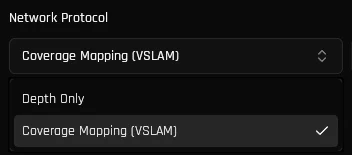
2
Adjust tracking and filter parameters (Optional)
Stick to the default parameters for the best out-of-the-box experience. Manual
tuning is entirely optional and reserved for advanced performance
optimization.
Tracking & Filter Parameters
Reference for tuning VSLAM tracking and voxel filter parameters.
3
Start the Stream
Hit the Start Stream button — refer to quickstart guide if you can’t find it.
4
Start Recording (if using USB mode)
When doing live slam (as opposed to DWVO playback), you must start recording to initiate the SLAM computation.
5
Enable Follow Camera
Click to turn on Follow Camera mode. The view then follows the camera as it moves, which gives you the best live mapping experience.Then zoom out a little (with the scroll wheel) so you can see more of the map as it builds around the camera.For more controls, see Tools and Controls.
DWE VSLAM running in real-time at 30fps

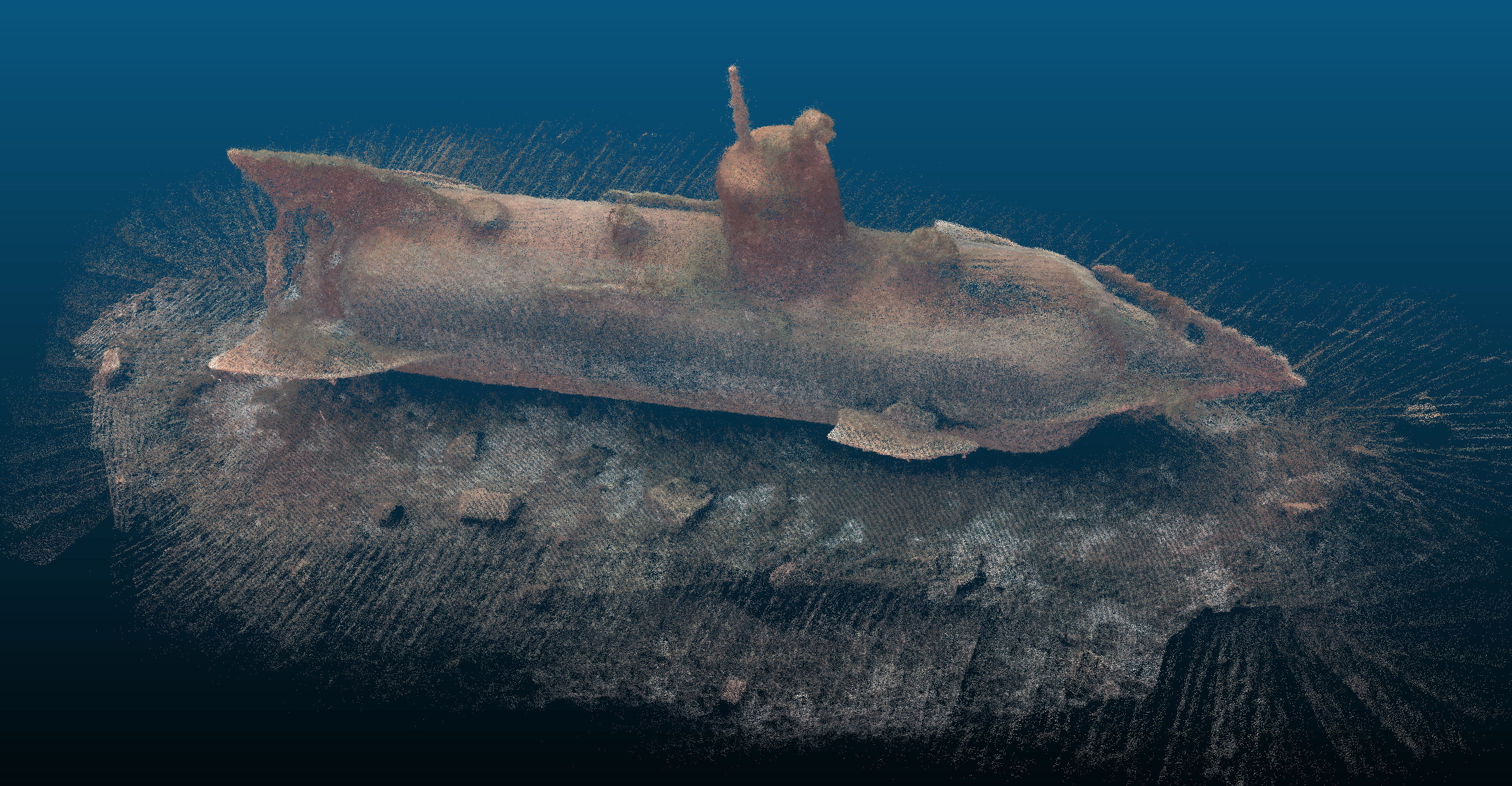
Saved point cloud opened in CloudCompare
Saved vSLAM result viewable online (downsampled for performance)
The saved VSLAM results are only sufficient for coverage. It is strongly recommended to post-process the footage after recording.
Loop closures
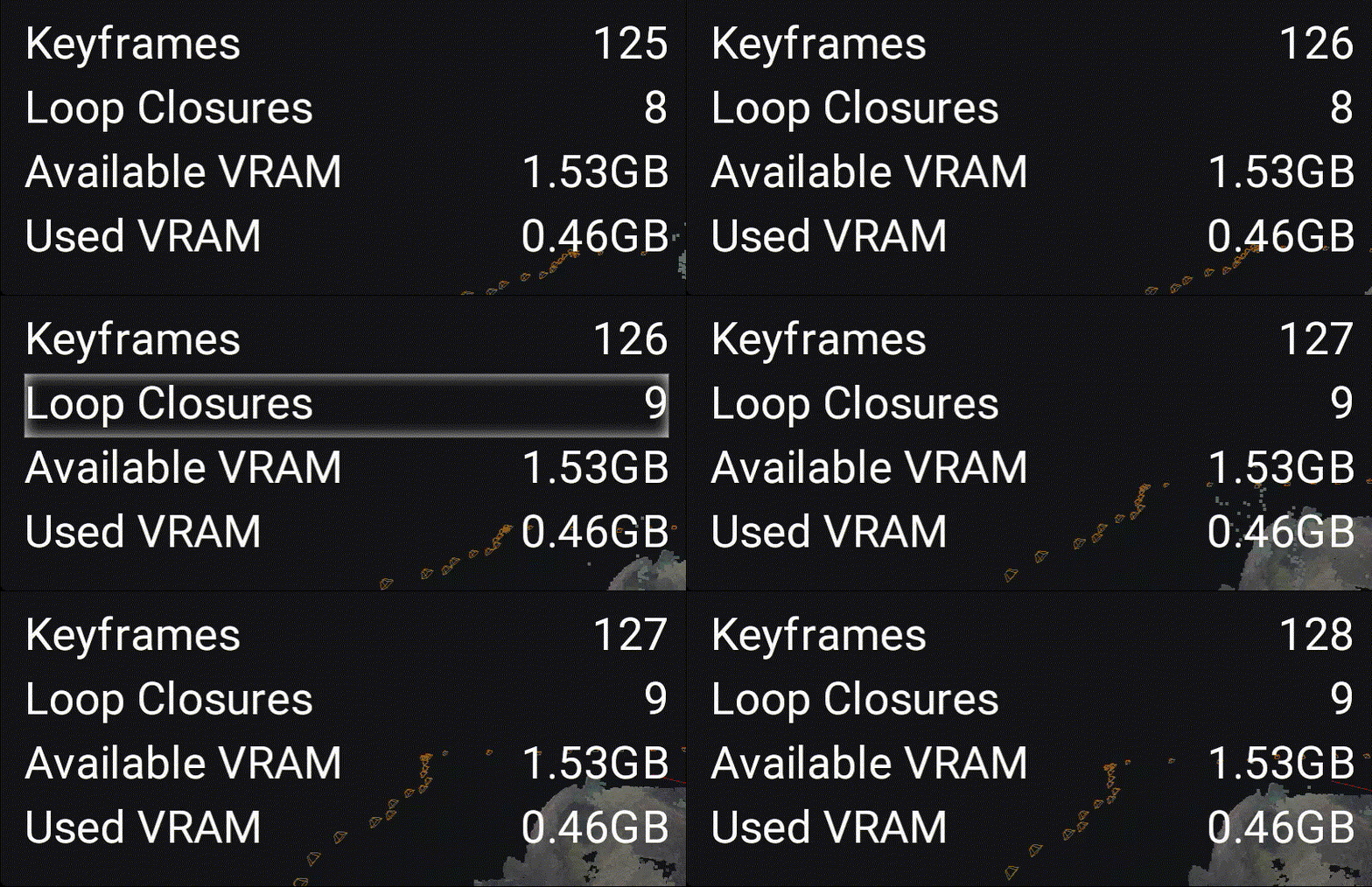
All SLAM systems accumulate error over time. To correct for this, we use the concept of loop closures: viewing the same location from the same pose at different points in time. DeepWater Desktop automatically recognizes loop closures and adjusts previously measured poses and point clouds accordingly. To initiate a loop closure, simply travel back to a previous pose and face in the same direction. You will see a glowing outline around “Loop Closures” while the number increases and your map re-aligns itself.You may need multiple loop closures to completely resolve overlap.
A loop closure fixing accumulated drift
Tools and Controls
Navigation
When the Scene view is focused, use the following controls to move the virtual camera:- Standard Mode
- Follow Mode (Recommended)

DeepWater Desktop Toolbar
| Icon | Action |
|---|---|
 | Measure Mode |
 | Color Mode / Coverage Mode |
 | Keyframe Visibility |
 | Feature Visibility |
 | Enable Follow Camera |
 | Reset Camera (disabled for follow camera mode) |
Color Mode
Press C or select the color palette icon in the bottom-right corner to toggle between Texture and Coverage viewing modes.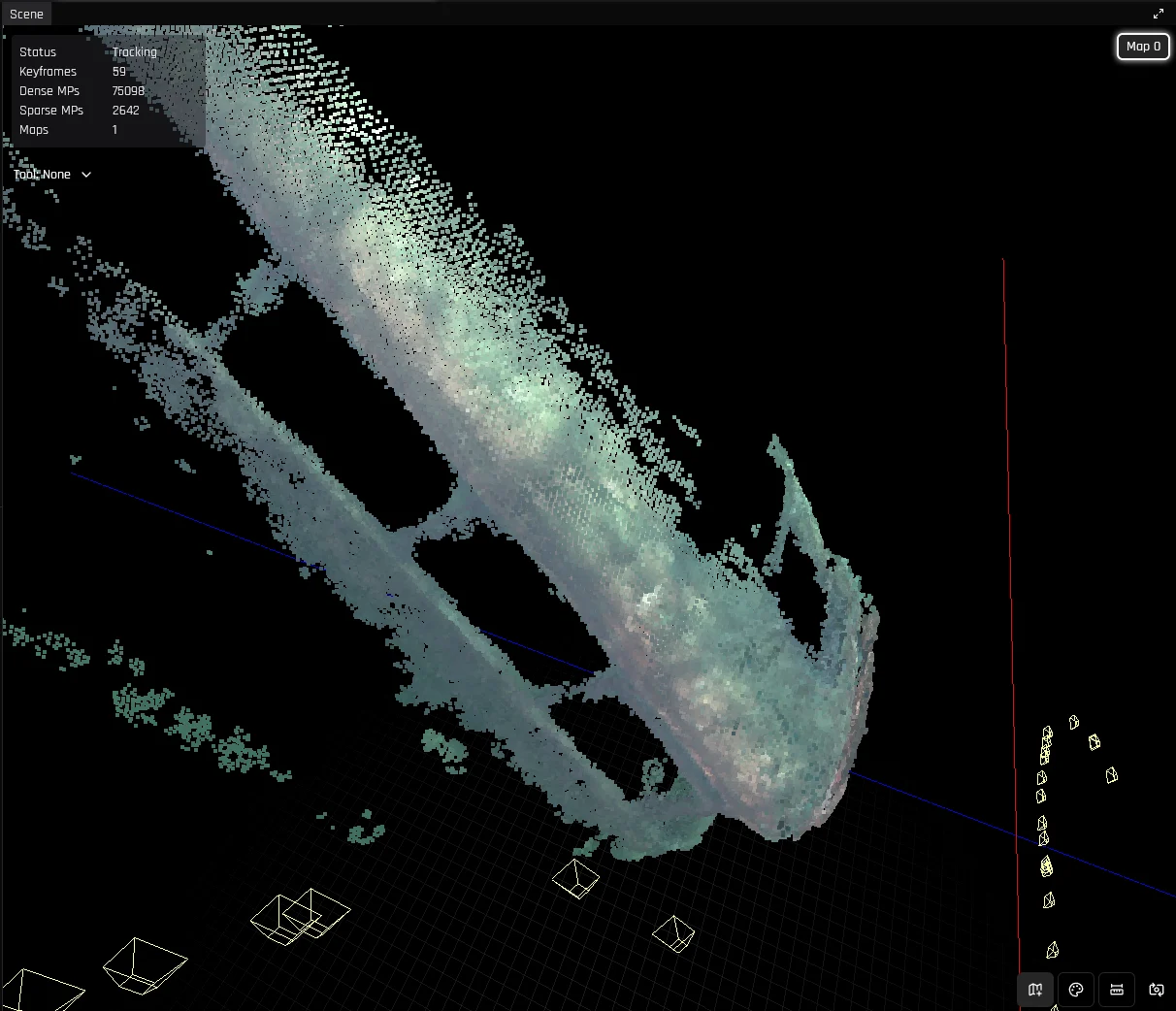
Texture mode shows the average observed RGB color for each point.
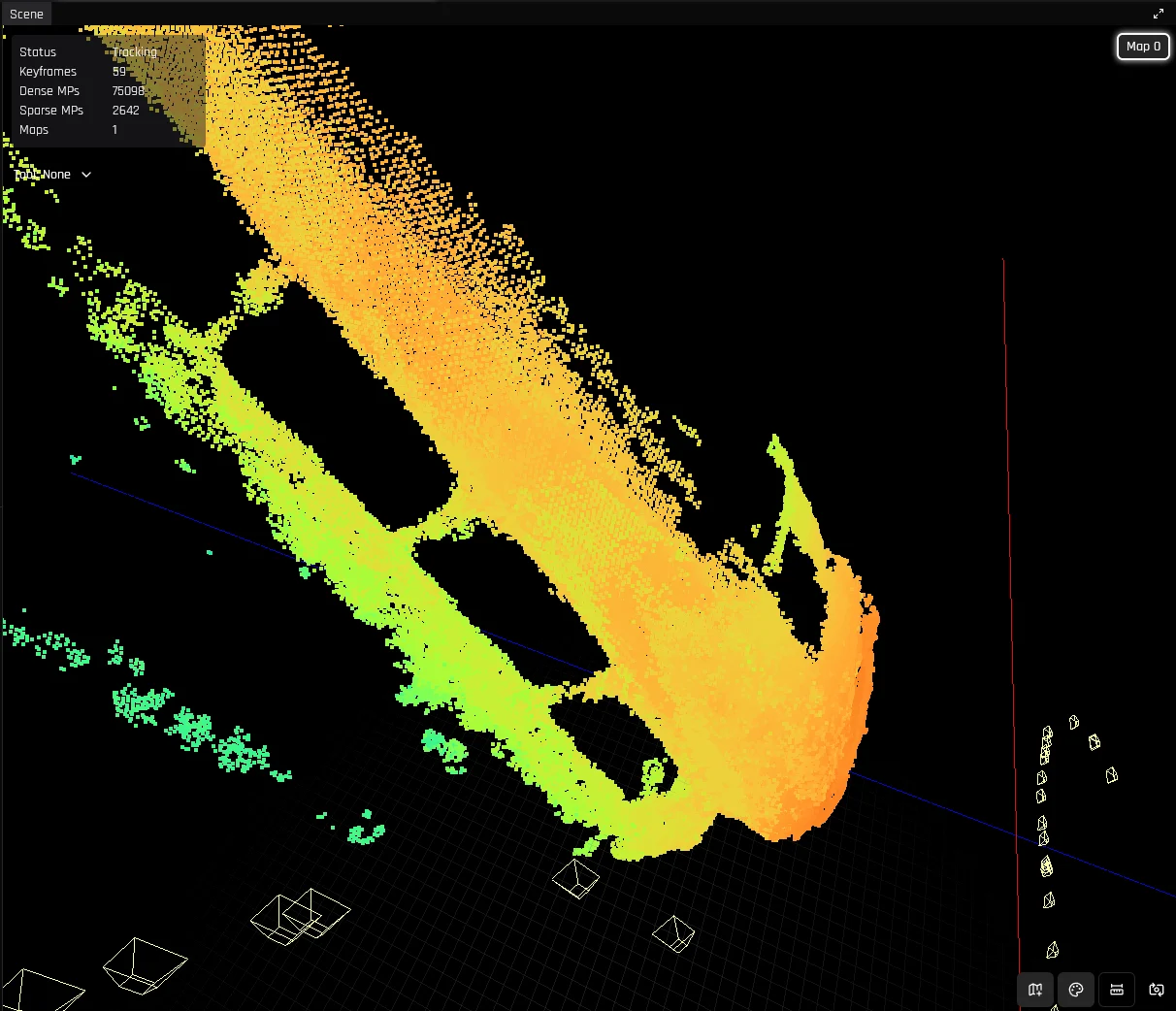
Coverage mode shows the nearest distance at which each point was observed. Red is closer, blue is further. Uses the same color mapping as the depth view.
Troubleshooting
Configuring UDP Receive Buffers
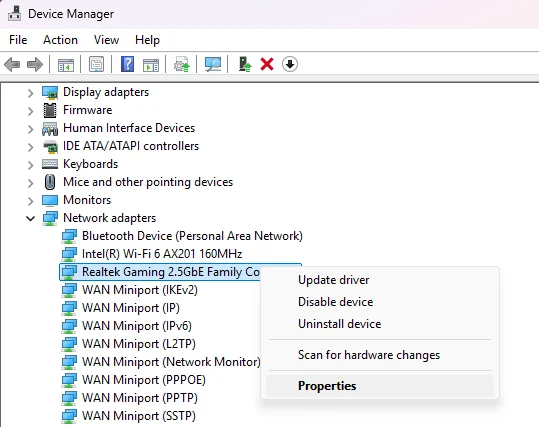
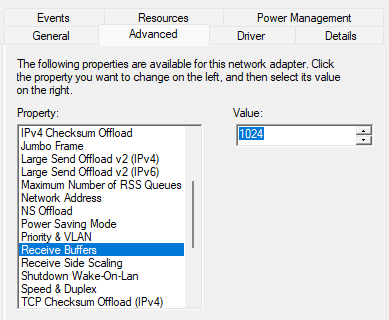
RTP packets can be discarded due to insufficient UDP receive buffer size. We recommend manually increasing it as the default is often insufficient for properly capturing full frames.- Linux
- Windows
We recommend setting the maximum OS receive buffer size to 8MB:
terminal