Streaming Button

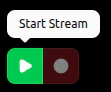
When there is no active video stream, the stream button will look like this, and you will be able to click it to start the stream.
There will also be no activity light when there is no active video stream.
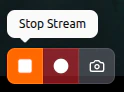
When there is an active video stream, the stream button will look like this, and you will be able to click it to end the stream.
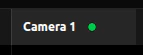
The activity light will be green where there is an active stream being run.

Recording Button

When there is no active video stream, the record button will look like this, and you will not be able to click it.
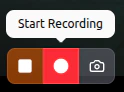
When there is an active video stream and the video is not recording, the record button will look like this, and you will be able to click it to start a recording.
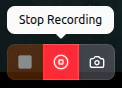
When there is an active video stream and the video is actively recording, the record button will look like this, and you will be able to click it to end a recording.
The activity light will be slow blinking red while the card is actively recording.
The resulting video(s) can be found through the file path under “Save Paths” within the Capture Settings card.