

Overview

Connect the SVC Pro to power and ethernet
- There will be two connectors present on one side of the device:
- Power Input (9-50V)
- Ethernet Output
- Provide 9-50V on the side indicated in the image above.
- Connect ethernet on the side indicated in the image above, following the pinout of your connector.
- Connect the other side of the ethernet to a personal computer.
Configure your networking setup
In order to connect to the SVC Pro, you will need to set up your desktop computer to allow network communication with the device.Please use the following guide to set up your computer. Return back here to continue with setup.
Desktop Networking
Click here for a quickstart guide on how to configure your desktop networking setup.
Open dweOS in your browser
Upon successfully configuring your desktop networking setup, you should now be able to connect to dweOS Pro in your web browser at http://192.168.2.2.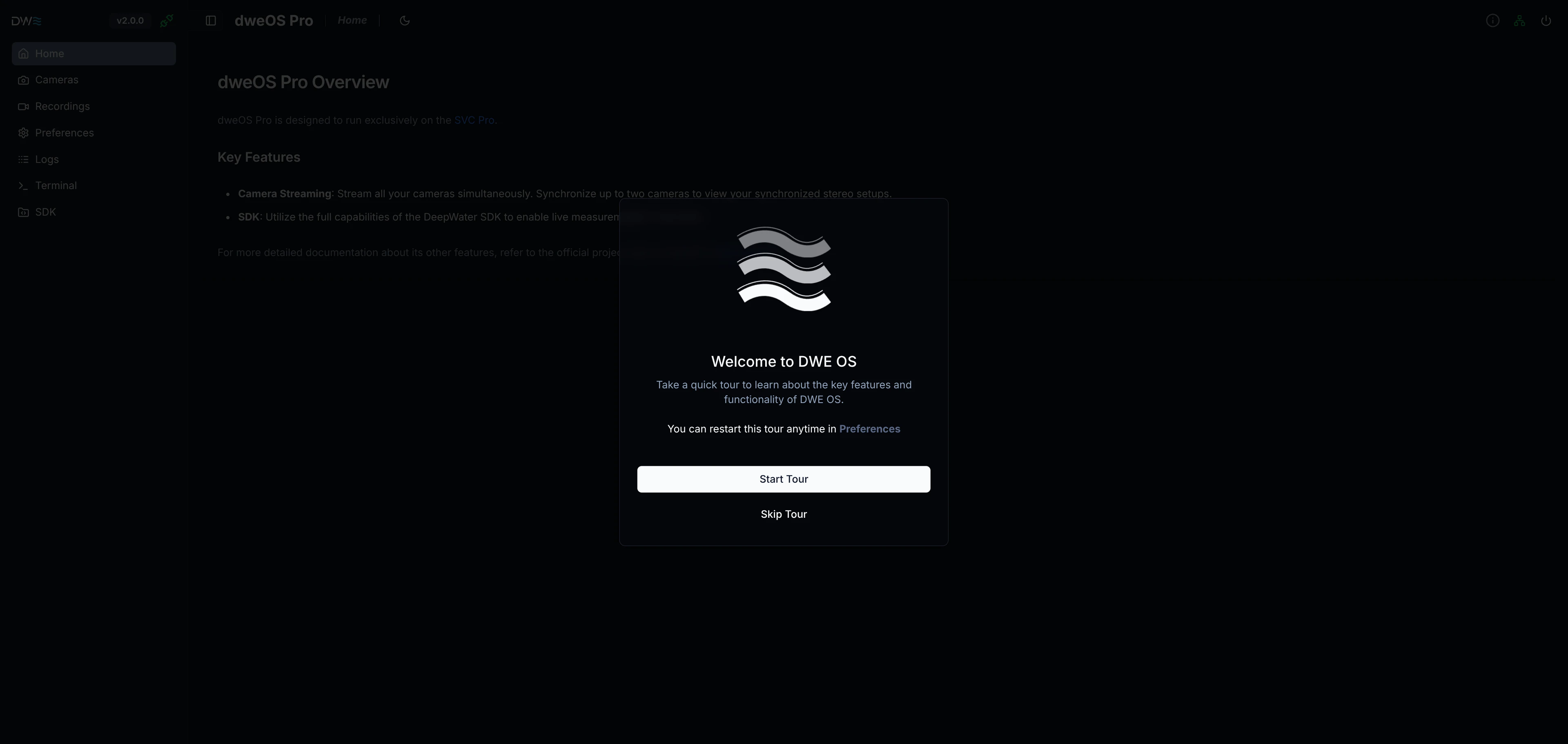
If you have configured your SVC Pro to use Dynamic IP (DHCP), use the address found in your router’s device list.
Streaming Depth Map and Point Clouds
Reaching the dweOS web interface indicates a successful connection to your SVC Pro.Move on to our guide for DeepWater Desktop, the companion desktop app for the SVC Pro.
We are in the process of updating dweOS to more closely match the appearance and functionality of dweOS Pro. Please contact us for information on how to use the new dweOS Pro interface.
Getting Started with DeepWater Desktop
Get started with stereo vision using DeepWater Desktop!