> ## Documentation Index
> Fetch the complete documentation index at: https://docs.dwe.ai/llms.txt
> Use this file to discover all available pages before exploring further.
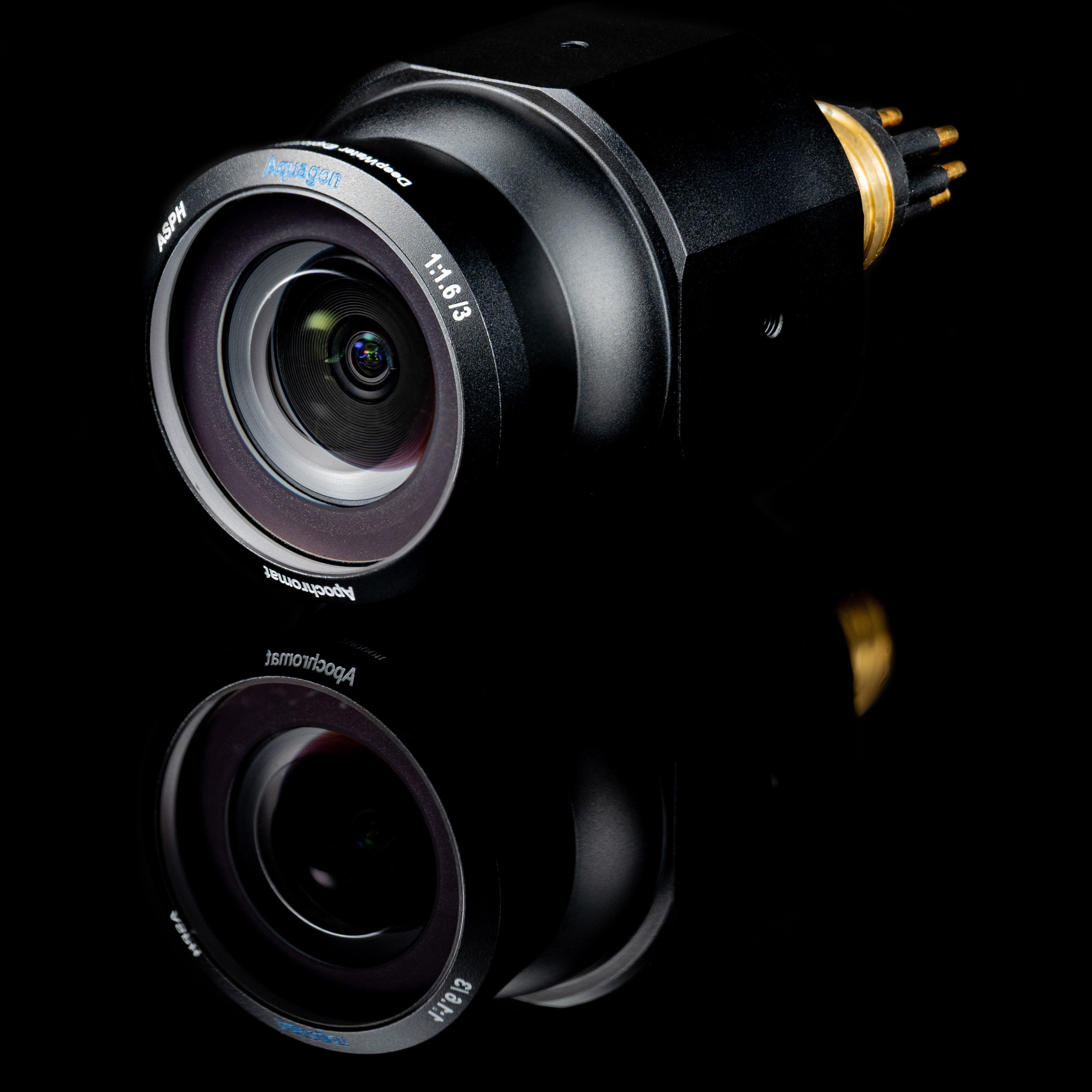
# stellarHD Elite Pro Technical Specifications
[**Product Page**](https://dwe.ai/products/stellarhd-elite-pro-6000m)
> [card] [Quick Start Guide](https://docs.dwe.ai/stellarHD/guides/stellarHD-quickstart.md)
>
> Connect your stellarHD and get an image.
> [card] [Download Datasheet](https://storage.googleapis.com/docs-product-files/stellarHD-series/stellarHD-Elite-Pro/datasheets/stellarHD-elite-pro-datasheet.pdf)
>
> Technical Information for the stellarHD Elite Pro.
## Physical Specifications
| Property | Value |
| - | - |
| Depth Rating | 6000 meters |
| Safety Margin | 40% |
| Ingress Protection Rating | IP69K+ equivalent |
| Mass in Air | 246 grams |
| Mass in Water | 146 grams |
| Material | Naval-grade, Corrosion Resistant Aluminum - Black, Abrasion-Resistant, Hard-Anodized Coating |
| Front Port | Scratch-Resistant Sapphire with internal AR Coating |
| Operating Temperature | -20°C to 85°C |
| Max Cable Length\* | 5m (USB 2.0) |
*\*To request a cable with your camera, contact [sales@dwe.ai](mailto:sales@dwe.ai).*
## Lens Specifications
| Specification | Aquagon |
| - | - |
| Type | Low-Distortion |
| Focus Type | Fixed Focus |
| Focal Length | 3.0mm |
| Lens Aperture | f/1.6 |
| Minimum Focus Distance | 25cm |
| Lens Element Count | 7 with 2 aspherical, 2 extra-low dispersion |
| Lens Coatings | DGS™ MULTI-COATING |
| Distortion | \<-1.5% |
| Back Focal Length | 2.05mm |
| IR Filter | 650nm |
| Horizontal FOV (In Water) | 78° |
| Vertical FOV (In Water) | 67° |
| Diagonal FOV (In Water) | 93° |
## Image Sensor Specifications
| Property | Color | Monochrome |
| - | - | - |
| Image Sensor | 1/2.9” Omnivision OmniPixel 3-GS™ CMOS | -- |
| Sensor Color | RGB | Monochrome |
| Sensor Type | Front-Side Illuminated | -- |
| Pixel Size | 3 µm (H) × 3 µm (V) | -- |
| Electronic Shutter Type | Global Shutter | -- |
| Max Resolution | 1600x1200 | -- |
| Max Framerate | 60fps with MJPEG | -- |
| Color Channels | 3 | 2 |
| Bits Per Channel | 8 bits | -- |
| Compression Formats | YUY2, MJPEG | -- |
| Connection | USB 2.0 High Speed / UVC Compliant / V4L2 Compatible | -- |

## Image Compression Specifications
| | MJPEG | YUY2 |
| - | - | - |
| Chroma Subsampling | 4:2:2 | 4:2:2 |
## Supported Resolutions and Framerates
| Resolution | MJPEG | YUY2 |
| - | - | - |
| **1600x1200** | 15, 30, 40, 50, 60 fps | 5 fps |
| **1280x720** | 15, 30, 40, 50, 60 fps | 5 fps |
| **800x600** | 15, 30, 40, 50, 60 fps | - |
| **640x480** | 15, 30, 40, 50, 60 fps | 5 fps |
| **320x240** | - | 15, 30 fps |
## Frame-Sync Specifications
### Leader-Follower Notes
Connect two cameras and configure your camera at any resolution, **but only at 60 FPS framerate.**
### Follower-Only Signal Specification
| FPS | Frequency Range | Duty Cycle | Rising Edge | Logic Level |
| :- | :- | :- | :- | :- |
| **60FPS / 59.94 NTSC** | 60Hz ± 0.1 | 30% | 50ns or less | 3.3V |
| **50FPS** | 50Hz ± 0.1 | 30% | 50ns or less | 3.3V |
| **40FPS** | 40Hz ± 0.1 | 30% | 50ns or less | 3.3V |
| **30FPS** | 30Hz ± 0.1 | 30% | 50ns or less | 3.3V |
| **15FPS** | 15Hz ± 0.1 | 30% | 50ns or less | 3.3V |
> [card] [Synchronization Guide](https://docs.dwe.ai/stellarHD/guides/syncing-multiple-cameras.md)
>
> Guide to synchronizing multiple stellarHD cameras.
## Software Requirements
| Property | Value |
| - | - |
| **External Software** | None Required (Plug-and-Play) |
| **Protocol** | UVC (USB Video Class) Compliant |
| **Windows Support** | Native Support - No drivers needed |
| **macOS Support** | Native Support - No drivers needed |
| **Linux Support** | Native Support - V4L2 compatible |
> [!NOTE]
>
> **Zero Software Required**
> Because it is fully UVC compliant, it requires absolutely **no proprietary drivers, external software, or libraries** for retrieving images.
>
> While we provide helpful optional utilities like our Camera Tester and dweOS, **these are strictly optional**. You can plug the camera into your system and immediately view the feed using standard built-in camera applications (like Windows Camera, OBS, etc).
## Electrical Specifications
| Property | MJPEG / YUY2 Mode |
| - | - |
| Voltage | 5V |
| Current | 190mA |
| Current (Max) | 200mA |
| Operating Wattage | 0.95W |
| Wattage (Min) | 0.0033W |
| Wattage (Max) | 1W |
## Strobe Specifications
> [!NOTE]
>
> Can be used with our aquaLUX series lights directly
| Property | |
| - | - |
| Logic Voltage | 3.3V |
| Frequency | Dependent on FPS (60 FPS = 60Hz, etc.) |
## Connector Pinout
> [tab] SubConn MCBH8M
>
> 
>
> | SubConn MCBH8M (USB) Bulkhead | |
> | - | - |
> | 1 | **Black : Ground** |
> | 2 | **White : FSIN (Frame-Sync)** |
> | 3 | **Red : +5V** |
> | 4 | **Green : Strobe** |
> | 5 | Orange : NC |
> | 6 | Blue : NC |
> | 7 | **White/black : DATA -** |
> | 8 | **Red/black : DATA +** |
## Cable Construction
| Parameter | USB 2.0 Specification |
| :- | :- |
| Cable Jacket Material | Polyurethane-based (PU, PUR, TPU) |
| Differential Impedance | Twisted Pair: 90 Ω ± 15% |
| Data Pair Construction | 28 AWG Twisted Pair (D+ / D-) |
| Signal Conductors | 2 × 28 AWG Single Conductors (FSIN / Strobe) |
| Power Conductor Size | 24 AWG |
| Shielding Construction | Braided Foil Shielding (Al-Mylar Tape + Tinned Copper Braid) |
| Drain Wire | 28 AWG Tinned Copper Drain Wire |
| Conductor Plating | Tinned Copper |
| Overall Diameter | 4.80 mm ± 0.15 mm |
| Operating Temperature | -40 °C to +80 °C |
> [!NOTE]
>
> **SubConn cabling:** You can purchase custom USB cabling for SubConn models from us. Contact [sales@dwe.ai](mailto:sales@dwe.ai).
>
> You can also use an equivalent cable that meets the USB 2.0 cable requirements above: a 28 AWG twisted data pair with 90 Ω ± 15% differential impedance, and 24 AWG power conductors.
>
> For a ready-made subsea option, MacArtney recommends its [Type 9040CC data cable](https://cdn.macartney.com/media/ctandxje/100017203-data-cable-type-9040cc.pdf) or similar. It has 4 screened 24 AWG twisted pairs with a nominal impedance of approximately 104 Ω, and is rated to 6,000 m.
## CAD Files
The stellarHD Elite Pro shares the same external housing as the regular stellarHD Pro.
> [tab] SubConn MCBH8M
>
> > [card] [STEP File](https://storage.googleapis.com/docs-product-files/stellarHD-series/stellarHD-Pro/stellarhd-pro.step)
> >
> > stellarHD Pro STEP File
>
> > [card] [Technical Drawing](https://storage.googleapis.com/docs-product-files/stellarHD-series/stellarHD-Pro/stellarhd-pro-drawing.pdf)
> >
> > stellarHD Pro Technical Drawing
> [tab] Mounting Bracket
>
> > [card] [STEP File](https://storage.googleapis.com/docs-product-files/brackets/stellarhd-pro-bracket.step)
> >
> > stellarHD Pro Mounting Bracket STEP File
>
> > [card] [Technical Drawing](https://storage.googleapis.com/docs-product-files/brackets/stellarhd-pro-bracket-drawing.pdf)
> >
> > stellarHD Pro Mounting Bracket Technical Drawing
## Updating Firmware
Firmware Updater for the stellarHD Elite coming soon!
## NDAA Section 889 Compliance
> This product is fully compliant with Section 889 of the National Defense Authorization Act (NDAA).
> We do not utilize any covered telecommunications equipment, video surveillance equipment, or services
> from prohibited entities (including Huawei, ZTE, Hytera, Hikvision, Dahua, or their affiliates).
> This product contains compliant core processing components and zero proprietary firmware, ensuring
> a secure hardware profile free of restricted data pathways.
## CE (Conformité Européenne)
> This product is CE certified, indicating conformance with relevant European Union directives
> and regulations regarding health, safety, and environmental protection. This certification
> validates that the product meets the high standards required for sale within the European Economic Area.
## Troubleshooting
> [accordion] Check the Wiring
>
> [Ensure that the wire colors match](https://docs.dwe.ai/stellarHD/guides/stellarHD-quickstart.md#preparing-the-jst-cable-connection) their respective functions when connected to the JST connector. Even a single crossed wire will prevent the camera from being recognized.
> [accordion] Twist the Data Wires (Required)
>
> Twist the **White (D-)** and **Yellow/Green (D+)** wires together along their length, as shown in [Preparing the JST Cable Connection](https://docs.dwe.ai/stellarHD/guides/stellarHD-quickstart.md#preparing-the-jst-cable-connection). The camera uses a USB 2.0 High-Speed connection, which needs a twisted data pair to reject interference. Without it, the signal may be too weak for your computer to recognize the camera.
> [accordion] Check the Connections and Power
>
> Make sure the wires are seated securely in the JST connector.
>
> Make sure the JST is pushed all the way into the USB adapter, and the adapter is securely plugged into your USB port.
>
> The camera can draw 200–320mA at 5V, depending on the model. Try plugging the adapter directly into your computer, rather than a low-power USB hub, to ensure it is getting sufficient current.
> [accordion] Check That Your Computer Detects the Camera
>
> Check if your computer's operating system is detecting the camera at a hardware level, even if it's not showing an image yet. Since it connects via USB, we are looking for a USB device connection.
>
> > [tab] Windows
> >
> > 1. Right-click the **Start button** (or press `Win` + `X`) and select **Device Manager**.
> >
> > 2. Expand the following categories to look for the camera, `stellarHD`:
> > * **Cameras**
> > * **Imaging devices**
> > * **Sound, video and game controllers**
> >
> > 3. If the wiring is slightly off or the data lines aren't twisted properly, Windows might detect *something* but not know what it is. Expand **Universal Serial Bus controllers** and look for anything labeled **Unknown USB Device (Device Descriptor Request Failed)**.
> >
> > > [!TIP]
> > >
> > > Keep the Device Manager open and unplug/replug the USB adapter. The list will refresh; watch to see if any new devices appear or disappear.
> >
> > 
>
> > [tab] macOS
> >
> > 1. Hold down the **Option** key on your keyboard, then click the **Apple logo** () in the top left corner of your screen.
> > 2. Select **System Information** (this is usually "About This Mac" if you don't hold the Option key).
> > > [!TIP]
> > >
> > > Unplugging and replugging the camera while on this screen (and pressing `Cmd` + `R` to refresh) will help you spot if the system is registering a hardware connection.
> > 3. In the left-hand sidebar under the "Hardware" section, click on **USB**.
> > 4. Check the **USB Device Tree** on the right. Look for the stellarHD camera or an unrecognized USB device.
> >
> > 
>
> > [tab] Linux
> >
> > 1. Open your terminal.
> > 2. Type `lsusb` and press `Enter`. This lists all connected USB buses and the devices attached to them. Look for a device name that mentions the camera or an unnamed device that appears when plugged in.
> > * You can also use this one-line command to detect a valid stellarHD camera:
> > ```
> > lsusb | grep -qiE "stellarhd|microdia|0c45" && echo "stellarHD connected!"
> > ```
> > 3. To see if Linux recognizes it specifically as a video device (since it is V4L2 compatible), run:
> > ```bash theme={null}
> > ls -l /dev/video*
> > ```
> > 4. For real-time connection logs, run the following command. When you plug the camera in, you should see a flurry of text appear, indicating whether the USB connection was successful or if there were enumeration errors (like `device descriptor read/64, error`).
> > ```bash theme={null}
> > sudo dmesg -w | grep -iE "usb|uvcvideo"
> > ```
> >
> > 
> >
> > type `lsusb`, press enter, and look for your camera
> [accordion] "Failed to Initialize the Device" Error (Linux)
>
> If the camera disconnects shortly after being plugged in, check the Linux kernel log (`sudo dmesg -w`) for errors like these:
>
> ```text theme={null}
> uvcvideo: UVC non compliance - GET_DEF(PROBE) not supported. Enabling workaround.
> uvcvideo: Failed to query (129) UVC probe control : -71 (exp. 26).
> uvcvideo: Failed to initialize the device (-5).
> usb 1-1.3: USB disconnect, device number 7
> ```
>
> This error can have more than one cause. Check each one below.
>
> #### Bad Firmware
>
> Corrupt or outdated firmware can stop the camera from initializing. Update the camera firmware with the DWE Firmware Loader:
>
> > [card] [stellarHD Firmware Update](https://docs.dwe.ai/stellarHD/guides/stellarHD-firmware.md)
> >
> > Update the firmware on stellarHD series cameras.
>
> #### Bad Cable
>
> A damaged or incorrectly wired cable can corrupt the USB signal. Make sure that the wiring is correct and that the data wires are twisted:
>
> > [card] [stellarHD Cable Connection](https://docs.dwe.ai/stellarHD/guides/stellarHD-quickstart.md#preparing-the-jst-cable-connection)
> >
> > Prepare the JST cable connection for stellarHD series cameras.
This documentation is built and hosted on [Mintlify](https://mintlify.com), a developer documentation platform.