> ## Documentation Index
> Fetch the complete documentation index at: https://docs.dwe.ai/llms.txt
> Use this file to discover all available pages before exploring further.

# stellarHD Firmware Update Guide

> A guide on how to update your stellarHD cameras to the latest firmware and choose between **leader** or **follower** mode.

## Install the Firmware Loader

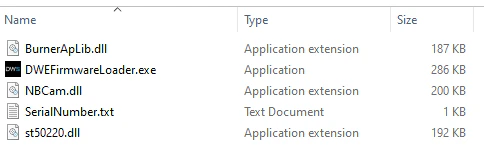
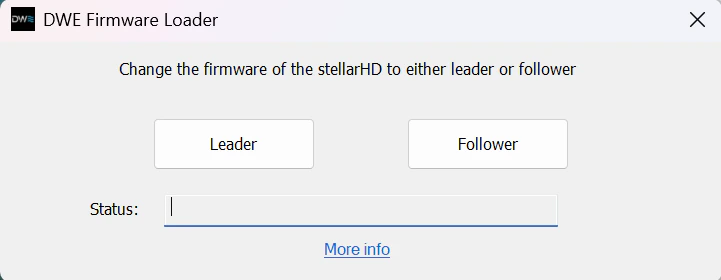
Download and run the installer, then launch the **DWE Firmware Loader**.

<Card title="Download DWE Firmware Loader (Windows)" icon="windows" href="https://storage.googleapis.com/dwe-firmware/DWEFirmwareLoader_1.0.4_x86-setup.exe">
  DWEFirmwareLoader.exe
</Card>

> Linux-compatible tool coming soon!

## Firmware Update Procedure

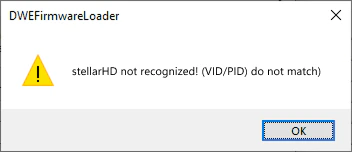
The Firmware Loader automatically detects your connected camera. If your camera is not recognized, follow the **Recovery Mode** tab instead.

<Tabs>
  <Tab title="Standard Update">
    <Steps>
      <Step title="Plug in Camera and Click Refresh">
        After plugging in your camera, click the **refresh icon** in the top-right corner so the loader scans for it. Once detected, it shows a green **Device Detected** card with the model, current firmware version, and role (`Leader` or `Follower`). If a newer version exists, an **Update available** badge appears.

        <Frame>
          <img src="https://mintcdn.com/deepwaterexplorationinc/sa4sfhACj0cKUeyx/stellarHD/guides/images/firmware-update/stellarHD-Firmware-Click-Refresh.png?fit=max&auto=format&n=sa4sfhACj0cKUeyx&q=85&s=0fc2426b74044f29b08b341d904bb2cb" alt="Device automatically detected and selected after clicking the refresh icon" style={{ maxWidth: "400px", width: "100%" }} width="1050" height="1290" data-path="stellarHD/guides/images/firmware-update/stellarHD-Firmware-Click-Refresh.png" />
        </Frame>
      </Step>

      <Step title="Select the Leader or Follower version">
        Open the **Version** dropdown and pick the correct role for this camera:

        * **Follower** — for the follower camera in the pair.
        * **Leader** — for the leader camera in the pair.

        Always choose the **(latest)** version unless you have a specific reason not to.

        <Frame>
          <img src="https://mintcdn.com/deepwaterexplorationinc/sa4sfhACj0cKUeyx/stellarHD/guides/images/firmware-update/stellarHD-Firmware-Select-Leader-Follower.png?fit=max&auto=format&n=sa4sfhACj0cKUeyx&q=85&s=191d07ae093d0512e6955afe902d9c5c" alt="Select the Leader or Follower firmware version" style={{ maxWidth: "400px", width: "100%" }} width="1050" height="1290" data-path="stellarHD/guides/images/firmware-update/stellarHD-Firmware-Select-Leader-Follower.png" />
        </Frame>
      </Step>

      <Step title="Flash the firmware">
        Once the correct version is selected, click **Flash Firmware**.

        <Warning>
          Do not close the application, unplug the camera, or open any application that may use the camera until the update is complete.
        </Warning>

        <Frame>
          <img src="https://mintcdn.com/deepwaterexplorationinc/sa4sfhACj0cKUeyx/stellarHD/guides/images/firmware-update/stellarHD-Firmware-Press-Flash.png?fit=max&auto=format&n=sa4sfhACj0cKUeyx&q=85&s=660cb61a095e48047212b4b5b1e55e1b" alt="Press the Flash Firmware button" style={{ maxWidth: "400px", width: "100%" }} width="1050" height="1290" data-path="stellarHD/guides/images/firmware-update/stellarHD-Firmware-Press-Flash.png" />
        </Frame>
      </Step>

      <Step title="Wait for the upload to finish">
        The progress bar shows **Uploading firmware…**, which should take around 20-30 seconds.

        <Frame>
          <img src="https://mintcdn.com/deepwaterexplorationinc/sa4sfhACj0cKUeyx/stellarHD/guides/images/firmware-update/stellarHD-Firmware-Flash-In-Progress.png?fit=max&auto=format&n=sa4sfhACj0cKUeyx&q=85&s=1adca7e9484447bb229f06f764d45523" alt="Firmware upload in progress" style={{ maxWidth: "400px", width: "100%" }} width="1050" height="1290" data-path="stellarHD/guides/images/firmware-update/stellarHD-Firmware-Flash-In-Progress.png" />
        </Frame>
      </Step>

      <Step title="Done!">
        When you see **Firmware burning success!**, the update is complete.

        <Frame>
          <img src="https://mintcdn.com/deepwaterexplorationinc/sa4sfhACj0cKUeyx/stellarHD/guides/images/firmware-update/stellarHD-Firmware-Flash-Success.png?fit=max&auto=format&n=sa4sfhACj0cKUeyx&q=85&s=05d04c4bda61a48f1fa6ec2d978bfbc8" alt="Firmware burning success" style={{ maxWidth: "400px", width: "100%" }} width="1050" height="1290" data-path="stellarHD/guides/images/firmware-update/stellarHD-Firmware-Flash-Success.png" />
        </Frame>
      </Step>
    </Steps>
  </Tab>

  <Tab title="Recovery Mode">
    Use Recovery Mode if the loader shows a yellow **Unknown Device Detected** warning instead of the green card. This can happen if a previous update was interrupted.

    <Warning>
      In Recovery Mode the loader cannot verify your camera model, so you must select the correct hardware profile yourself. **Flashing firmware for the wrong board can permanently brick your device.**
    </Warning>

    <Steps>
      <Step title="Plug in Camera and Click Refresh">
        After plugging in your camera, click the **refresh icon** in the top-right corner so the loader scans for it. The loader displays **Unknown Device Detected**. The **Device Type** shows *Select hardware profile target* and no version is available yet.

        <Frame>
          <img src="https://mintcdn.com/deepwaterexplorationinc/sa4sfhACj0cKUeyx/stellarHD/guides/images/firmware-update/stellarHD-Recovery-Mode-Unknown-Device-Detected.png?fit=max&auto=format&n=sa4sfhACj0cKUeyx&q=85&s=95ff8447a6d01776acce839633790a74" alt="Unknown device detected" style={{ maxWidth: "400px", width: "100%" }} width="1050" height="1290" data-path="stellarHD/guides/images/firmware-update/stellarHD-Recovery-Mode-Unknown-Device-Detected.png" />
        </Frame>
      </Step>

      <Step title="Select your hardware profile">
        Open the **Device Type** dropdown and select the profile that matches your camera — **stellarHD**, **stellarHD Elite**, or **explore3D**.

        <Frame>
          <img src="https://mintcdn.com/deepwaterexplorationinc/sa4sfhACj0cKUeyx/stellarHD/guides/images/firmware-update/stellarHD-Recovery-Mode-Select-Target.png?fit=max&auto=format&n=sa4sfhACj0cKUeyx&q=85&s=faa7bd5879cd052cf4a70f2db960133c" alt="Select the hardware profile target" style={{ maxWidth: "400px", width: "100%" }} width="1050" height="1290" data-path="stellarHD/guides/images/firmware-update/stellarHD-Recovery-Mode-Select-Target.png" />
        </Frame>
      </Step>

      <Step title="Select the Leader or Follower version">
        In the **Version** dropdown, choose the correct role (**Leader** or **Follower**) for this camera. Remember each pair needs exactly one of each.
      </Step>

      <Step title="Force the recovery flash">
        Click **Force Recovery Flash**.

        <Warning>
          Do not close the application, unplug the camera, or open any application that may use the camera until the update is complete.
        </Warning>

        <Frame>
          <img src="https://mintcdn.com/deepwaterexplorationinc/sa4sfhACj0cKUeyx/stellarHD/guides/images/firmware-update/stellarHD-Recovery-Mode-Press-Flash.png?fit=max&auto=format&n=sa4sfhACj0cKUeyx&q=85&s=ab2d670e03b15117092eec9e077acd83" alt="Press the Force Recovery Flash button" style={{ maxWidth: "400px", width: "100%" }} width="1050" height="1290" data-path="stellarHD/guides/images/firmware-update/stellarHD-Recovery-Mode-Press-Flash.png" />
        </Frame>
      </Step>

      <Step title="Wait for the upload to finish">
        The progress bar shows **Uploading firmware…**, which should take around 20-30 seconds.

        <Frame>
          <img src="https://mintcdn.com/deepwaterexplorationinc/sa4sfhACj0cKUeyx/stellarHD/guides/images/firmware-update/stellarHD-Recovery-Mode-Flash-In-Progress.png?fit=max&auto=format&n=sa4sfhACj0cKUeyx&q=85&s=68d3a608c1f4f7beeacd2d5db1f8f644" alt="Recovery flash in progress" style={{ maxWidth: "400px", width: "100%" }} width="1050" height="1290" data-path="stellarHD/guides/images/firmware-update/stellarHD-Recovery-Mode-Flash-In-Progress.png" />
        </Frame>
      </Step>

      <Step title="Done!">
        When you see **Firmware burning success!**, the recovery is complete.

        <Frame>
          <img src="https://mintcdn.com/deepwaterexplorationinc/sa4sfhACj0cKUeyx/stellarHD/guides/images/firmware-update/stellarHD-Recovery-Mode-Flash-Success.png?fit=max&auto=format&n=sa4sfhACj0cKUeyx&q=85&s=84dec7a58abf378fe76018b6e0d21978" alt="Recovery flash success" style={{ maxWidth: "400px", width: "100%" }} width="1050" height="1290" data-path="stellarHD/guides/images/firmware-update/stellarHD-Recovery-Mode-Flash-Success.png" />
        </Frame>
      </Step>
    </Steps>
  </Tab>
</Tabs>

## Test your camera

You can test the camera using our online tool below.

<Card title="Online Camera Testing Utility" icon="video" href="https://dwe.ai/testcam">
  Convenient tool to test your USB camera feeds.
</Card>

## Troubleshooting

<AccordionGroup>
  <Accordion title="My camera isn't detected / shows Unknown Device Detected">
    1. Ensure the stellarHD is the **only** camera plugged in.
    2. If on a laptop, temporarily disable the built-in webcam in **Device Manager**.
    3. Close any application that may be using the camera, then click the refresh icon in the top-right of the loader.
    4. If it still isn't recognized, follow the **Recovery Mode** steps above.
  </Accordion>

  <Accordion title="The update failed or was interrupted">
    If the flash was interrupted (application closed, camera unplugged, etc.), reconnect the camera and follow the **Recovery Mode** steps above to reflash.
  </Accordion>
</AccordionGroup>