> ## Documentation Index
> Fetch the complete documentation index at: https://docs.dwe.ai/llms.txt
> Use this file to discover all available pages before exploring further.
# dweOS 홈 페이지에 접속하기
> 이 가이드는 dweOS의 홈 페이지에 접속하는 방법을 안내합니다.
### dweOS 설치
dweOS를 아직 설치하지 않았다면, 기존 Linux 시스템이나 Raspberry Pi에 설치하세요.
명령줄을 통한 **dweOS** 설치를 마치면, 최신 웹 브라우저에서 그래픽 인터페이스에 접속할 수 있습니다.
dweOS가 현재 사용 중인 장치를 기준으로 어디에서 실행되고 있는지에 따라 아래 두 가지 방법 중 하나를 사용하세요.
## 연결 방법
### 1. 로컬 접속
dweOS가 설치된 장비 앞에 있다면, 로컬 루프백 주소를 사용해 홈 페이지에 접속할 수 있습니다.
* **URL:** `http://localhost`
* **포트:** 80(기본값)
dweOS는 표준 HTTP 포트(80)에서 동작하므로, 브라우저에 포트 번호를 입력할 필요가 없습니다. `http://localhost`만 입력하면 됩니다!
***
### 2. 원격 접속(네트워크)
dweOS가 로컬 네트워크상의 별도 장치(서버, Raspberry Pi 또는 전용 워크스테이션 등)에 설치되어 있다면, 해당 장치의 IP 주소가 필요합니다.
1. 호스트 장비의 **IP 주소를 확인합니다**(예: Linux에서 `hostname -I` 또는 `ifconfig` 실행).
2. **IP를** 브라우저의 주소창에 **입력합니다**.
| 설정 유형 | 주소 형식 |
| :-------- | :--------------------------- |
| **표준 IP** | `http://192.168.1.XX` |
| **호스트명** | `http://dweos.local`(설정된 경우) |
## 완료
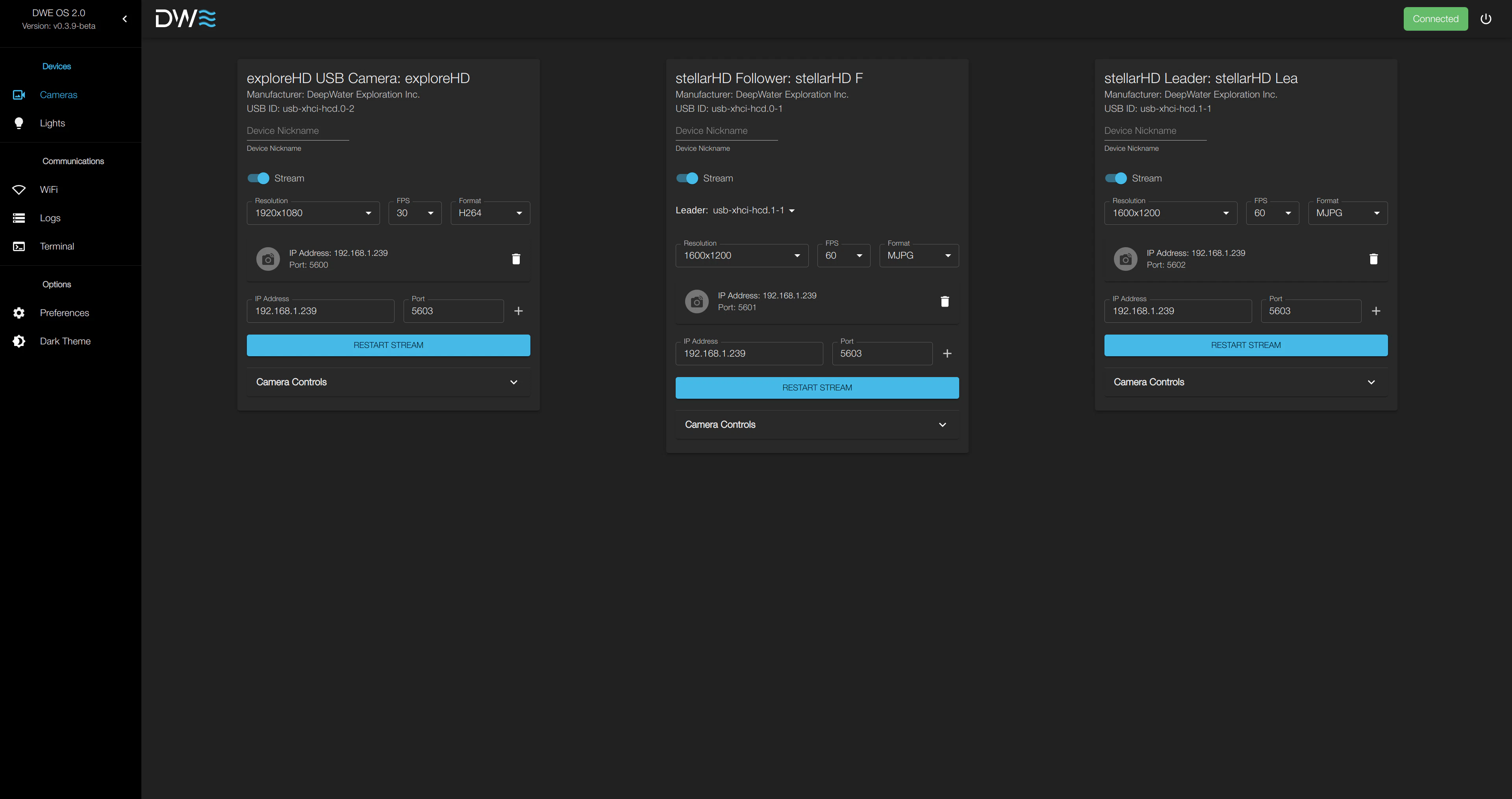
dweOS 홈 페이지에 접속할 수 있게 되면, 카메라에서 비디오 스트리밍을 시작할 수 있습니다!
 ***
## 문제 해결
### 어시스턴트에게 질문하기
I am having trouble accessing the dweOS Home Page. I need you to act as a technical support engineer specialized in dweOS.
Your Source Material: > Please use the official documentation at [https://docs.dwe.ai/dwe-os/guides/quickstart.md](https://docs.dwe.ai/dwe-os/guides/quickstart.md) to guide your troubleshooting.
Your Instructions:
* Do not provide a generic list of fixes yet.
* Instead, start by asking me the necessary diagnostic questions (one or two at a time) to understand my specific setup (e.g., Installation method, Local vs. Remote access, and specific error messages).
* Once you have my details, cross-reference them with the Troubleshooting Connectivity section of the documentation.
* Guide me step-by-step through checking my service status, firewall settings, and port conflicts until the page loads.
Please start by introducing yourself as the dweOS Support Assistant and ask me the first set of questions you need to help me.
Google Gemini와 채팅하기.
Claude와 채팅하기.
ChatGPT와 채팅하기.
### 자주 놓치는 항목
페이지 로드가 실패하면 다음 사항을 확인하세요:
dweOS 프로세스가 터미널에서 실제로 실행 중인지 확인하세요. 로그에 "Server started" 또는 "Listening on port 80" 메시지가 표시되는지 확인합니다.
원격에서 접속하는 경우, 시스템 방화벽이 **포트 80**의 인바운드 트래픽을 허용하고 있는지 확인하세요.
해당 장치에서 다른 웹 서버(Apache나 Nginx 등)가 이미 포트 80을 사용하고 있지 않은지 확인하세요.
***
## 문제 해결
### 어시스턴트에게 질문하기
I am having trouble accessing the dweOS Home Page. I need you to act as a technical support engineer specialized in dweOS.
Your Source Material: > Please use the official documentation at [https://docs.dwe.ai/dwe-os/guides/quickstart.md](https://docs.dwe.ai/dwe-os/guides/quickstart.md) to guide your troubleshooting.
Your Instructions:
* Do not provide a generic list of fixes yet.
* Instead, start by asking me the necessary diagnostic questions (one or two at a time) to understand my specific setup (e.g., Installation method, Local vs. Remote access, and specific error messages).
* Once you have my details, cross-reference them with the Troubleshooting Connectivity section of the documentation.
* Guide me step-by-step through checking my service status, firewall settings, and port conflicts until the page loads.
Please start by introducing yourself as the dweOS Support Assistant and ask me the first set of questions you need to help me.
Google Gemini와 채팅하기.
Claude와 채팅하기.
ChatGPT와 채팅하기.
### 자주 놓치는 항목
페이지 로드가 실패하면 다음 사항을 확인하세요:
dweOS 프로세스가 터미널에서 실제로 실행 중인지 확인하세요. 로그에 "Server started" 또는 "Listening on port 80" 메시지가 표시되는지 확인합니다.
원격에서 접속하는 경우, 시스템 방화벽이 **포트 80**의 인바운드 트래픽을 허용하고 있는지 확인하세요.
해당 장치에서 다른 웹 서버(Apache나 Nginx 등)가 이미 포트 80을 사용하고 있지 않은지 확인하세요.