> ## Documentation Index
> Fetch the complete documentation index at: https://docs.dwe.ai/llms.txt
> Use this file to discover all available pages before exploring further.

# 데스크톱 네트워크 설정 가이드

> 이 가이드는 차량/시스템과 노트북/PC 또는 기타 데스크톱 컴퓨터를 직접 연결하여 설정하는 방법을 도와드립니다.

<Note>
  차량/시스템을 노트북/PC의 이더넷 포트에 직접 연결하고 있는지 확인하세요.
</Note>

## 장치 이더넷 구성

이 단계는 Raspberry Pi가 이더넷을 통해 제공하는 로컬 네트워크에서 장치의 IP를 설정하기 위해 필요합니다.

<Tabs>
  <Tab title="Windows">
    <Steps>
      <Step>
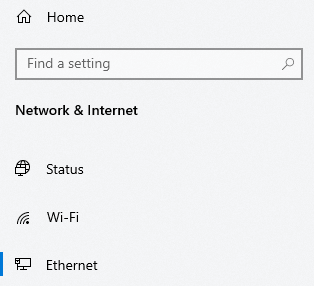
        **설정/네트워크 및 인터넷**에서 **이더넷**을 선택합니다.

        <Frame>
          <img src="https://mintcdn.com/deepwaterexplorationinc/PpwtoMTlxduUAF0D/dwe-os/guides/images/desktop-network-setup/windows/network.png?fit=max&auto=format&n=PpwtoMTlxduUAF0D&q=85&s=1c119ac65c85a2620358740ccda88908" width="314" height="286" data-path="dwe-os/guides/images/desktop-network-setup/windows/network.png" />
        </Frame>
      </Step>

      <Step>
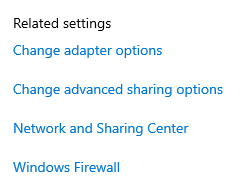
        오른쪽의 **관련 설정**에서 `어댑터 옵션 변경`을 선택합니다.

        <Frame>
          <img src="https://mintcdn.com/deepwaterexplorationinc/PpwtoMTlxduUAF0D/dwe-os/guides/images/desktop-network-setup/windows/adapter_options.png?fit=max&auto=format&n=PpwtoMTlxduUAF0D&q=85&s=9ad240fbe4d5895950e5c4d3d268ce6a" width="251" height="192" data-path="dwe-os/guides/images/desktop-network-setup/windows/adapter_options.png" />
        </Frame>
      </Step>

      <Step>
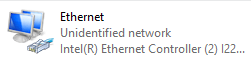
        `식별되지 않은 네트워크` 부제목이 붙은 `Ethernet`이라는 어댑터를 찾습니다.

        <Frame>
          <img src="https://mintcdn.com/deepwaterexplorationinc/PpwtoMTlxduUAF0D/dwe-os/guides/images/desktop-network-setup/windows/adapter.png?fit=max&auto=format&n=PpwtoMTlxduUAF0D&q=85&s=260cdb758ce555e30fe0916a757b1154" width="251" height="63" data-path="dwe-os/guides/images/desktop-network-setup/windows/adapter.png" />
        </Frame>
      </Step>

      <Step>
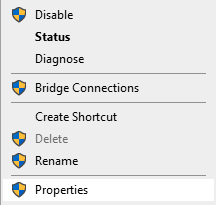
        어댑터를 마우스 오른쪽 버튼으로 클릭하고 `속성`을 선택합니다.

        <Frame>
          <img src="https://mintcdn.com/deepwaterexplorationinc/PpwtoMTlxduUAF0D/dwe-os/guides/images/desktop-network-setup/windows/right-click-adapter.png?fit=max&auto=format&n=PpwtoMTlxduUAF0D&q=85&s=d7d922cd43863c3dca561582f2f55c8a" width="216" height="205" data-path="dwe-os/guides/images/desktop-network-setup/windows/right-click-adapter.png" />
        </Frame>
      </Step>

      <Step>
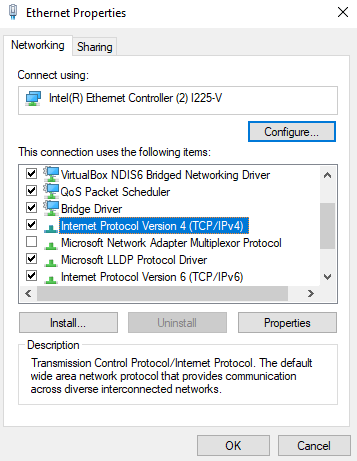
        `인터넷 프로토콜 버전 4(TCP/IPv4)`를 찾아 `속성`을 선택합니다.

        <Frame>
          <img src="https://mintcdn.com/deepwaterexplorationinc/PpwtoMTlxduUAF0D/dwe-os/guides/images/desktop-network-setup/windows/properties.png?fit=max&auto=format&n=PpwtoMTlxduUAF0D&q=85&s=2fb8e86ec8dbe3d7f46b780e9b0666e2" width="357" height="461" data-path="dwe-os/guides/images/desktop-network-setup/windows/properties.png" />
        </Frame>
      </Step>

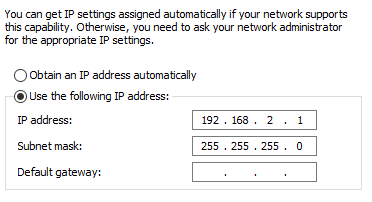
      <Step>
        다음과 같이 메뉴를 편집합니다:

        <Frame>
          <img src="https://mintcdn.com/deepwaterexplorationinc/PpwtoMTlxduUAF0D/dwe-os/guides/images/desktop-network-setup/windows/settings.png?fit=max&auto=format&n=PpwtoMTlxduUAF0D&q=85&s=82513e9541fc15b2567a8d63d0e001c4" width="372" height="202" data-path="dwe-os/guides/images/desktop-network-setup/windows/settings.png" />
        </Frame>
      </Step>

      <Step>
        `확인`을 클릭하여 변경 사항을 적용합니다. 이제 Pi가 올바른 IP 주소로 Windows 장치를 식별하여 데이터를 스트리밍할 수 있게 됩니다.
      </Step>
    </Steps>
  </Tab>

  <Tab title="Linux">
    <Note>
      이 지침은 `Ubuntu 22.04`용이지만, 대부분의 Linux 배포판에 일반화하여 적용할 수 있습니다.
    </Note>

    <Steps>
      <Step>
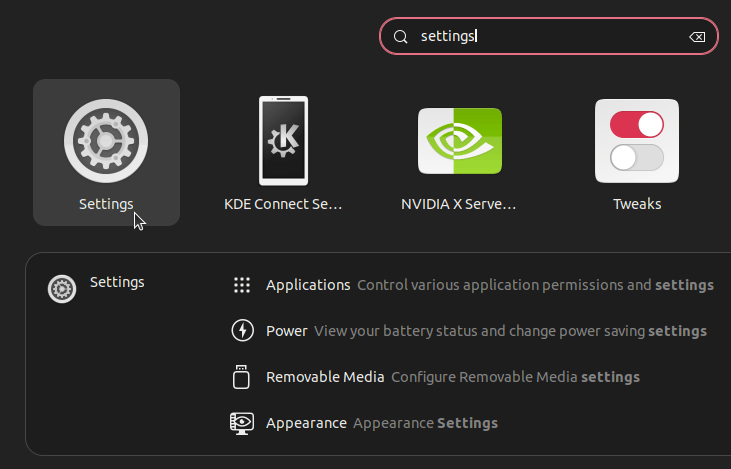
        **Settings**를 검색합니다.

        <Frame>
          <img width="500px" src="https://mintcdn.com/deepwaterexplorationinc/PpwtoMTlxduUAF0D/dwe-os/guides/images/desktop-network-setup/ubuntu/settings.png?fit=max&auto=format&n=PpwtoMTlxduUAF0D&q=85&s=c59cebe7f13f002b78cc980e5d6eeda1" data-path="dwe-os/guides/images/desktop-network-setup/ubuntu/settings.png" />
        </Frame>
      </Step>

      <Step>
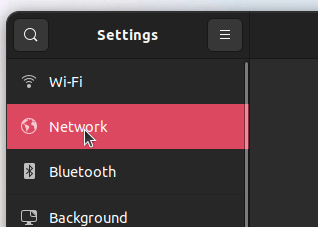
        **Network**를 선택합니다.

        <Frame>
          <img src="https://mintcdn.com/deepwaterexplorationinc/PpwtoMTlxduUAF0D/dwe-os/guides/images/desktop-network-setup/ubuntu/network.png?fit=max&auto=format&n=PpwtoMTlxduUAF0D&q=85&s=58e3bba2b494d24d67fb2bd0a97aad00" width="318" height="227" data-path="dwe-os/guides/images/desktop-network-setup/ubuntu/network.png" />
        </Frame>
      </Step>

      <Step>
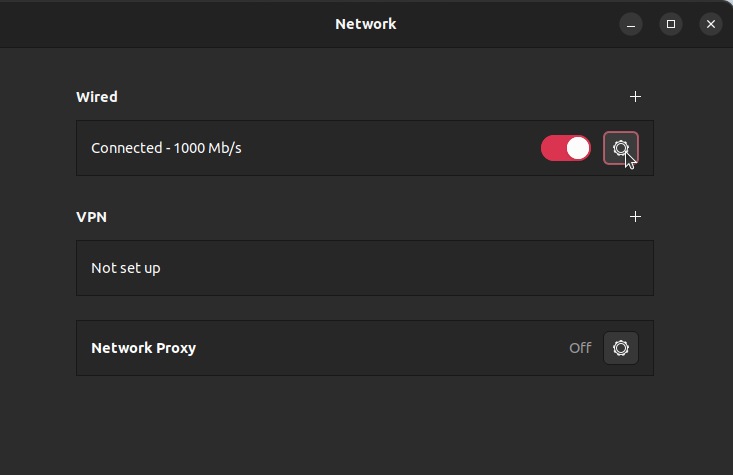
        **Wired** 아래에서 설정/톱니바퀴 아이콘을 선택합니다.

        <Frame>
          <img width="500px" src="https://mintcdn.com/deepwaterexplorationinc/PpwtoMTlxduUAF0D/dwe-os/guides/images/desktop-network-setup/ubuntu/wired.png?fit=max&auto=format&n=PpwtoMTlxduUAF0D&q=85&s=ec6da17db99bba5bc3c4b9a1360f863f" data-path="dwe-os/guides/images/desktop-network-setup/ubuntu/wired.png" />
        </Frame>
      </Step>

      <Step>
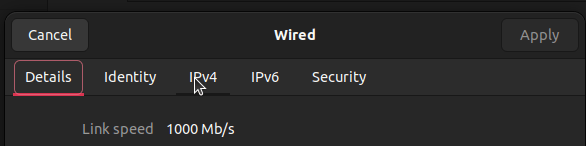
        상단의 **IPv4** 탭을 선택합니다.

        <Frame>
          <img src="https://mintcdn.com/deepwaterexplorationinc/PpwtoMTlxduUAF0D/dwe-os/guides/images/desktop-network-setup/ubuntu/ipv4_tab.png?fit=max&auto=format&n=PpwtoMTlxduUAF0D&q=85&s=8c1323132e22fcedc2094b1919febac4" width="586" height="146" data-path="dwe-os/guides/images/desktop-network-setup/ubuntu/ipv4_tab.png" />
        </Frame>
      </Step>

      <Step>
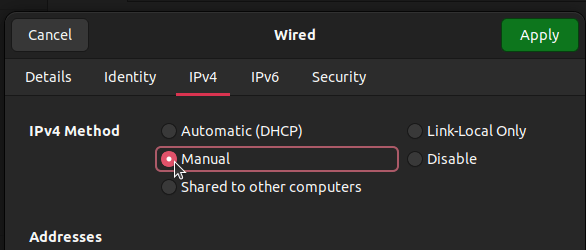
        **IPv4 Method**에서 **Manual**을 선택합니다.

        <Frame>
          <img src="https://mintcdn.com/deepwaterexplorationinc/PpwtoMTlxduUAF0D/dwe-os/guides/images/desktop-network-setup/ubuntu/manual.png?fit=max&auto=format&n=PpwtoMTlxduUAF0D&q=85&s=2367cda5fc80bb25c613f2296cc2fe1b" width="586" height="250" data-path="dwe-os/guides/images/desktop-network-setup/ubuntu/manual.png" />
        </Frame>
      </Step>

      <Step>
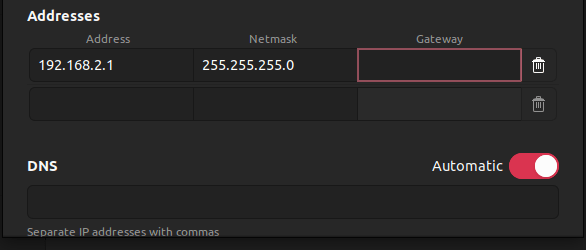
        **Addresses** 아래에서 다음과 같이 설정을 변경합니다:

        <Frame>
          <img src="https://mintcdn.com/deepwaterexplorationinc/PpwtoMTlxduUAF0D/dwe-os/guides/images/desktop-network-setup/ubuntu/ip_settings.png?fit=max&auto=format&n=PpwtoMTlxduUAF0D&q=85&s=69292f4c1266453f701ea2ba2407397b" width="586" height="250" data-path="dwe-os/guides/images/desktop-network-setup/ubuntu/ip_settings.png" />
        </Frame>
      </Step>

      <Step>
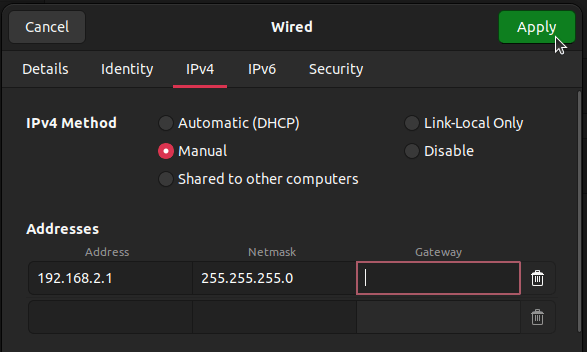
        **Apply**를 클릭합니다. 이제 Pi가 올바른 IP 주소로 Linux 장치를 식별할 수 있게 됩니다.

        <Frame>
          <img src="https://mintcdn.com/deepwaterexplorationinc/PpwtoMTlxduUAF0D/dwe-os/guides/images/desktop-network-setup/ubuntu/apply.png?fit=max&auto=format&n=PpwtoMTlxduUAF0D&q=85&s=55c1f6df9c8b06d3b03c6b34706b01cb" width="587" height="352" data-path="dwe-os/guides/images/desktop-network-setup/ubuntu/apply.png" />
        </Frame>
      </Step>
    </Steps>
  </Tab>
</Tabs>

<div onClick={() => window.history.back()} onMouseEnter={(e) => e.currentTarget.firstChild.style.borderColor = '#46bae7'} onMouseLeave={(e) => e.currentTarget.firstChild.style.borderColor = ''} style={{ cursor: 'pointer', display: 'contents' }}>
  <Card title="이전 페이지로 돌아가기" icon="u-turn-down-left" iconType="duotone">
    이 버튼을 클릭하면 이전에 보고 있던 페이지로 돌아갑니다!
  </Card>
</div>