> ## Documentation Index
> Fetch the complete documentation index at: https://docs.dwe.ai/llms.txt
> Use this file to discover all available pages before exploring further.
# dweOS ホームページにアクセスする
> このガイドでは、dweOS のホームページにアクセスする方法を説明します。
### dweOS をインストールする
dweOS をまだインストールしていない場合は、既存の Linux システムまたは Raspberry Pi にインストールします。
コマンドラインから **dweOS** のインストールが完了すると、最新の Web ブラウザからグラフィカルインターフェイスにアクセスできるようになります。
dweOS が現在お使いのデバイスに対してどこで実行されているかに応じて、以下の 2 つの方法のいずれかを使用してください。
## 接続方法
### 1. ローカルアクセス
dweOS がインストールされているマシンの前にいる場合は、ローカルループバックアドレスを使用してホームページにアクセスできます。
* **URL:** `http://localhost`
* **ポート:** 80(デフォルト)
dweOS は標準の HTTP ポート(80)で動作するため、ブラウザにポート番号を入力する必要はありません。`http://localhost` だけで動作します!
***
### 2. リモートアクセス(ネットワーク)
dweOS がローカルネットワーク上の別のデバイス(サーバー、Raspberry Pi、専用ワークステーションなど)にインストールされている場合は、そのデバイスの IP アドレスが必要です。
1. ホストマシンの **IP アドレスを取得します**(例: Linux で `hostname -I` または `ifconfig` を実行)。
2. **IP をブラウザのアドレスバーに入力します**。
| セットアップタイプ | アドレス形式 |
| :-------- | :---------------------------- |
| **標準 IP** | `http://192.168.1.XX` |
| **ホスト名** | `http://dweos.local`(設定済みの場合) |
## 完了
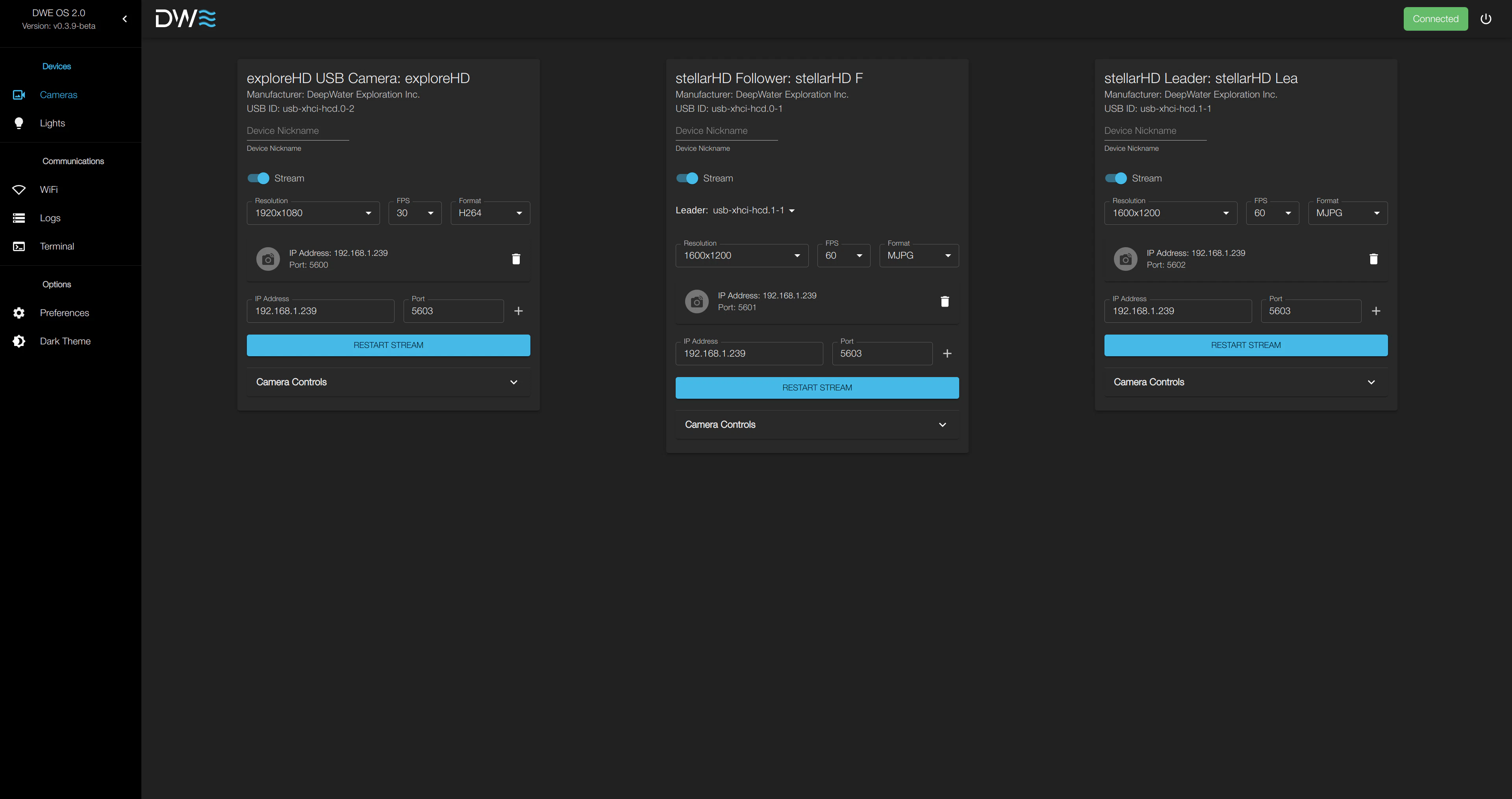
dweOS のホームページにアクセスできるようになったら、カメラからの動画ストリーミングに進めます!
 ***
## トラブルシューティング
### アシスタントに質問する
**Original source prompt (English):**
I am having trouble accessing the dweOS Home Page. I need you to act as a technical support engineer specialized in dweOS.
Your Source Material: > Please use the official documentation at [https://docs.dwe.ai/dwe-os/guides/quickstart.md](https://docs.dwe.ai/dwe-os/guides/quickstart.md) to guide your troubleshooting.
Your Instructions:
* Do not provide a generic list of fixes yet.
* Instead, start by asking me the necessary diagnostic questions (one or two at a time) to understand my specific setup (e.g., Installation method, Local vs. Remote access, and specific error messages).
* Once you have my details, cross-reference them with the Troubleshooting Connectivity section of the documentation.
* Guide me step-by-step through checking my service status, firewall settings, and port conflicts until the page loads.
Please start by introducing yourself as the dweOS Support Assistant and ask me the first set of questions you need to help me.
**Response language:** Regardless of the language of this prompt, please provide all of your responses in Japanese (日本語).
Google Gemini とチャットします。
Claude とチャットします。
ChatGPT とチャットします。
### よく見落とされる項目
ページの読み込みに失敗する場合は、次の点を確認してください:
dweOS プロセスが実際にターミナル上で実行されていることを確認します。ログに「Server started」または「Listening on port 80」のメッセージが表示されているかを確認してください。
リモートからアクセスする場合は、システムのファイアウォールが **ポート 80** の受信トラフィックを許可していることを確認してください。
そのデバイス上で他の Web サーバー(Apache や Nginx など)がすでにポート 80 を使用していないことを確認してください。
***
## トラブルシューティング
### アシスタントに質問する
**Original source prompt (English):**
I am having trouble accessing the dweOS Home Page. I need you to act as a technical support engineer specialized in dweOS.
Your Source Material: > Please use the official documentation at [https://docs.dwe.ai/dwe-os/guides/quickstart.md](https://docs.dwe.ai/dwe-os/guides/quickstart.md) to guide your troubleshooting.
Your Instructions:
* Do not provide a generic list of fixes yet.
* Instead, start by asking me the necessary diagnostic questions (one or two at a time) to understand my specific setup (e.g., Installation method, Local vs. Remote access, and specific error messages).
* Once you have my details, cross-reference them with the Troubleshooting Connectivity section of the documentation.
* Guide me step-by-step through checking my service status, firewall settings, and port conflicts until the page loads.
Please start by introducing yourself as the dweOS Support Assistant and ask me the first set of questions you need to help me.
**Response language:** Regardless of the language of this prompt, please provide all of your responses in Japanese (日本語).
Google Gemini とチャットします。
Claude とチャットします。
ChatGPT とチャットします。
### よく見落とされる項目
ページの読み込みに失敗する場合は、次の点を確認してください:
dweOS プロセスが実際にターミナル上で実行されていることを確認します。ログに「Server started」または「Listening on port 80」のメッセージが表示されているかを確認してください。
リモートからアクセスする場合は、システムのファイアウォールが **ポート 80** の受信トラフィックを許可していることを確認してください。
そのデバイス上で他の Web サーバー(Apache や Nginx など)がすでにポート 80 を使用していないことを確認してください。