> ## Documentation Index
> Fetch the complete documentation index at: https://docs.dwe.ai/llms.txt
> Use this file to discover all available pages before exploring further.
# exploreHD Firmware Update Guide
> A guide on how to update the firmware for your exploreHD camera.
Please see [product changelog](/product-update-log) to see if your
product needs updates.
**Applying the wrong firmware for the wrong camera will permanently brick your
device. Please read carefully.**
At this time, the firmware loading is only available on **Windows 10/11**
## Requirements
### Visual C++ Redistributables
To run the firmware updater tool, you need to install a few Visual C++ Redistributable packages.
Ensure you reboot your computer after downloading.
You can install all the required packages in one click using Ninite.
Navigate to the [2013 Microsoft Download Center](https://learn.microsoft.com/en-us/cpp/windows/latest-supported-vc-redist?view=msvc-170#visual-studio-2013-vc-120-no-longer-supported).
Click Download and select both `vcredist_x86.exe` and `vcredist_x64.exe`.
You must run **both installers** and follow the on-screen prompts.
You have successfully installed the 2013 Redistributables! Now you must install the latest Redistributables.
Navigate to the [2015 Microsoft Download Center](https://learn.microsoft.com/en-us/cpp/windows/latest-supported-vc-redist?view=msvc-170#visual-studio-2015-vc-140-no-longer-supported).
Click Download and select both `vc_redist.x86.exe` and `vc_redist.x64.exe`.
You must run **both installers** and follow the on-screen prompts.
You have successfully installed the 2015 Redistributables!
Reboot your computer.
## Find your firmware update tool
Visit the page for [your product](/exploreHD/specs/exploreHD), and find the download button for the Firmware Update Utility (usually near the bottom of the page).
## Firmware Update Procedure
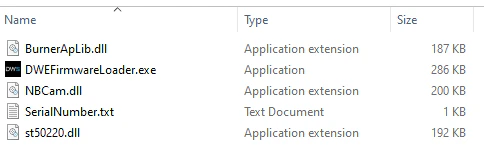
Extract the zip file containing the folder with the program.
Unplug all camera/webcam devices and only plug in **one** camera.
```mermaid theme={null}
flowchart LR
camera --> computer
```
**Make sure all applications that use the camera are closed before proceeding.**
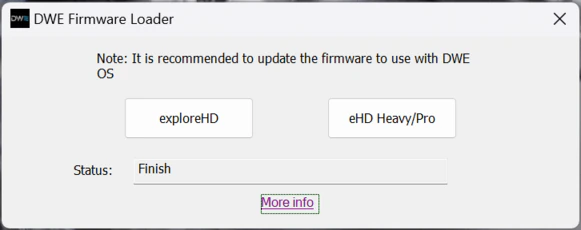
Run `DWEFirmwareLoader.exe`
Select the correct firmware option for your camera.
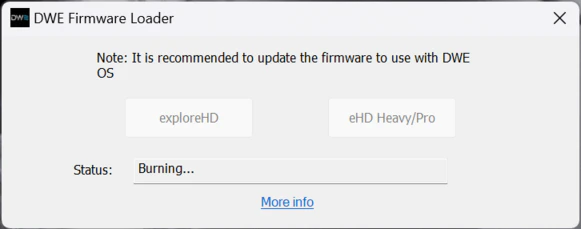
Do not close the application, unplug the camera, or open any applications that may use the camera until the update is complete.
After approximately a minute, your camera should be ready to use!
You may now close the application.
You can test the camera using our tool below.
Convenient tool to test your USB camera feeds.
## Troubleshooting
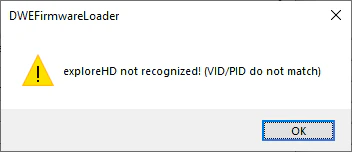
If you see any errors during the upgrading process, please follow the guides below.
1. Ensure the exploreHD is the only camera plugged in
2. If on a laptop, temporarily disable the built-in webcam by going to Device Manager.
3. Please ensure you have extracted everything in the zip file. The dll files must be in the same folder directory as the main exe.
1. Please ensure you have extracted everything in the zip file. The dll files must be in the same folder directory as the main exe.

 1. Ensure the exploreHD is the only camera plugged in
2. If on a laptop, temporarily disable the built-in webcam by going to Device Manager.
3. Please ensure you have extracted everything in the zip file. The dll files must be in the same folder directory as the main exe.
1. Ensure the exploreHD is the only camera plugged in
2. If on a laptop, temporarily disable the built-in webcam by going to Device Manager.
3. Please ensure you have extracted everything in the zip file. The dll files must be in the same folder directory as the main exe.
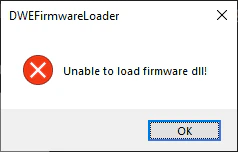 1. Please ensure you have extracted everything in the zip file. The dll files must be in the same folder directory as the main exe.