> ## Documentation Index
> Fetch the complete documentation index at: https://docs.dwe.ai/llms.txt
> Use this file to discover all available pages before exploring further.
# Synchronized Streaming Guide
> Complete guide for configuring synchronized streaming for the explore3D.
Only two camera synchronization is supported at this time.
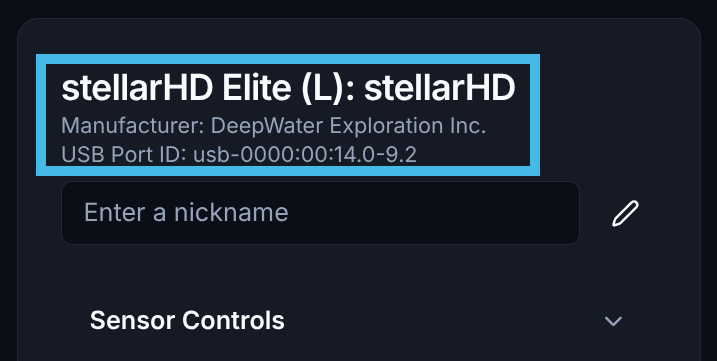
Navigate to the main page of dweOS and identify the `Leader` Camera -- listed with an `(L)` -- from the list of cameras.
If you are in **follower-follower** mode (both cameras are followers), choose the left-most camera in your system as the leader. Please make sure you have an [external sync signal](/stellarHD/guides/syncing-multiple-cameras#follower-only-mode-external-clock) configured in such a case. The **SVC Pro** already has external sync configured and expects all cameras to be followers by default.
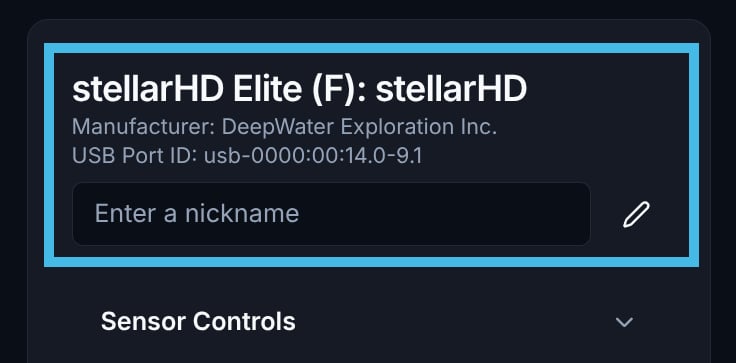
 Identify the `Follower` Camera -- listed with an `(F)` -- from the list of cameras. Keep a note of the `USB Port ID`.
Make sure to stop all video streams for the follower device. This might cause conflicts later.
Identify the `Follower` Camera -- listed with an `(F)` -- from the list of cameras. Keep a note of the `USB Port ID`.
Make sure to stop all video streams for the follower device. This might cause conflicts later.
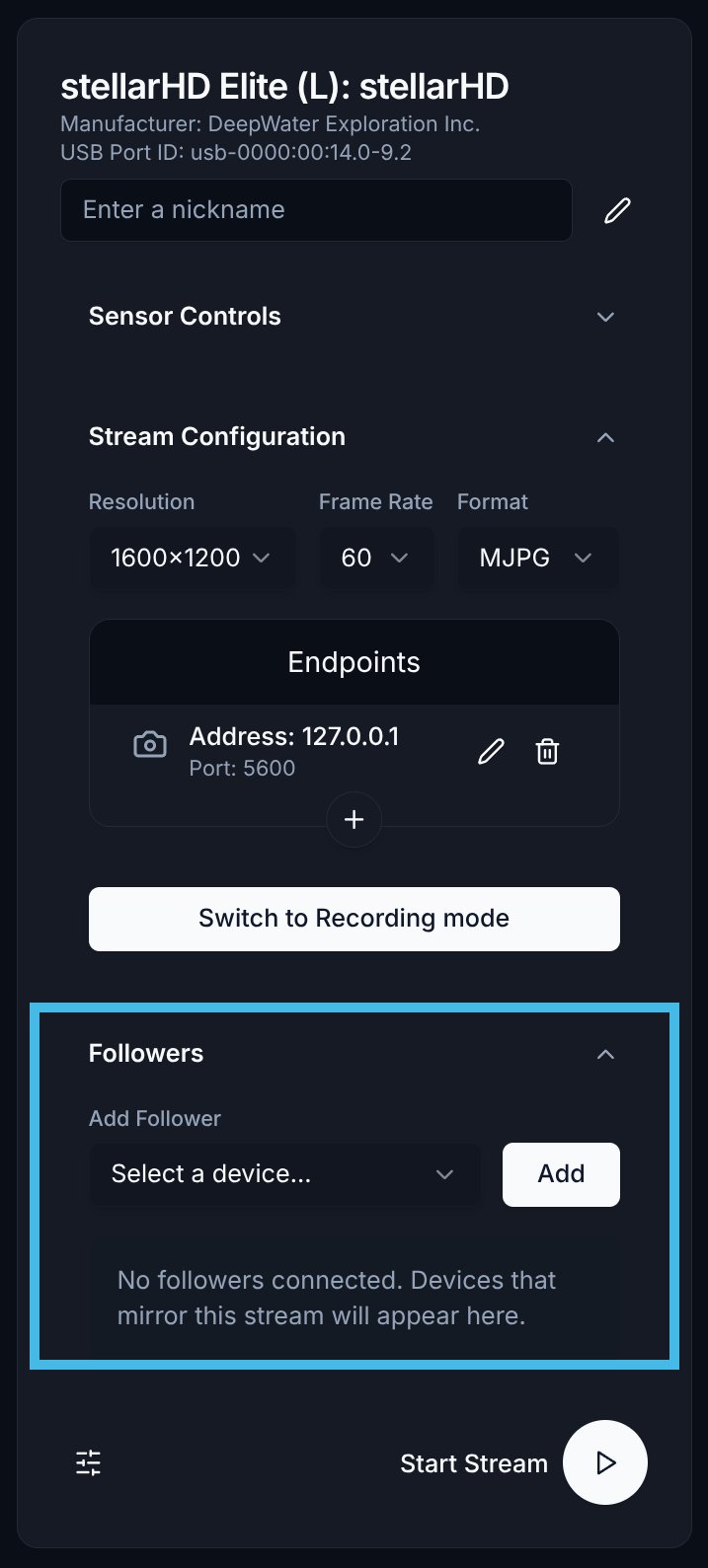
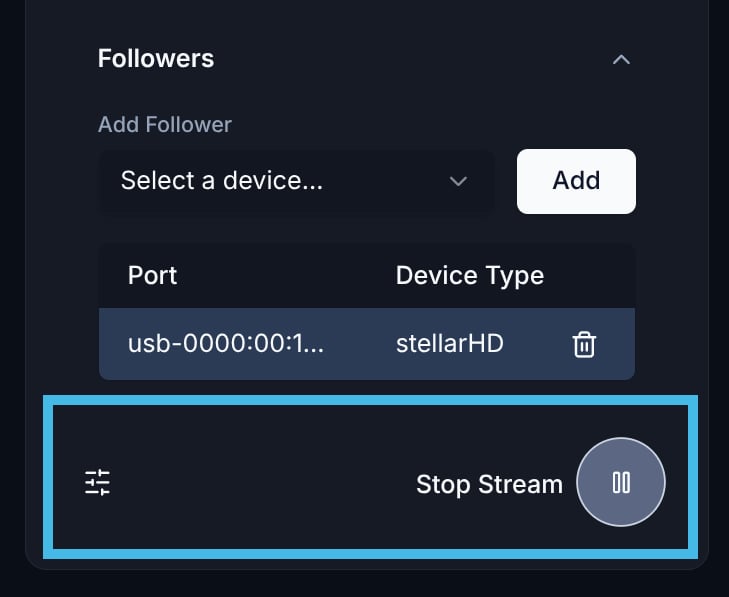
 In the menu for your Leader Camera, navigate down to the lower portion of the menu labeled `Followers`.
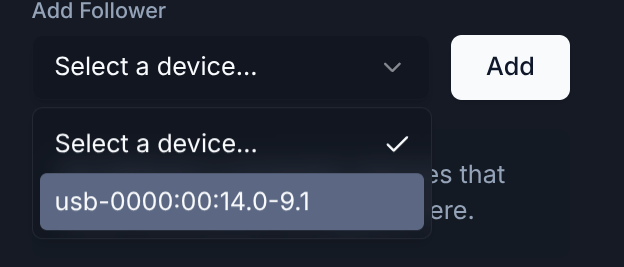
 Select the correct follower device from the dropdown list, then click the `Add` button.
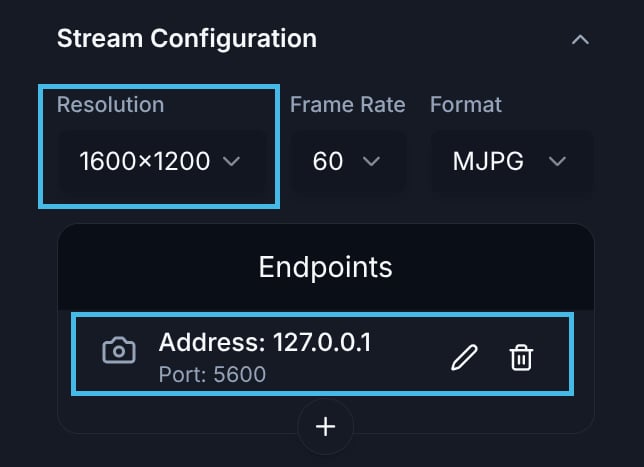
 Set your desired resolution and ensure you add the correct endpoint.
For synchronized streaming only one endpoint is supported at the moment.
Set your desired resolution and ensure you add the correct endpoint.
For synchronized streaming only one endpoint is supported at the moment.
 After configuring the stream, you can select the play button to begin streaming to your specified endpoint.
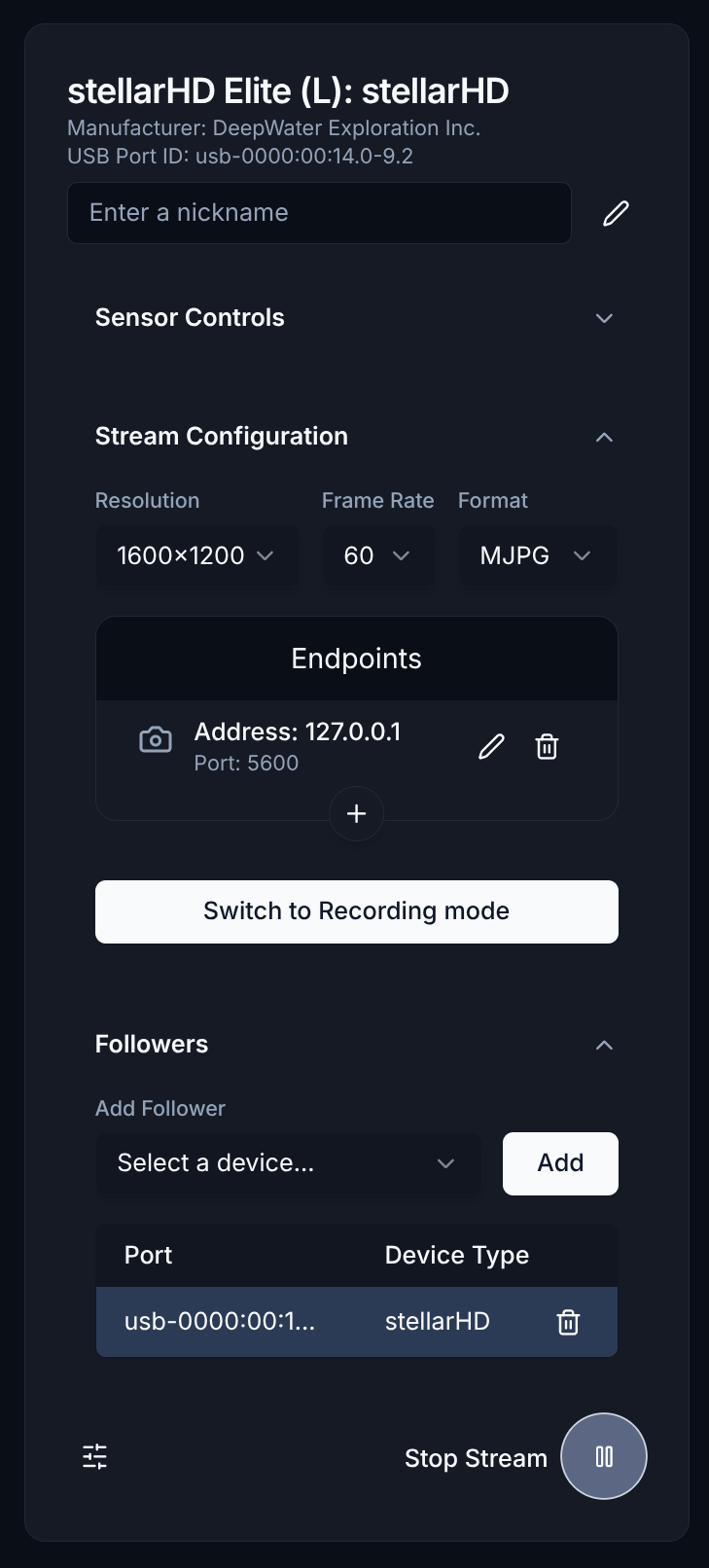
 This is what the full setup should look like.
 You can use [Discovery](https://dwe.ai/discovery) for viewing synchronized streams.
Click here to learn how to use Discovery for Desktop.
Synchronized streams from dweOS follow a custom protocol. If you need to receive the frames from a custom application, please use the [following sample code](https://github.com/DeepWaterExploration/RTPReceiverAPI).
You can use [Discovery](https://dwe.ai/discovery) for viewing synchronized streams.
Click here to learn how to use Discovery for Desktop.
Synchronized streams from dweOS follow a custom protocol. If you need to receive the frames from a custom application, please use the [following sample code](https://github.com/DeepWaterExploration/RTPReceiverAPI).