> ## Documentation Index
> Fetch the complete documentation index at: https://docs.dwe.ai/llms.txt
> Use this file to discover all available pages before exploring further.
# Streaming with dweOS
> This guide is to help you setup streaming on dweOS
exploreHD cameras feature hardware [H.264
compression](https://youtu.be/qbGQBT2Vwvc?si=CUPvp6QpM2MiYpJz\&t=164), which
improves performance for multiple camera streams.
It may take a few minutes for the first boot if installed via image.
Open dweOS at the following URL:
```
http://dweos.local
```
Versions of dweOS 2 prior to v0.4.0-beta (11/1/2024) are accessible at:
```
http://dweos.local:5000
```
Open dweOS with: `http://IP_ADDRESS_OF_DEVICE`
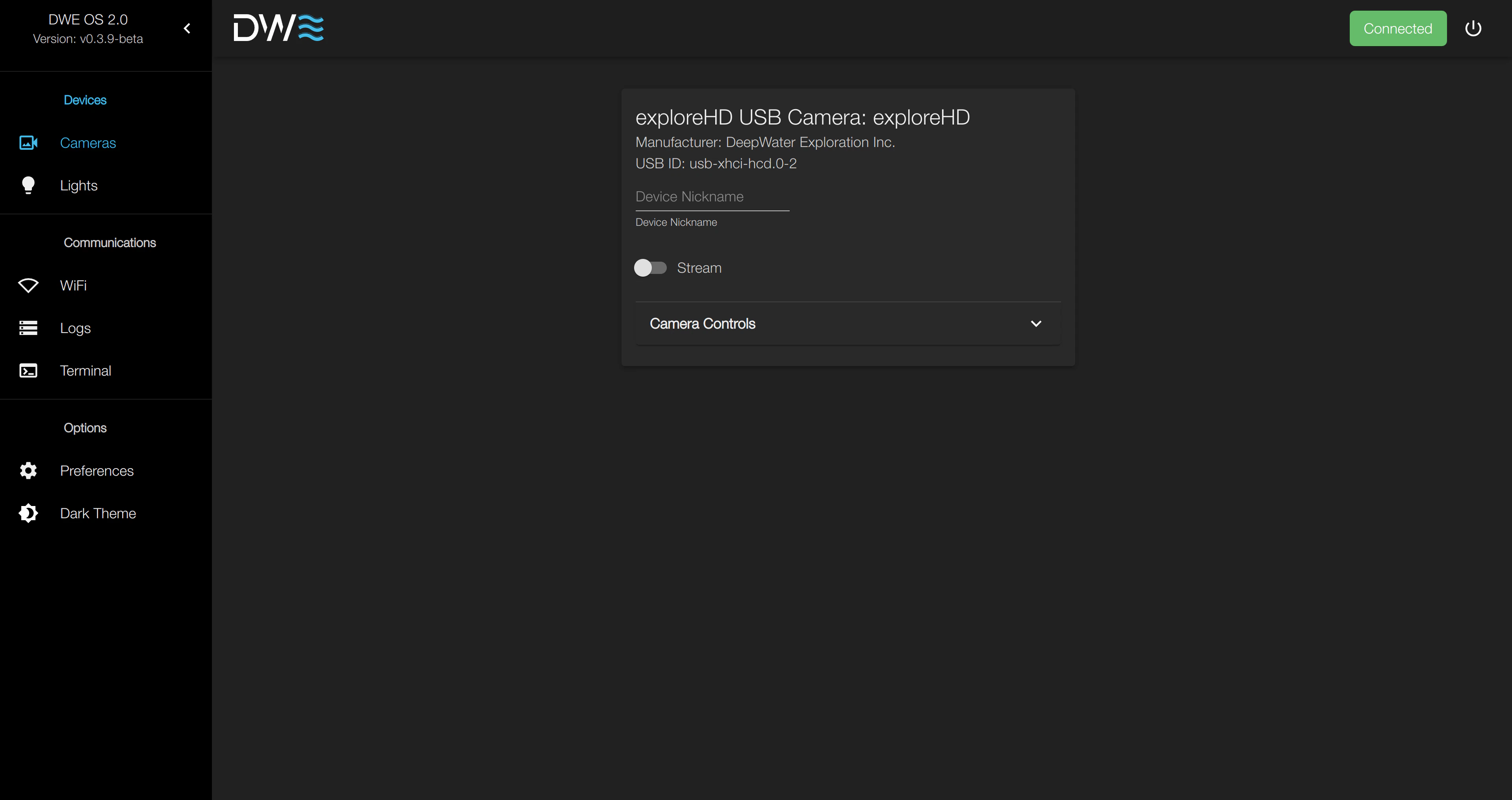
 After enabling a
stream, there is some key information shown:
1. Resolution, FPS, and Format
2. Stream Endpoints (RTP)
3. IP Address & Port for new endpoint
4. Camera Controls
**You will not be able to view the stream unless a stream endpoint has been added.**
Each endpoint describes where the stream will be sent.
You are able to stream a single camera to multiple endpoints if desired.
By default, the IP Address will default to the device currently connected to the subsea computer.
This behavior can be changed in [preferences](/dwe-os/pages/preferences).
Set the IP Address and Port and click the Add button shown below.
After enabling a
stream, there is some key information shown:
1. Resolution, FPS, and Format
2. Stream Endpoints (RTP)
3. IP Address & Port for new endpoint
4. Camera Controls
**You will not be able to view the stream unless a stream endpoint has been added.**
Each endpoint describes where the stream will be sent.
You are able to stream a single camera to multiple endpoints if desired.
By default, the IP Address will default to the device currently connected to the subsea computer.
This behavior can be changed in [preferences](/dwe-os/pages/preferences).
Set the IP Address and Port and click the Add button shown below.
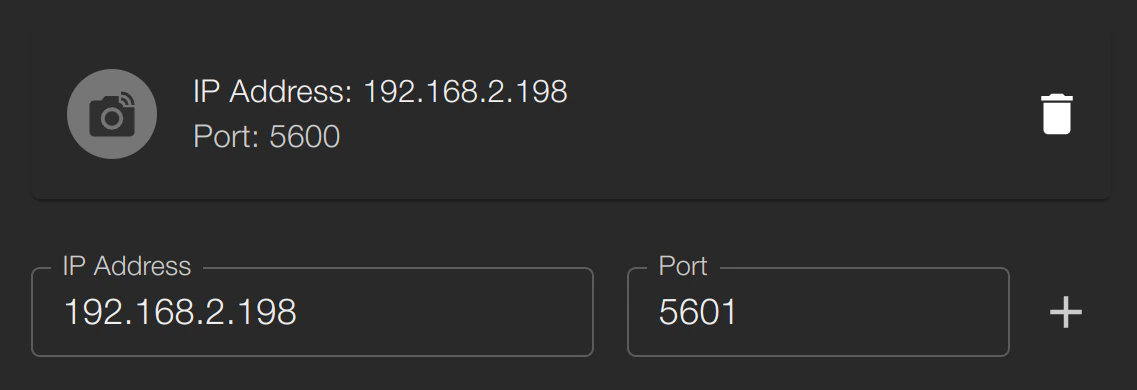
 After adding, the endpoints list should look like the following:
 The stream will automatically restart when modified.
Remember, the endpoints list is what shows the actual list of endpoints. The IP Address and Port input menu only specify what endpoint will be added next, should the Add button be pressed. In the example above, the port being streamed to is `5600`, despite the "Add Endpoint" menu showing `5601`.
Click here to download Discovery for Desktop on your Laptop/PC.
After download is complete, enter the IP address (stream endpoint IP) and port of the streams you would like to receive.
The stream will automatically restart when modified.
Remember, the endpoints list is what shows the actual list of endpoints. The IP Address and Port input menu only specify what endpoint will be added next, should the Add button be pressed. In the example above, the port being streamed to is `5600`, despite the "Add Endpoint" menu showing `5601`.
Click here to download Discovery for Desktop on your Laptop/PC.
After download is complete, enter the IP address (stream endpoint IP) and port of the streams you would like to receive.
 There you go! You should have your video streams showing up from your Raspberry Pi or subsea computer.
Learn the user interface in just a couple of minutes
dweOS does not support RTSP (Real-Time Streaming Protocol) Streaming. We use a more direct form of streaming called RTP (Real-time Transport Protocol).
RTSP acts as the "remote control" to set up the session (which often includes extra bloat and latency), while RTP handles the swift delivery of media packets, over UDP for minimum latency.
There you go! You should have your video streams showing up from your Raspberry Pi or subsea computer.
Learn the user interface in just a couple of minutes
dweOS does not support RTSP (Real-Time Streaming Protocol) Streaming. We use a more direct form of streaming called RTP (Real-time Transport Protocol).
RTSP acts as the "remote control" to set up the session (which often includes extra bloat and latency), while RTP handles the swift delivery of media packets, over UDP for minimum latency.