> ## Documentation Index
> Fetch the complete documentation index at: https://docs.dwe.ai/llms.txt
> Use this file to discover all available pages before exploring further.
# Network Configuration
> This guide covers configuring wired networking in dweOS
dweOS no longer supports Wi-Fi. Networking is configured entirely through
wired Ethernet interfaces and NetworkManager connection profiles.
Modifying the network configuration includes risks. If you misconfigure the network, you may be unable to reconnect to your device without recovery.
## Accessing the Page
Navigate to `Network` in the sidebar.
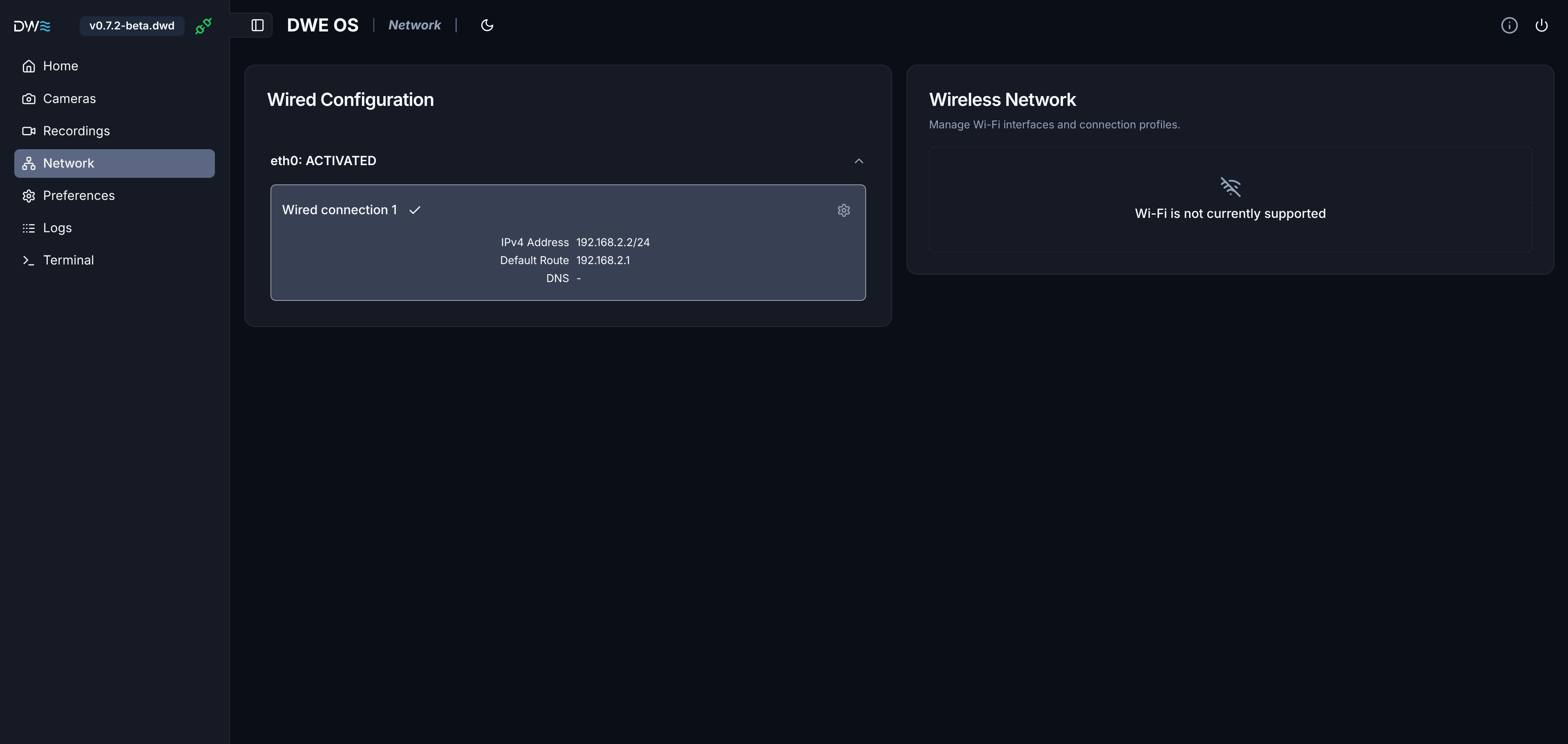 The page has two sections:
Shows every detected Ethernet interface, its state, and the connection
profiles available to it.
WiFi is not currently supported by dweOS. If you require WiFi support, [please submit an issue](https://github.com/DeepWaterExploration/dweOS/issues).
## Core Concepts
dweOS manages networking through NetworkManager:
* **Interface**: a physical wired port (e.g. `eth0`)
* **Connection Profile**: a saved network configuration that can be attached to a compatible interface. An interface can have
several profiles available to it, but only one can be **active** at a time. By default, units shipped with dweOS preinstalled will only have one available profile (**Wired connection 1**).
This means changing your network setup is a two-step process: **edit** a
profile's settings, then **activate** that profile on the interface (or
reboot, which reapplies the active profile).
## Interface List
Each interface appears as a collapsible section showing its name and current
state:
| State | Meaning |
| --------------------------------------------------------------- | ------------------------------------------------------------- |
| `UNAVAILABLE` | Interface exists but has no link (e.g. unplugged) |
| `DISCONNECTED` | Link is up but no profile is currently active |
| `PREPARE` / `CONFIG` / `IP_CONFIG` / `IP_CHECK` / `SECONDARIES` | Transitional states while a profile is being applied |
| `ACTIVATED` | A profile is active and the interface has an IP configuration |
| `DEACTIVATING` | The active profile is being torn down |
| `FAILED` | Activation failed |
Because it is required to connect over the network to view dweOS, you may get disconnected after network configuration. This means outputs will be less verbose than usual.
## Connection Profiles
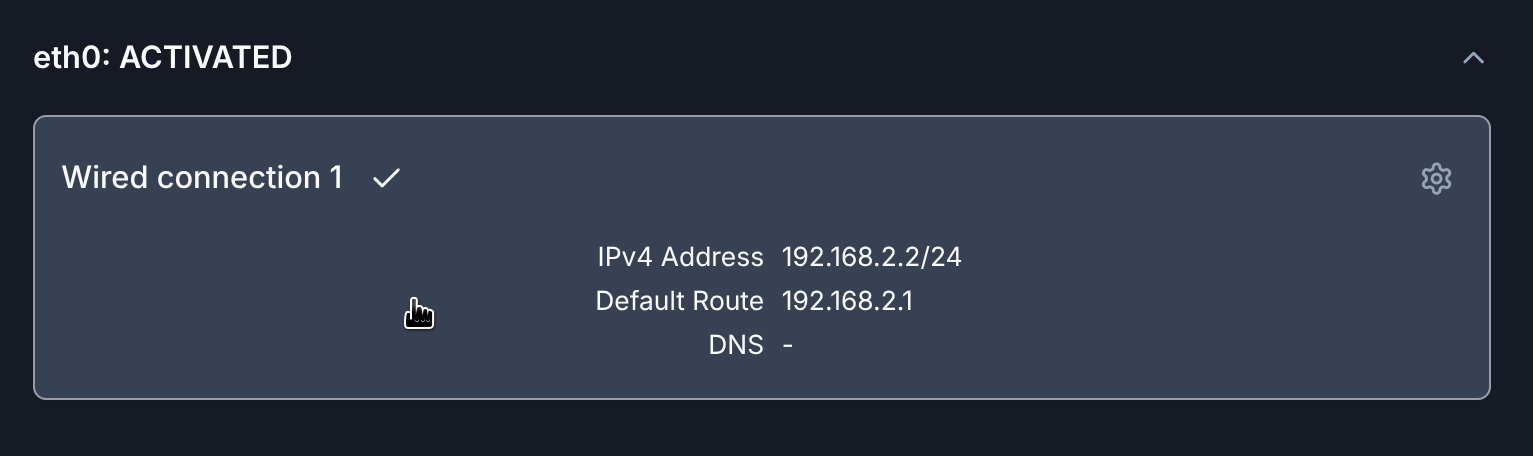
Underneath each interface is the list of connection profiles compatible with
it. The active profile is highlighted and shows a checkmark, along with its
live network info:
* **IPv4 Address**: the address(es) currently assigned, with prefix (e.g.
`192.168.2.2/24`)
* **Default Route**: the gateway currently in use, if this profile is set to
provide the default route
* **DNS**: the DNS servers currently in use
Click any profile in the list to activate it on that interface.
## Editing a Profile
Click the gear icon on a profile to open its editor.
* **Automatic (DHCP)**: the interface requests an address from a DHCP
server.
* **Manual (Static IP)**: you provide the address, gateway, and DNS
yourself.
The page has two sections:
Shows every detected Ethernet interface, its state, and the connection
profiles available to it.
WiFi is not currently supported by dweOS. If you require WiFi support, [please submit an issue](https://github.com/DeepWaterExploration/dweOS/issues).
## Core Concepts
dweOS manages networking through NetworkManager:
* **Interface**: a physical wired port (e.g. `eth0`)
* **Connection Profile**: a saved network configuration that can be attached to a compatible interface. An interface can have
several profiles available to it, but only one can be **active** at a time. By default, units shipped with dweOS preinstalled will only have one available profile (**Wired connection 1**).
This means changing your network setup is a two-step process: **edit** a
profile's settings, then **activate** that profile on the interface (or
reboot, which reapplies the active profile).
## Interface List
Each interface appears as a collapsible section showing its name and current
state:
| State | Meaning |
| --------------------------------------------------------------- | ------------------------------------------------------------- |
| `UNAVAILABLE` | Interface exists but has no link (e.g. unplugged) |
| `DISCONNECTED` | Link is up but no profile is currently active |
| `PREPARE` / `CONFIG` / `IP_CONFIG` / `IP_CHECK` / `SECONDARIES` | Transitional states while a profile is being applied |
| `ACTIVATED` | A profile is active and the interface has an IP configuration |
| `DEACTIVATING` | The active profile is being torn down |
| `FAILED` | Activation failed |
Because it is required to connect over the network to view dweOS, you may get disconnected after network configuration. This means outputs will be less verbose than usual.
## Connection Profiles
Underneath each interface is the list of connection profiles compatible with
it. The active profile is highlighted and shows a checkmark, along with its
live network info:
* **IPv4 Address**: the address(es) currently assigned, with prefix (e.g.
`192.168.2.2/24`)
* **Default Route**: the gateway currently in use, if this profile is set to
provide the default route
* **DNS**: the DNS servers currently in use
Click any profile in the list to activate it on that interface.
## Editing a Profile
Click the gear icon on a profile to open its editor.
* **Automatic (DHCP)**: the interface requests an address from a DHCP
server.
* **Manual (Static IP)**: you provide the address, gateway, and DNS
yourself.
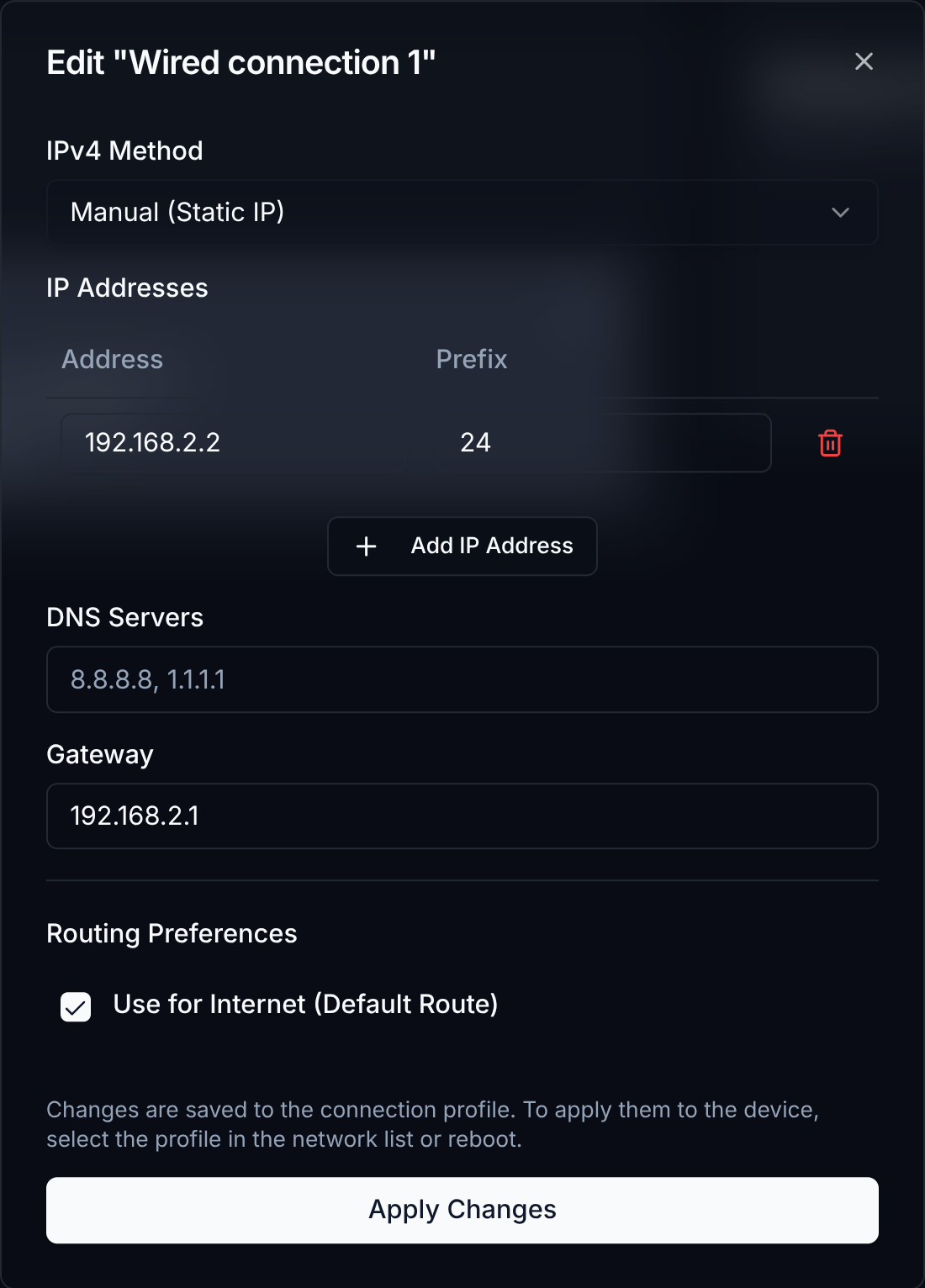 When Manual is selected, additional fields appear:
* **IP Addresses**: a table of address/prefix pairs. Use the **Add IP
Address** button to add another entry, or the trash icon to remove one.
* **DNS Servers**: a comma-separated list (e.g. `8.8.8.8, 1.1.1.1`)
* **Gateway**: the gateway IP for this profile
The **Use for Internet (Default Route)** checkbox controls whether this
profile is allowed to provide the system's default route. Leave this checked if you are unsure.
When Manual is selected, additional fields appear:
* **IP Addresses**: a table of address/prefix pairs. Use the **Add IP
Address** button to add another entry, or the trash icon to remove one.
* **DNS Servers**: a comma-separated list (e.g. `8.8.8.8, 1.1.1.1`)
* **Gateway**: the gateway IP for this profile
The **Use for Internet (Default Route)** checkbox controls whether this
profile is allowed to provide the system's default route. Leave this checked if you are unsure.
 Saving writes the new configuration to the profile.
Saving does **not** immediately apply the change to a live interface.
To apply it, select the profile in the interface's list (this
re-activates it), or reboot the system.
Upon activation, you will need to manually navigate to the new IP address you specified and/or reconfigure your topside networking setup.
Saving writes the new configuration to the profile.
Saving does **not** immediately apply the change to a live interface.
To apply it, select the profile in the interface's list (this
re-activates it), or reboot the system.
Upon activation, you will need to manually navigate to the new IP address you specified and/or reconfigure your topside networking setup.