> ## Documentation Index
> Fetch the complete documentation index at: https://docs.dwe.ai/llms.txt
> Use this file to discover all available pages before exploring further.

# Install dweOS on a new Raspberry Pi

> This guide is to help you install our dweOS image.

## Getting Started

<Note>
  This method is not recommended, due to complexity with the static IP assigned to the image (192.168.2.2).
  We recommend you install Raspberry Pi OS first, then installing dweOS [via the command-line](/dwe-os/installation/cmd-line).
</Note>

<Tip>
  If using BlueOS, follow our guide to [install dweOS as a BlueOS
  extension](/dwe-os/installation/blueos)
</Tip>

## Installation on a new micro SD Card

<Steps>
  <Step title="First Step">
    Download the latest image [here](https://github.com/DeepwaterExploration/dweOS/releases/latest).
  </Step>

  <Step title="Second Step">
    Download [Raspberry Pi Imager](https://www.raspberrypi.com/software/) to flash the image to an SD card.
  </Step>

  <Step title="Select Device">
    <video controls={true} autoPlay loop height="300px" className="w-full aspect-video" src="https://cdn.shopify.com/videos/c/o/v/ce746d70d36443e4b5dcbab6a2e89a87.webm" />
  </Step>

  <Step title="Select the dweOS 2 Image">
    <video controls={true} autoPlay loop height="300px" className="w-full aspect-video" src="https://cdn.shopify.com/videos/c/o/v/7cc23a4b35724451886fb1eea783edf8.webm" />
  </Step>

  <Step title="Select the SD Card">
    <video controls={true} autoPlay loop height="300px" className="w-full aspect-video" src="https://cdn.shopify.com/videos/c/o/v/70b76e866efd4757ac16f1d1cf577395.webm" />
  </Step>

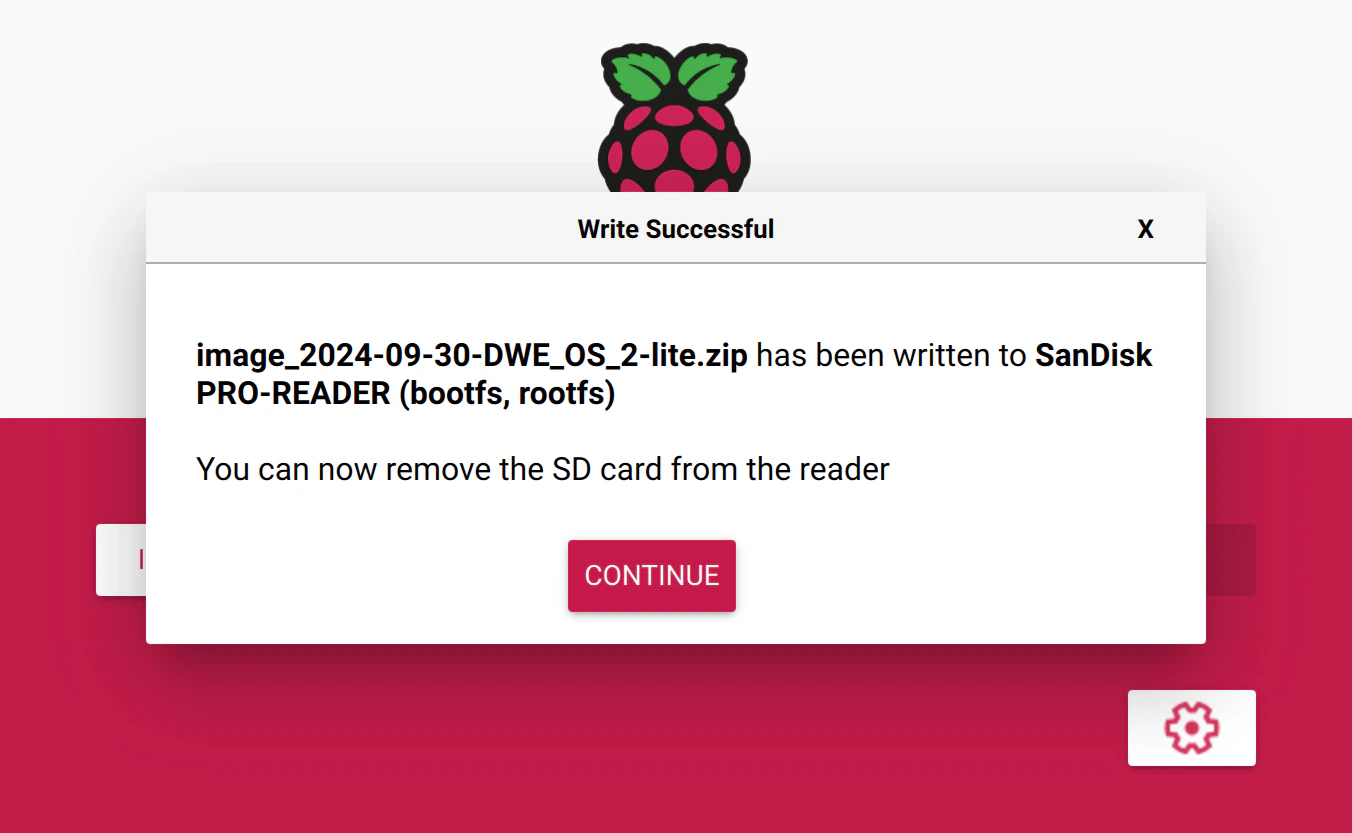
  <Step title="Success!">
    <img src="https://mintcdn.com/deepwaterexplorationinc/NrWVR9Qe6FWmBE6d/dwe-os/pages/images/dwe-os-2-success.png?fit=max&auto=format&n=NrWVR9Qe6FWmBE6d&q=85&s=7e3d7143046ceb737307f15e14692b62" alt="dweOS 2 Success" width="1352" height="833" data-path="dwe-os/pages/images/dwe-os-2-success.png" />
  </Step>

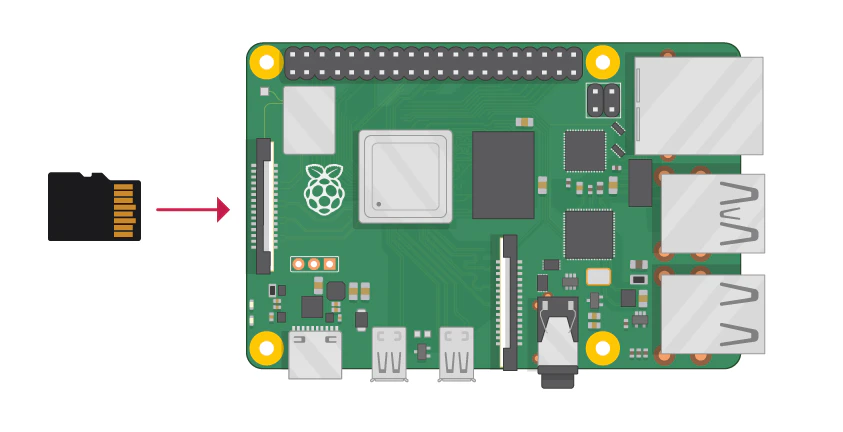
  <Step title="Insert SD Card and Boot!">
    <img src="https://mintcdn.com/deepwaterexplorationinc/NrWVR9Qe6FWmBE6d/dwe-os/pages/images/pi-insert-sd.png?fit=max&auto=format&n=NrWVR9Qe6FWmBE6d&q=85&s=539f35eb297cf05fa76791fdb4233018" alt="Insert SD Card Into Raspberry Pi" width="843" height="432" data-path="dwe-os/pages/images/pi-insert-sd.png" />
  </Step>
</Steps>