> ## Documentation Index
> Fetch the complete documentation index at: https://docs.dwe.ai/llms.txt
> Use this file to discover all available pages before exploring further.
# Get on to the dweOS Home Page
> This guide is to help you get to the home page of dweOS.
### Install dweOS
If you haven't install dweOS, install it on your existing Linux system or Raspberry Pi.
Once you have finished installing **dweOS** via the command line, you can access the graphical interface through any modern web browser.
Depending on where dweOS is running relative to your current device, use one of the two methods below.
## Connection Methods
### 1. Local Access
If you are sitting at the same machine where dweOS was installed, you can reach the home page using the local loopback address.
* **URL:** `http://localhost`
* **Port:** 80 (Default)
Since dweOS runs on the standard HTTP port (80), you don't need to type the port number into your browser. Just `http://localhost` will work!
***
### 2. Remote Access (Network)
If dweOS is installed on a separate device (like a server, Raspberry Pi, or a dedicated workstation) on your local network, you will need that device's IP address.
1. **Find the IP address** of the host machine (e.g., run `hostname -I` or `ifconfig` on Linux).
2. **Enter the IP** into your browser's address bar.
| Setup Type | Address Format |
| :-------------- | :----------------------------------- |
| **Standard IP** | `http://192.168.1.XX` |
| **Hostname** | `http://dweos.local` (if configured) |
## Success
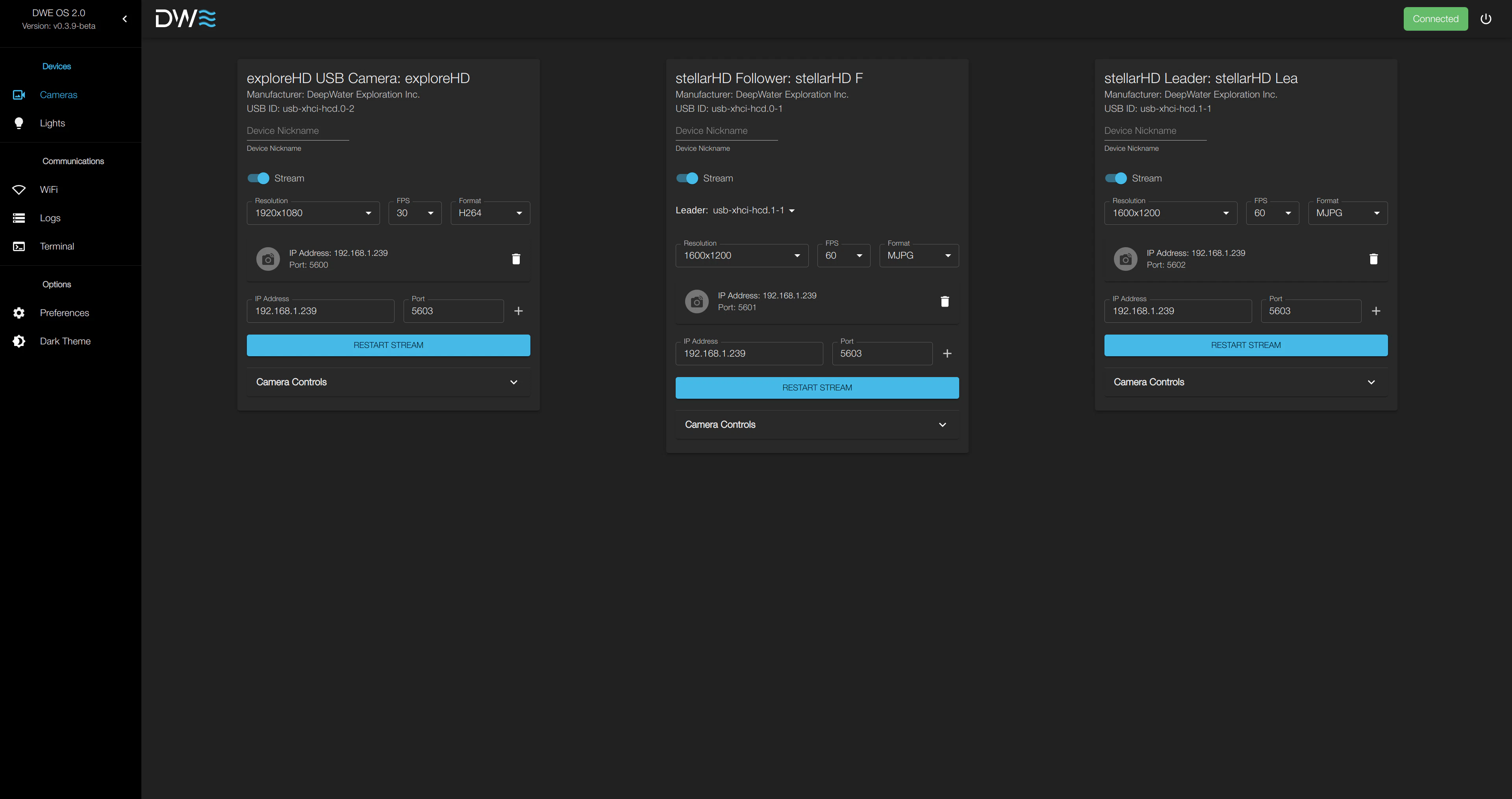
Once you reach the home page of dweOS, you can move on to streaming video from your cameras!
 ***
## Troubleshooting
### Ask an assistant
I am having trouble accessing the dweOS Home Page. I need you to act as a technical support engineer specialized in dweOS.
Your Source Material: > Please use the official documentation at [https://docs.dwe.ai/dwe-os/guides/quickstart.md](https://docs.dwe.ai/dwe-os/guides/quickstart.md) to guide your troubleshooting.
Your Instructions:
* Do not provide a generic list of fixes yet.
* Instead, start by asking me the necessary diagnostic questions (one or two at a time) to understand my specific setup (e.g., Installation method, Local vs. Remote access, and specific error messages).
* Once you have my details, cross-reference them with the Troubleshooting Connectivity section of the documentation.
* Guide me step-by-step through checking my service status, firewall settings, and port conflicts until the page loads.
Please start by introducing yourself as the dweOS Support Assistant and ask me the first set of questions you need to help me.
Chat with Google Gemini.
Chat with Claude.
Chat with ChatGPT.
### Frequently missed
If the page fails to load, please check the following:
Ensure the dweOS process is actually running in your terminal. Look for a "Server started" or "Listening on port 80" message in your logs.
If accessing remotely, ensure your system's firewall allows incoming traffic on **Port 80**.
Make sure no other web server (like Apache or Nginx) is already using Port 80 on that device.
***
## Troubleshooting
### Ask an assistant
I am having trouble accessing the dweOS Home Page. I need you to act as a technical support engineer specialized in dweOS.
Your Source Material: > Please use the official documentation at [https://docs.dwe.ai/dwe-os/guides/quickstart.md](https://docs.dwe.ai/dwe-os/guides/quickstart.md) to guide your troubleshooting.
Your Instructions:
* Do not provide a generic list of fixes yet.
* Instead, start by asking me the necessary diagnostic questions (one or two at a time) to understand my specific setup (e.g., Installation method, Local vs. Remote access, and specific error messages).
* Once you have my details, cross-reference them with the Troubleshooting Connectivity section of the documentation.
* Guide me step-by-step through checking my service status, firewall settings, and port conflicts until the page loads.
Please start by introducing yourself as the dweOS Support Assistant and ask me the first set of questions you need to help me.
Chat with Google Gemini.
Chat with Claude.
Chat with ChatGPT.
### Frequently missed
If the page fails to load, please check the following:
Ensure the dweOS process is actually running in your terminal. Look for a "Server started" or "Listening on port 80" message in your logs.
If accessing remotely, ensure your system's firewall allows incoming traffic on **Port 80**.
Make sure no other web server (like Apache or Nginx) is already using Port 80 on that device.