> ## Documentation Index
> Fetch the complete documentation index at: https://docs.dwe.ai/llms.txt
> Use this file to discover all available pages before exploring further.

# Desktop Network Setup Guide

> This guide is to help you set up a direct connection between your vehicle/system with your laptop/PC or other desktop computer.

<Note>
  Ensure you are directly connecting your vehicle/system to an ethernet port on your
  laptop/PC.
</Note>

## Configure Device Ethernet

This step is necessary to set the IP of your device in the local network provided by the Raspberry Pi over ethernet.

<Tabs>
  <Tab title="Windows">
    <Steps>
      <Step>
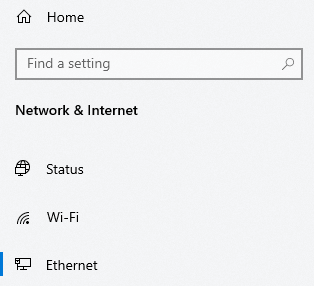
        Under **Settings/Network & Ethernet**, select **Ethernet**

        <Frame>
          <img src="https://mintcdn.com/deepwaterexplorationinc/PpwtoMTlxduUAF0D/dwe-os/guides/images/desktop-network-setup/windows/network.png?fit=max&auto=format&n=PpwtoMTlxduUAF0D&q=85&s=1c119ac65c85a2620358740ccda88908" width="314" height="286" data-path="dwe-os/guides/images/desktop-network-setup/windows/network.png" />
        </Frame>
      </Step>

      <Step>
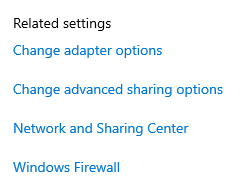
        Under **Related Settings** on the right, select `Change Adapter Options`

        <Frame>
          <img src="https://mintcdn.com/deepwaterexplorationinc/PpwtoMTlxduUAF0D/dwe-os/guides/images/desktop-network-setup/windows/adapter_options.png?fit=max&auto=format&n=PpwtoMTlxduUAF0D&q=85&s=9ad240fbe4d5895950e5c4d3d268ce6a" width="251" height="192" data-path="dwe-os/guides/images/desktop-network-setup/windows/adapter_options.png" />
        </Frame>
      </Step>

      <Step>
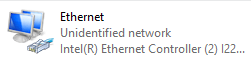
        Find the adapter named `Ethernet` with the subtitle of `Unidentified Network`

        <Frame>
          <img src="https://mintcdn.com/deepwaterexplorationinc/PpwtoMTlxduUAF0D/dwe-os/guides/images/desktop-network-setup/windows/adapter.png?fit=max&auto=format&n=PpwtoMTlxduUAF0D&q=85&s=260cdb758ce555e30fe0916a757b1154" width="251" height="63" data-path="dwe-os/guides/images/desktop-network-setup/windows/adapter.png" />
        </Frame>
      </Step>

      <Step>
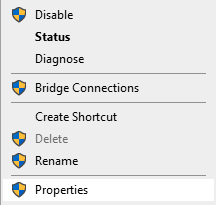
        Right-click the adapter and select `Properties`

        <Frame>
          <img src="https://mintcdn.com/deepwaterexplorationinc/PpwtoMTlxduUAF0D/dwe-os/guides/images/desktop-network-setup/windows/right-click-adapter.png?fit=max&auto=format&n=PpwtoMTlxduUAF0D&q=85&s=d7d922cd43863c3dca561582f2f55c8a" width="216" height="205" data-path="dwe-os/guides/images/desktop-network-setup/windows/right-click-adapter.png" />
        </Frame>
      </Step>

      <Step>
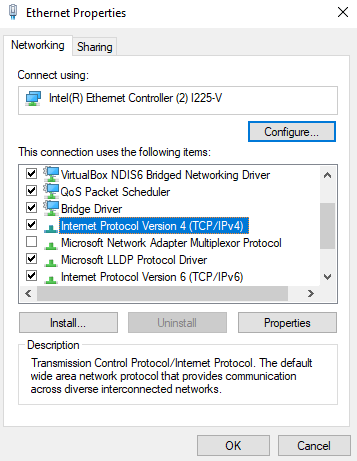
        Locate `Internet Protocol Version 4 (TCP/IPv4)` and select `Properties`

        <Frame>
          <img src="https://mintcdn.com/deepwaterexplorationinc/PpwtoMTlxduUAF0D/dwe-os/guides/images/desktop-network-setup/windows/properties.png?fit=max&auto=format&n=PpwtoMTlxduUAF0D&q=85&s=2fb8e86ec8dbe3d7f46b780e9b0666e2" width="357" height="461" data-path="dwe-os/guides/images/desktop-network-setup/windows/properties.png" />
        </Frame>
      </Step>

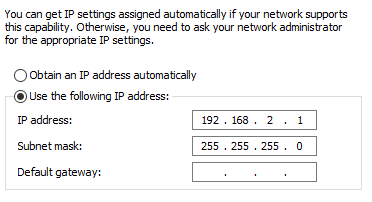
      <Step>
        Edit the menu to look like the following:

        <Frame>
          <img src="https://mintcdn.com/deepwaterexplorationinc/PpwtoMTlxduUAF0D/dwe-os/guides/images/desktop-network-setup/windows/settings.png?fit=max&auto=format&n=PpwtoMTlxduUAF0D&q=85&s=82513e9541fc15b2567a8d63d0e001c4" width="372" height="202" data-path="dwe-os/guides/images/desktop-network-setup/windows/settings.png" />
        </Frame>
      </Step>

      <Step>
        Click `OK` to apply changes. This should now allow your Pi to identify your Windows device under the correct ip address to stream data to.
      </Step>
    </Steps>
  </Tab>

  <Tab title="Linux">
    <Note>
      These instructions are for `Ubuntu 22.04`, however, can be generalized to most Linux Distros.
    </Note>

    <Steps>
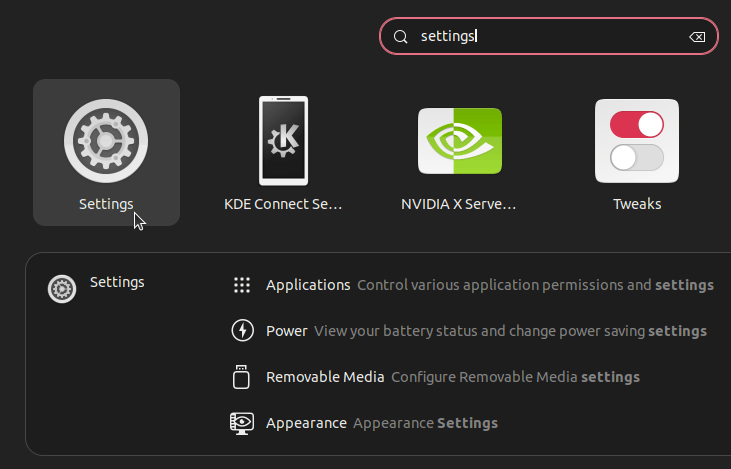
      <Step>
        Search for **Settings**.

        <Frame>
          <img width="500px" src="https://mintcdn.com/deepwaterexplorationinc/PpwtoMTlxduUAF0D/dwe-os/guides/images/desktop-network-setup/ubuntu/settings.png?fit=max&auto=format&n=PpwtoMTlxduUAF0D&q=85&s=c59cebe7f13f002b78cc980e5d6eeda1" data-path="dwe-os/guides/images/desktop-network-setup/ubuntu/settings.png" />
        </Frame>
      </Step>

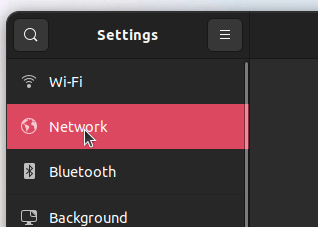
      <Step>
        Select **Network**.

        <Frame>
          <img src="https://mintcdn.com/deepwaterexplorationinc/PpwtoMTlxduUAF0D/dwe-os/guides/images/desktop-network-setup/ubuntu/network.png?fit=max&auto=format&n=PpwtoMTlxduUAF0D&q=85&s=58e3bba2b494d24d67fb2bd0a97aad00" width="318" height="227" data-path="dwe-os/guides/images/desktop-network-setup/ubuntu/network.png" />
        </Frame>
      </Step>

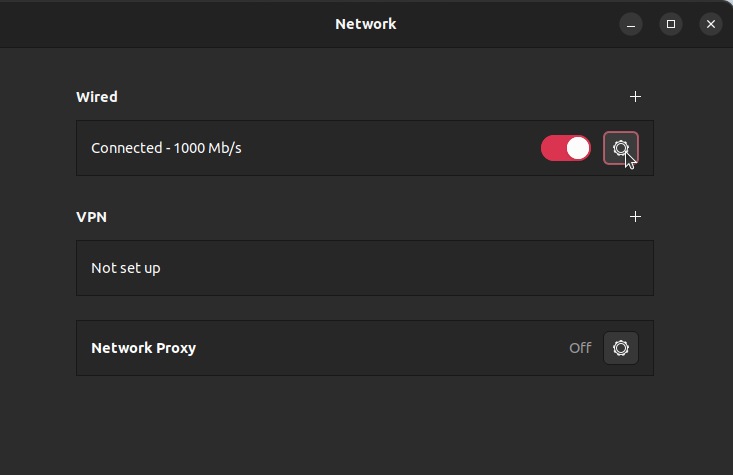
      <Step>
        Under to **Wired**, select the settings/gear icon.

        <Frame>
          <img width="500px" src="https://mintcdn.com/deepwaterexplorationinc/PpwtoMTlxduUAF0D/dwe-os/guides/images/desktop-network-setup/ubuntu/wired.png?fit=max&auto=format&n=PpwtoMTlxduUAF0D&q=85&s=ec6da17db99bba5bc3c4b9a1360f863f" data-path="dwe-os/guides/images/desktop-network-setup/ubuntu/wired.png" />
        </Frame>
      </Step>

      <Step>
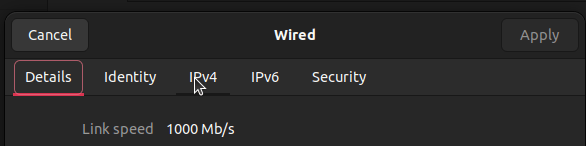
        Select the **IPv4** tab at the top.

        <Frame>
          <img src="https://mintcdn.com/deepwaterexplorationinc/PpwtoMTlxduUAF0D/dwe-os/guides/images/desktop-network-setup/ubuntu/ipv4_tab.png?fit=max&auto=format&n=PpwtoMTlxduUAF0D&q=85&s=8c1323132e22fcedc2094b1919febac4" width="586" height="146" data-path="dwe-os/guides/images/desktop-network-setup/ubuntu/ipv4_tab.png" />
        </Frame>
      </Step>

      <Step>
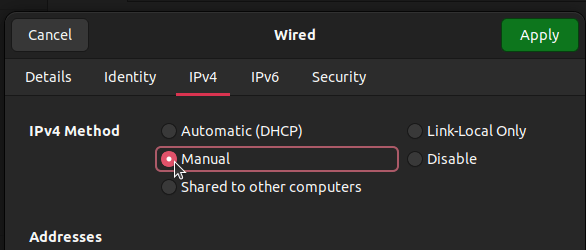
        Under **IPv4 Method**, select **Manual**.

        <Frame>
          <img src="https://mintcdn.com/deepwaterexplorationinc/PpwtoMTlxduUAF0D/dwe-os/guides/images/desktop-network-setup/ubuntu/manual.png?fit=max&auto=format&n=PpwtoMTlxduUAF0D&q=85&s=2367cda5fc80bb25c613f2296cc2fe1b" width="586" height="250" data-path="dwe-os/guides/images/desktop-network-setup/ubuntu/manual.png" />
        </Frame>
      </Step>

      <Step>
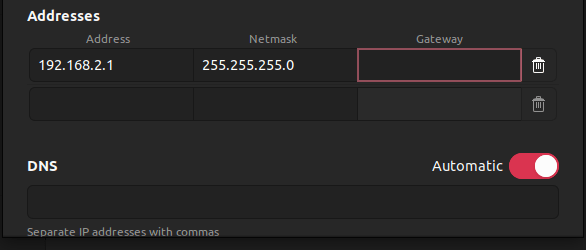
        Under **Addresses** change your settings to the following:

        <Frame>
          <img src="https://mintcdn.com/deepwaterexplorationinc/PpwtoMTlxduUAF0D/dwe-os/guides/images/desktop-network-setup/ubuntu/ip_settings.png?fit=max&auto=format&n=PpwtoMTlxduUAF0D&q=85&s=69292f4c1266453f701ea2ba2407397b" width="586" height="250" data-path="dwe-os/guides/images/desktop-network-setup/ubuntu/ip_settings.png" />
        </Frame>
      </Step>

      <Step>
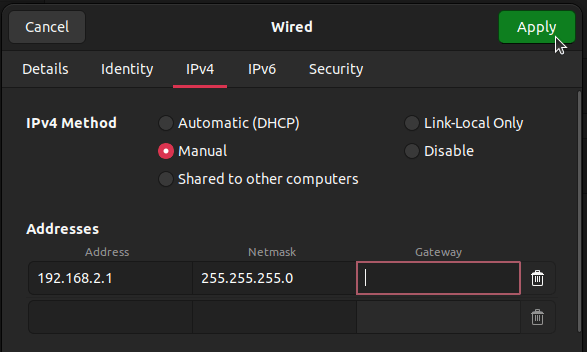
        Click **Apply**. This should now allow your Pi to identify your Linux device under the correct ip address.

        <Frame>
          <img src="https://mintcdn.com/deepwaterexplorationinc/PpwtoMTlxduUAF0D/dwe-os/guides/images/desktop-network-setup/ubuntu/apply.png?fit=max&auto=format&n=PpwtoMTlxduUAF0D&q=85&s=55c1f6df9c8b06d3b03c6b34706b01cb" width="587" height="352" data-path="dwe-os/guides/images/desktop-network-setup/ubuntu/apply.png" />
        </Frame>
      </Step>
    </Steps>
  </Tab>
</Tabs>

<div onClick={() => window.history.back()} onMouseEnter={(e) => e.currentTarget.firstChild.style.borderColor = '#46bae7'} onMouseLeave={(e) => e.currentTarget.firstChild.style.borderColor = ''} style={{ cursor: 'pointer', display: 'contents' }}>
  <Card title="Return to the previous page" icon="u-turn-down-left" iconType="duotone">
    This button will take you back to the page you were on previously!
  </Card>
</div>