> ## Documentation Index
> Fetch the complete documentation index at: https://docs.dwe.ai/llms.txt
> Use this file to discover all available pages before exploring further.

# Recording

## Overview

<Warning>
  **DeepWater Desktop is a beta product.** While we are actively refining and testing, you
  may encounter occasional bugs, performance dips, or unexpected behavior.
  Please submit bug reports and feature requests to our team at [support@dwe.ai](mailto:support@dwe.ai).
</Warning>

When connected to an SVC Pro, DeepWater Desktop can instruct the device to record footage while streaming video.
This process is useful to enable post-processing of your <Tooltip tip="DWVO (DeepWater Video Object) is a file format containing a series of synchronized JPEGs from 2 or more cameras.
">**DWVO\***</Tooltip> files later.

The files can be downloaded directly from your SVC Pro.

## Requirements

* SVC Pro Module - Running dweOS Pro
* Topside Computer/Laptop - Running DeepWater Desktop

## How to record on DeepWater Desktop

<Steps>
  <Step title="Start a stream">
    Make sure you have a stream started before attempting to record. Check out [our quickstart guide](/dw-desktop/quickstart), if you haven't done so already.
  </Step>

  <Step title="Start the recording">
    To start a recording, click the recording icon on the top, where the add stream button appeared.

    <Frame caption="The record button, indicated with a pointer.">
      <img src="https://mintcdn.com/deepwaterexplorationinc/UdD1I3IpEQ0TXmyO/dw-desktop/guides/images/recording/dw-desktop-recording-1.png?fit=max&auto=format&n=UdD1I3IpEQ0TXmyO&q=85&s=5b120b2342fac9bbd8f869f5ff0f3dc3" alt="Recording button image" width="543" height="35" data-path="dw-desktop/guides/images/recording/dw-desktop-recording-1.png" />
    </Frame>

    <br />

    <Frame caption="The record button will turn into a square, and the recording file size is displayed.">
      <img src="https://mintcdn.com/deepwaterexplorationinc/UdD1I3IpEQ0TXmyO/dw-desktop/guides/images/recording/dw-desktop-recording-2.png?fit=max&auto=format&n=UdD1I3IpEQ0TXmyO&q=85&s=970696e9ae5b5c4ba299234ae8d001ad" alt="Recording button image" width="543" height="35" data-path="dw-desktop/guides/images/recording/dw-desktop-recording-2.png" />
    </Frame>
  </Step>

  <Step title="End Recording">
    After you have recorded a sufficient amount of footage, you can click the square stop button to finalize the recording.

    <Frame caption="The check mark button will stop the recording.">
      <img src="https://mintcdn.com/deepwaterexplorationinc/UdD1I3IpEQ0TXmyO/dw-desktop/guides/images/recording/dw-desktop-recording-2.png?fit=max&auto=format&n=UdD1I3IpEQ0TXmyO&q=85&s=970696e9ae5b5c4ba299234ae8d001ad" alt="Recording button image" width="543" height="35" data-path="dw-desktop/guides/images/recording/dw-desktop-recording-2.png" />
    </Frame>
  </Step>

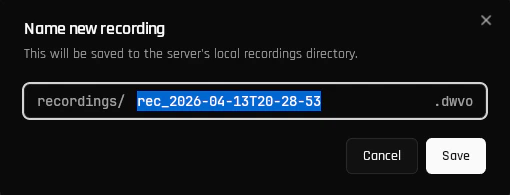
  <Step title="Name the recording">
    After ending the recording, you will be prompted to name your file. This file will be saved to your SVC Pro.
    <Frame>
      <img src="https://mintcdn.com/deepwaterexplorationinc/e9IFEnhdh_zc5r1X/dw-desktop/guides/images/recording/dw-desktop-recording-3.png?fit=max&auto=format&n=e9IFEnhdh_zc5r1X&q=85&s=6e3eca093d24f01bfcb3ed11f9acacb6" alt="Choose a name" width="510" height="195" data-path="dw-desktop/guides/images/recording/dw-desktop-recording-3.png" />
    </Frame>
  </Step>
</Steps>

## How to download a recording from the SVC Pro

<Steps>
  <Step title="Open dweOS Pro">
    Open your web browser and connect to dweOS Pro at the IP Address of your SVC Pro.
  </Step>

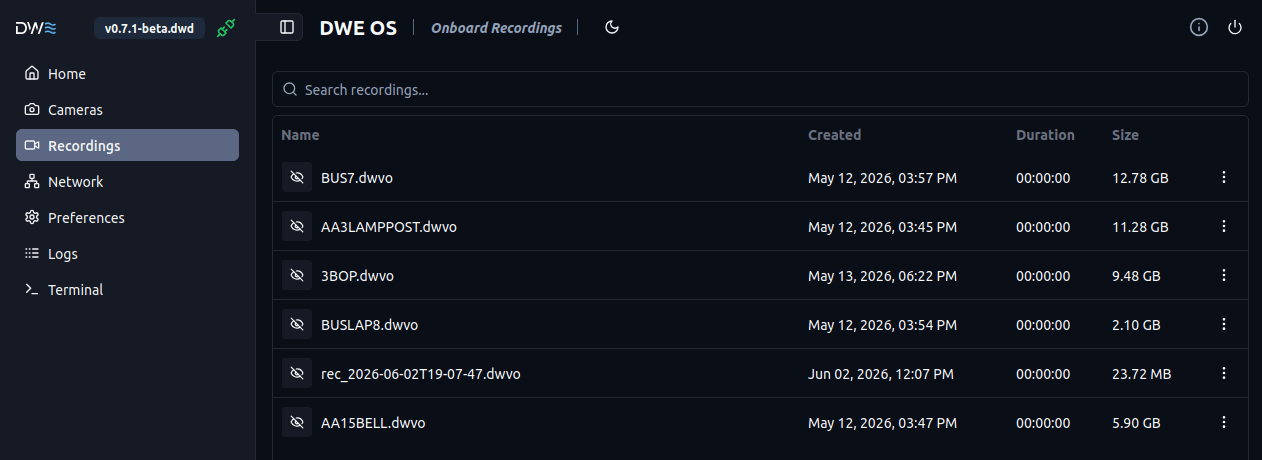
  <Step title="Open recordings page">
    Use the Menu on the left to navigate to the Recordings menu.
    <Frame>
      <img src="https://mintcdn.com/deepwaterexplorationinc/UdD1I3IpEQ0TXmyO/dw-desktop/guides/images/recording/dweos-pro-recordings.png?fit=max&auto=format&n=UdD1I3IpEQ0TXmyO&q=85&s=2cc0eea6a85ddc20407ad6a6ae7b1ff4" alt="dweOS Pro recordings page" width="1262" height="460" data-path="dw-desktop/guides/images/recording/dweos-pro-recordings.png" />
    </Frame>
  </Step>

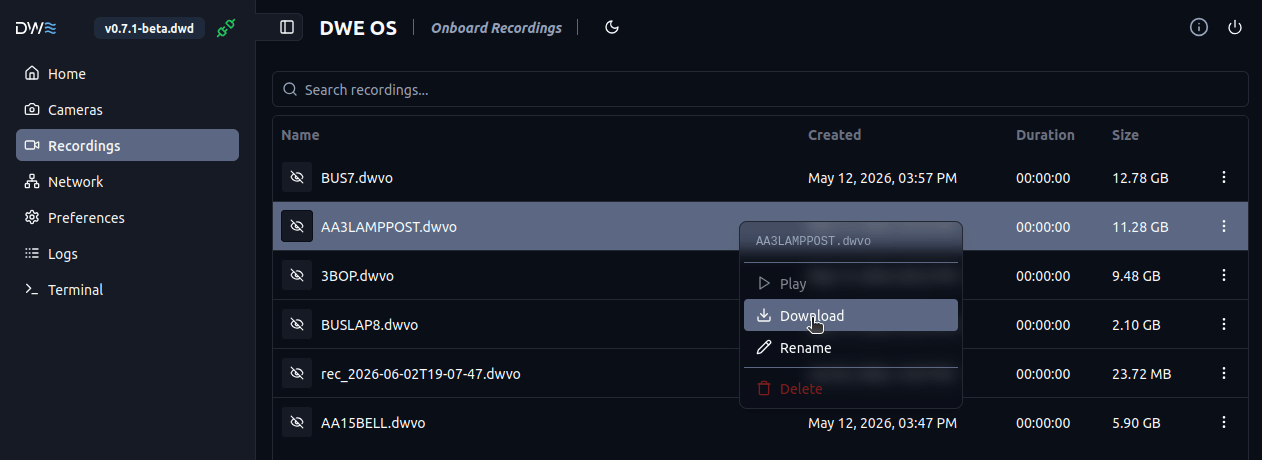
  <Step title="Download your file">
    Right-click the recording, and then click download to begin. You can also delete a recording to save space.
    <Frame>
      <img src="https://mintcdn.com/deepwaterexplorationinc/UdD1I3IpEQ0TXmyO/dw-desktop/guides/images/recording/dweos-pro-download-recordings.png?fit=max&auto=format&n=UdD1I3IpEQ0TXmyO&q=85&s=4bb8fd54e4d440b61525557414518f89" alt="dweOS Pro download recording" width="1262" height="460" data-path="dw-desktop/guides/images/recording/dweos-pro-download-recordings.png" />
    </Frame>
  </Step>

  <Step title="Success!">
    You have now downloaded a DWVO file! This file can be used to process the synchronized images for any number of applications!
  </Step>
</Steps>
