> ## Documentation Index
> Fetch the complete documentation index at: https://docs.dwe.ai/llms.txt
> Use this file to discover all available pages before exploring further.

# Streaming/Recording

> Control streaming and recording states.

## Streaming Buttons <Icon icon="play" iconType="solid" color="green" /> <Icon icon="stop" iconType="solid" color="orange" />

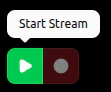
When the card **isn't** streaming, you can start the stream with <Icon icon="play" iconType="solid" color="green" /> **Start Stream**.

<Note>
  <Icon icon="circle" iconType="solid" color="red" /> **Start Recording** is
  disabled as there is no stream.
</Note>

<Frame>
  <img src="https://mintcdn.com/deepwaterexplorationinc/PpwtoMTlxduUAF0D/discovery/video-card-buttons/images/startStreamButton.png?fit=max&auto=format&n=PpwtoMTlxduUAF0D&q=85&s=8d61b02d8950e553b0e48f7620b858de" width="111" height="92" data-path="discovery/video-card-buttons/images/startStreamButton.png" />
</Frame>

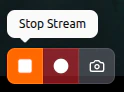
When the card **is** streaming, you have access to <Icon icon="stop" iconType="solid" color="orange" /> **Stop Stream** and <Icon icon="circle" iconType="solid" color="red" /> **Start Recording**.
If the stream is **MJPEG**, you will have access to <Icon icon="camera" color="#46bae7" /> [**Snapshot**](/discovery/video-card-buttons/snapshotting).
<Frame>
  <img src="https://mintcdn.com/deepwaterexplorationinc/PpwtoMTlxduUAF0D/discovery/video-card-buttons/images/stopStreamButton.png?fit=max&auto=format&n=PpwtoMTlxduUAF0D&q=85&s=2520d840aebd5b3f1433d1b385922e9e" width="124" height="92" data-path="discovery/video-card-buttons/images/stopStreamButton.png" />
</Frame>

There will also be **no** activity light when the card **isn't** streaming.
<Frame>
  <img src="https://mintcdn.com/deepwaterexplorationinc/PpwtoMTlxduUAF0D/discovery/video-card-buttons/images/noStreamLight.png?fit=max&auto=format&n=PpwtoMTlxduUAF0D&q=85&s=62253693a4dd6d36c2fab7a69b35c003" width="143" height="55" data-path="discovery/video-card-buttons/images/noStreamLight.png" />
</Frame>

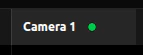
The activity light will be **solid** <Icon icon="circle" iconType="solid" color="green" size={8} /> when the card **is** streaming.

<Frame>
  <img src="https://mintcdn.com/deepwaterexplorationinc/PpwtoMTlxduUAF0D/discovery/video-card-buttons/images/activeStreamLight.png?fit=max&auto=format&n=PpwtoMTlxduUAF0D&q=85&s=a774521e18c5188c4fc686bb7180220e" width="143" height="55" data-path="discovery/video-card-buttons/images/activeStreamLight.png" />
</Frame>

***

## Recording Buttons <Icon icon="circle" iconType="solid" color="red" /> <Icon icon="record-vinyl" iconType="regular" color="red" />

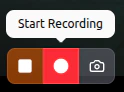
When the card is streaming **and** the video is not already recording, you can **start** a recording by pressing <Icon icon="circle" iconType="solid" color="red" /> **Start Recording**.

<Frame>
  <img src="https://mintcdn.com/deepwaterexplorationinc/PpwtoMTlxduUAF0D/discovery/video-card-buttons/images/recordButton.png?fit=max&auto=format&n=PpwtoMTlxduUAF0D&q=85&s=af0e168f7e41fdd31585e259b9e26086" width="124" height="92" data-path="discovery/video-card-buttons/images/recordButton.png" />
</Frame>

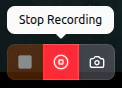
While the card is **recording**, you can conclude the recording with <Icon icon="record-vinyl" iconType="regular" color="red" /> **Stop Recording**.

<Frame>
  <img src="https://mintcdn.com/deepwaterexplorationinc/PpwtoMTlxduUAF0D/discovery/video-card-buttons/images/stopRecordButton.png?fit=max&auto=format&n=PpwtoMTlxduUAF0D&q=85&s=47a6a008782d2165aaeac112447b964b" width="122" height="88" data-path="discovery/video-card-buttons/images/stopRecordButton.png" />
</Frame>

The activity light will be **slow blinking** <Icon icon="circle" iconType="solid" color="red" size={8} /> while the card is actively recording.

<Frame>
  <video controls={false} autoPlay loop className="h-full aspect-video" src="https://mintcdn.com/deepwaterexplorationinc/e0wVLTi_h45Y5fkF/discovery/video-card-buttons/images/animations/activeRecordingLight.webm?fit=max&auto=format&n=e0wVLTi_h45Y5fkF&q=85&s=f13eeb5759ee4ef292d1b1e4f303e981" data-path="discovery/video-card-buttons/images/animations/activeRecordingLight.webm" />
</Frame>

> The resulting video(s) can be found through the file path under "Save Paths" within the [Capture Path Settings](/discovery/global-settings/capture-paths) card.