> ## Documentation Index
> Fetch the complete documentation index at: https://docs.dwe.ai/llms.txt
> Use this file to discover all available pages before exploring further.
# Settings Overview
> An introduction to configuring Discovery.
Open the settings page by clicking the "Settings" tab in the top menu bar.
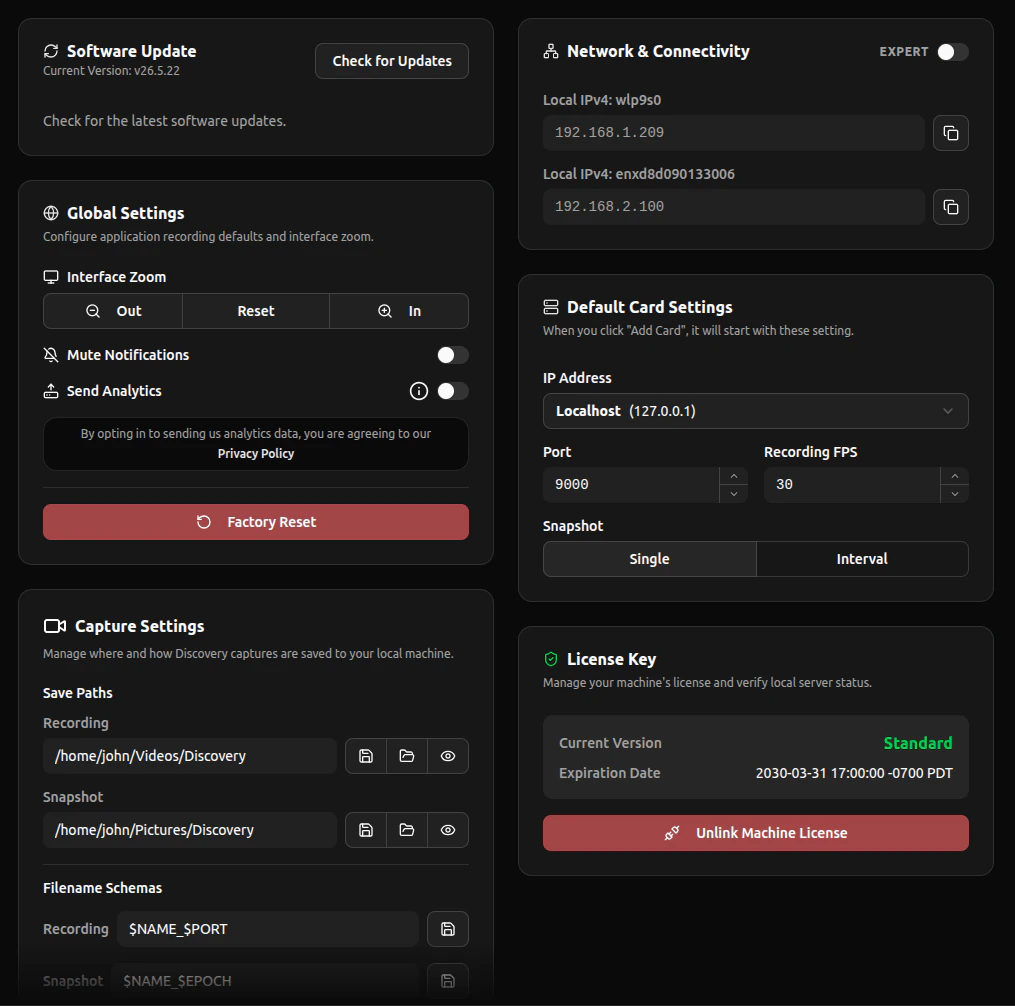 Each card holds settings for a different part of the software. Select a section below to learn more:
Application-wide settings like zoom, notifications, and analytics.
Choose where your recordings and snapshots are saved.
Customize how saved files are named.
Set the default parameters for new video cards.
View scanned network IPs and configure advanced networking.
Scan for and install Discovery updates.
Each card holds settings for a different part of the software. Select a section below to learn more:
Application-wide settings like zoom, notifications, and analytics.
Choose where your recordings and snapshots are saved.
Customize how saved files are named.
Set the default parameters for new video cards.
View scanned network IPs and configure advanced networking.
Scan for and install Discovery updates.