> ## Documentation Index
> Fetch the complete documentation index at: https://docs.dwe.ai/llms.txt
> Use this file to discover all available pages before exploring further.

# dweOS auf einem neuen Raspberry Pi installieren

> Diese Anleitung hilft Ihnen bei der Installation unseres dweOS-Images.

## Erste Schritte

<Note>
  Diese Methode wird nicht empfohlen, aufgrund der Komplexität der dem Image zugewiesenen statischen IP-Adresse (192.168.2.2).
  Wir empfehlen, zuerst Raspberry Pi OS zu installieren und dweOS anschließend [über die Kommandozeile](/de/dwe-os/installation/cmd-line) zu installieren.
</Note>

<Tip>
  Wenn Sie BlueOS verwenden, folgen Sie unserer Anleitung, um [dweOS als BlueOS-Erweiterung
  zu installieren](/de/dwe-os/installation/blueos).
</Tip>

## Installation auf einer neuen micro SD-Karte

<Steps>
  <Step title="Erster Schritt">
    Laden Sie das neueste Image [hier](https://github.com/DeepwaterExploration/dweOS/releases/latest) herunter.
  </Step>

  <Step title="Zweiter Schritt">
    Laden Sie den [Raspberry Pi Imager](https://www.raspberrypi.com/software/) herunter, um das Image auf eine SD-Karte zu flashen.
  </Step>

  <Step title="Gerät auswählen">
    <video controls={true} autoPlay loop height="300px" className="w-full aspect-video" src="https://cdn.shopify.com/videos/c/o/v/ce746d70d36443e4b5dcbab6a2e89a87.webm" />
  </Step>

  <Step title="Das dweOS 2 Image auswählen">
    <video controls={true} autoPlay loop height="300px" className="w-full aspect-video" src="https://cdn.shopify.com/videos/c/o/v/7cc23a4b35724451886fb1eea783edf8.webm" />
  </Step>

  <Step title="Die SD-Karte auswählen">
    <video controls={true} autoPlay loop height="300px" className="w-full aspect-video" src="https://cdn.shopify.com/videos/c/o/v/70b76e866efd4757ac16f1d1cf577395.webm" />
  </Step>

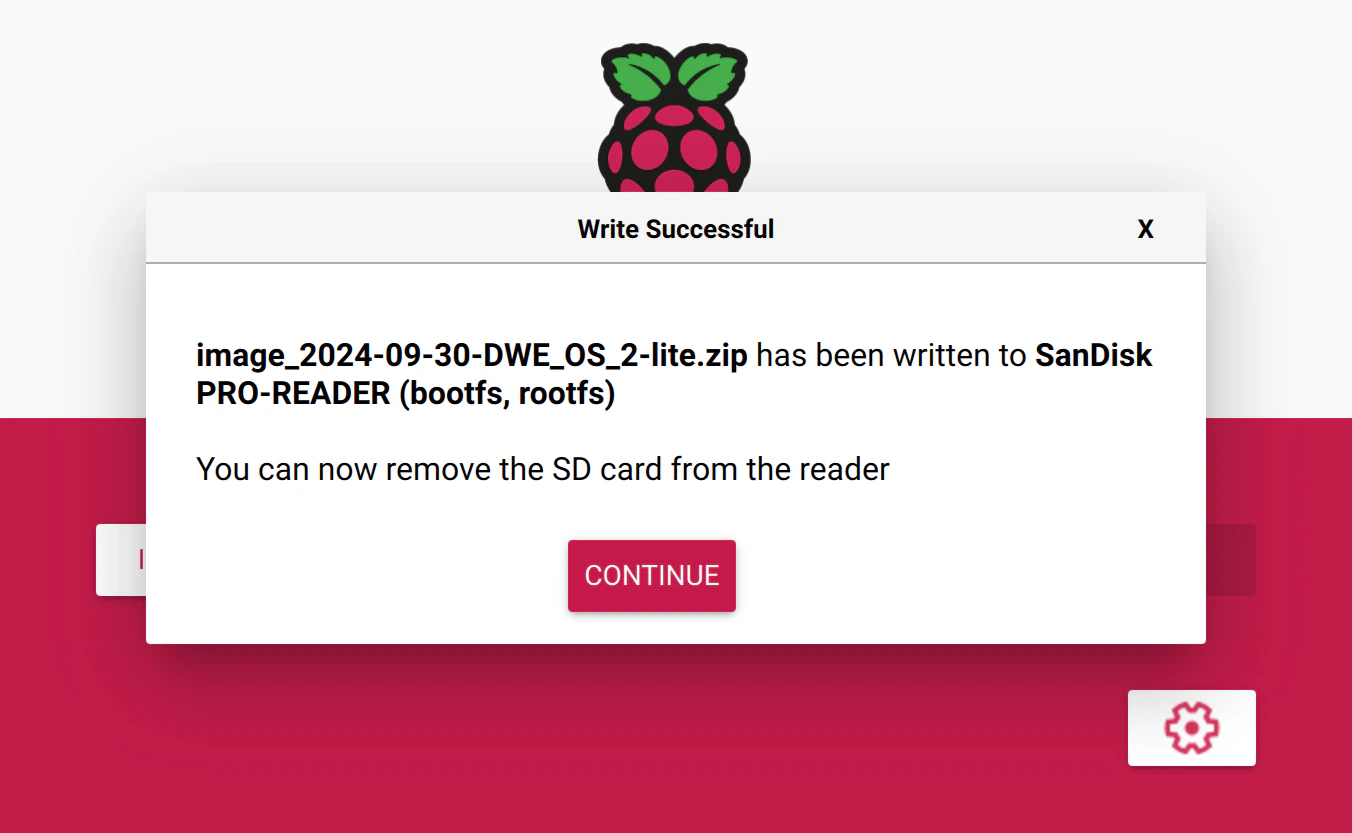
  <Step title="Erfolgreich!">
    <img src="https://mintcdn.com/deepwaterexplorationinc/NrWVR9Qe6FWmBE6d/dwe-os/pages/images/dwe-os-2-success.png?fit=max&auto=format&n=NrWVR9Qe6FWmBE6d&q=85&s=7e3d7143046ceb737307f15e14692b62" alt="dweOS 2 Success" width="1352" height="833" data-path="dwe-os/pages/images/dwe-os-2-success.png" />
  </Step>

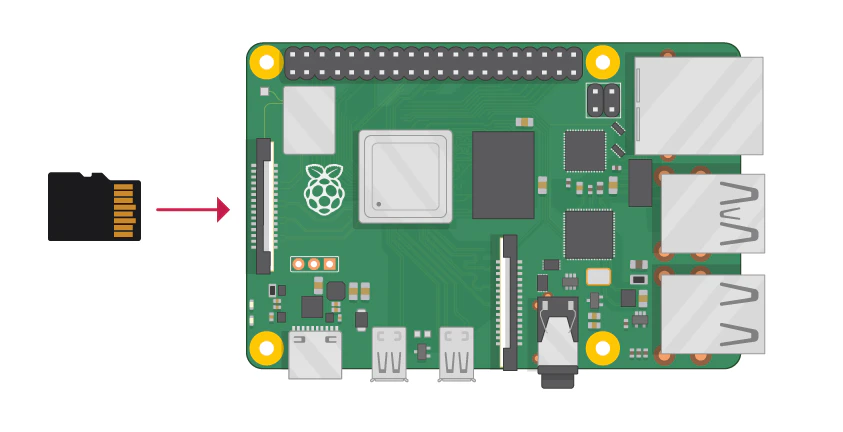
  <Step title="SD-Karte einlegen und starten!">
    <img src="https://mintcdn.com/deepwaterexplorationinc/NrWVR9Qe6FWmBE6d/dwe-os/pages/images/pi-insert-sd.png?fit=max&auto=format&n=NrWVR9Qe6FWmBE6d&q=85&s=539f35eb297cf05fa76791fdb4233018" alt="Insert SD Card Into Raspberry Pi" width="843" height="432" data-path="dwe-os/pages/images/pi-insert-sd.png" />
  </Step>
</Steps>